Stock Issuance — Decentralized
How the warehouse issues stock to decentralized kitchens, and how the kitchen officer receives it.
Centralized kitchens use a partial issuance flow. See Partial Issuance (Centralized) instead.
Issuing stock
Video walkthrough
Step by step
A written companion to the video above. Pending orders are grouped by region, so the warehouse can issue to every kitchen in a region at once — seven kitchens in Nakuru in the example below.
Step 1 — Open Inventory Management
From Home, open Inventory Management under Kitchen Operations.
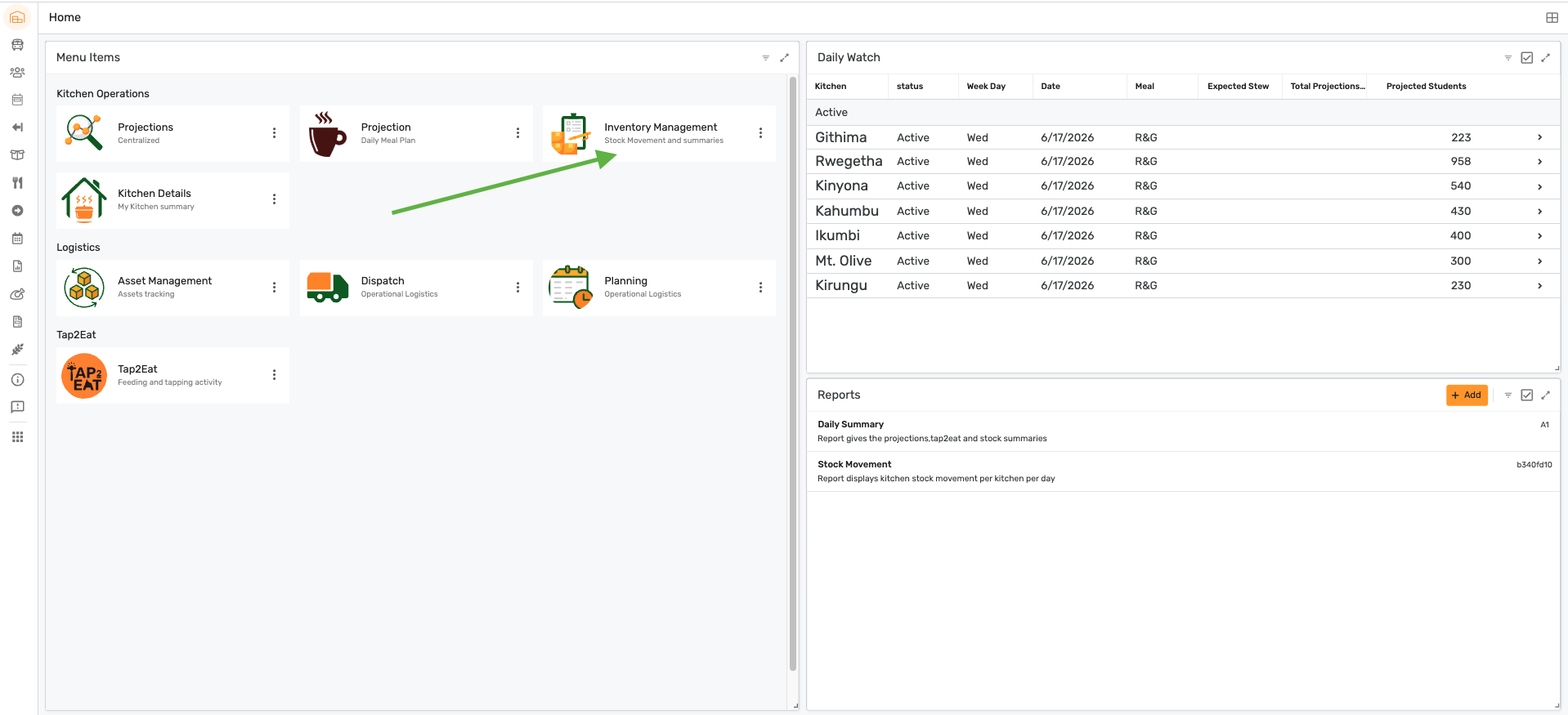
Step 2 — Open Stock Issuance
Select the Stock Issuance card.
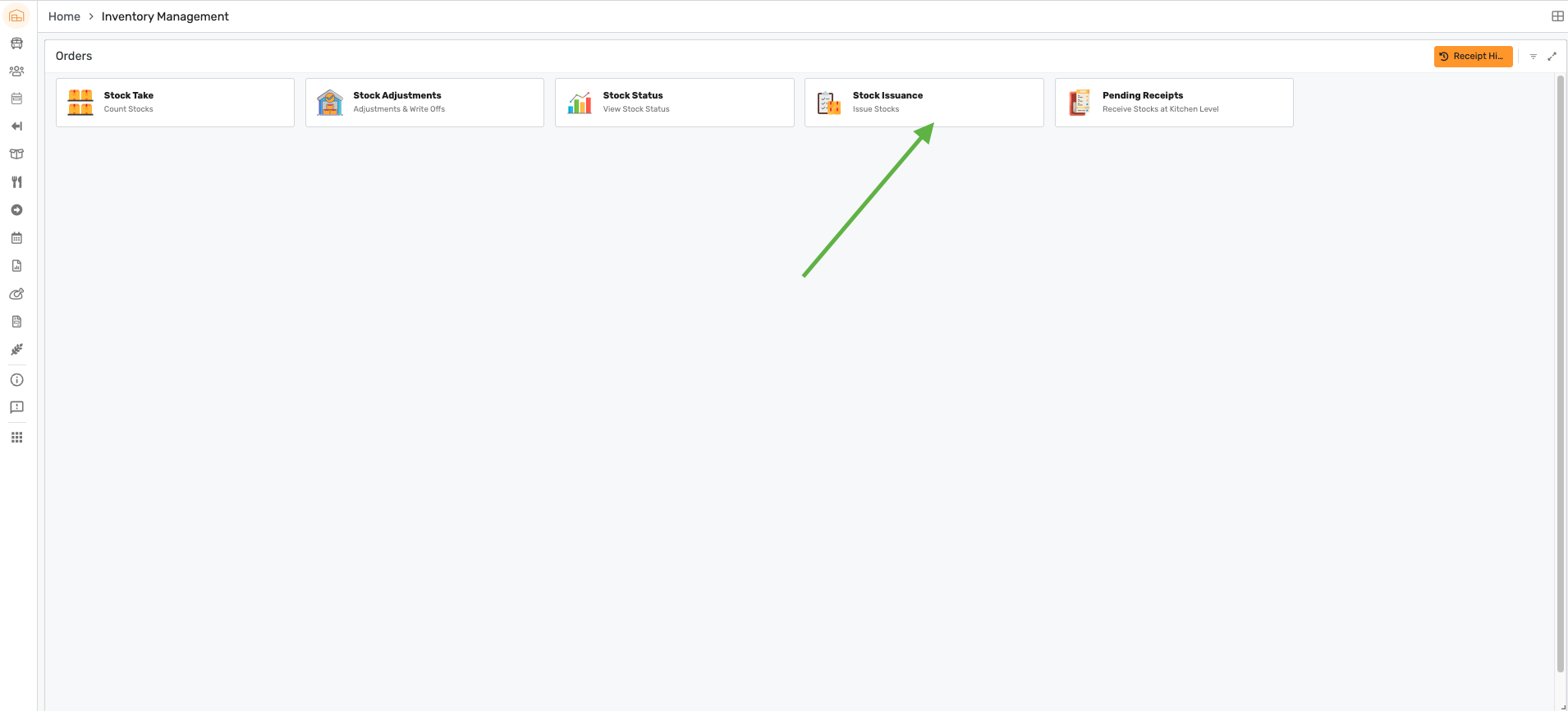
Step 3 — Find the pending orders
The Issuance list shows every pending order, with a column per commodity issued. Expand Pending on the left to filter by region.
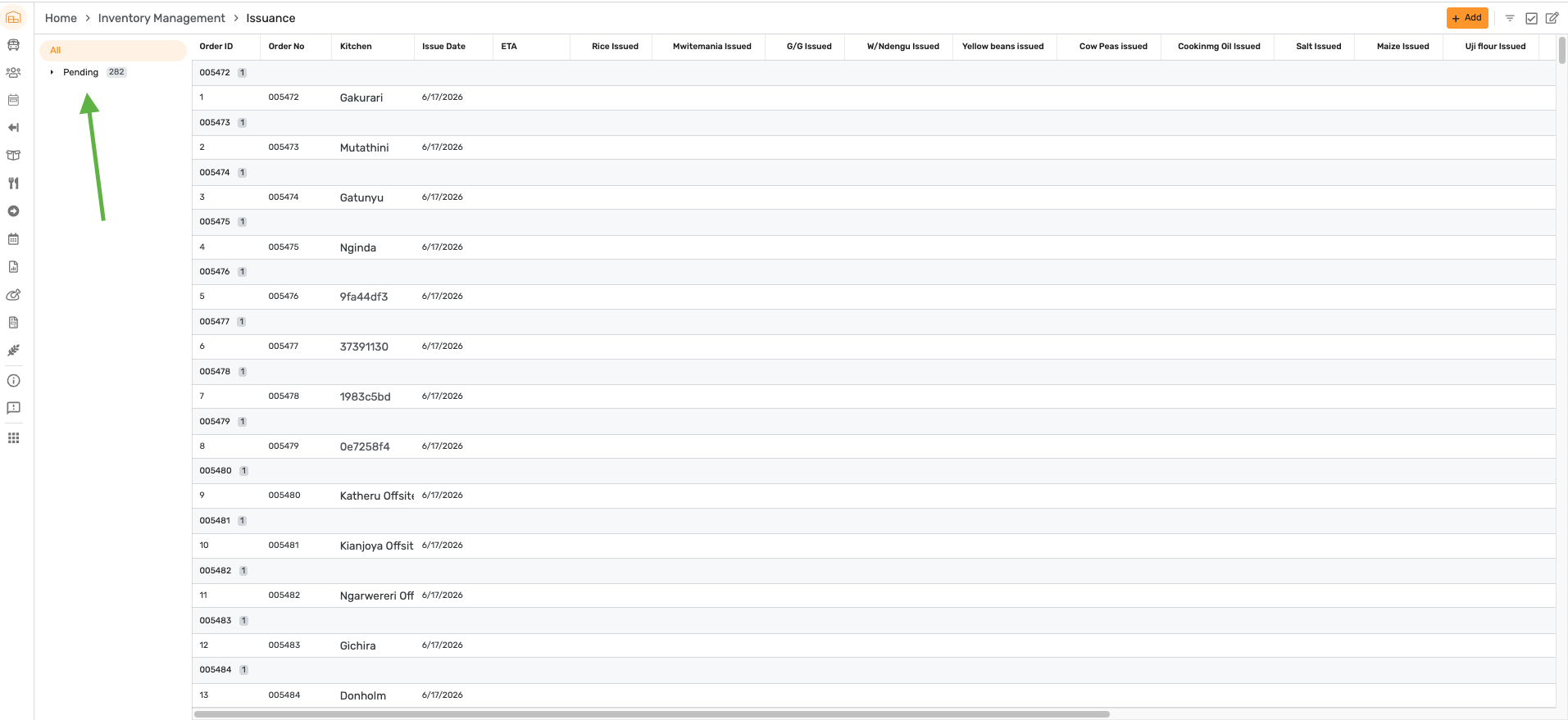
Step 4 — Edit the quantities per item
With a region selected, edit the quantity issued for each item directly in the row, then Save.
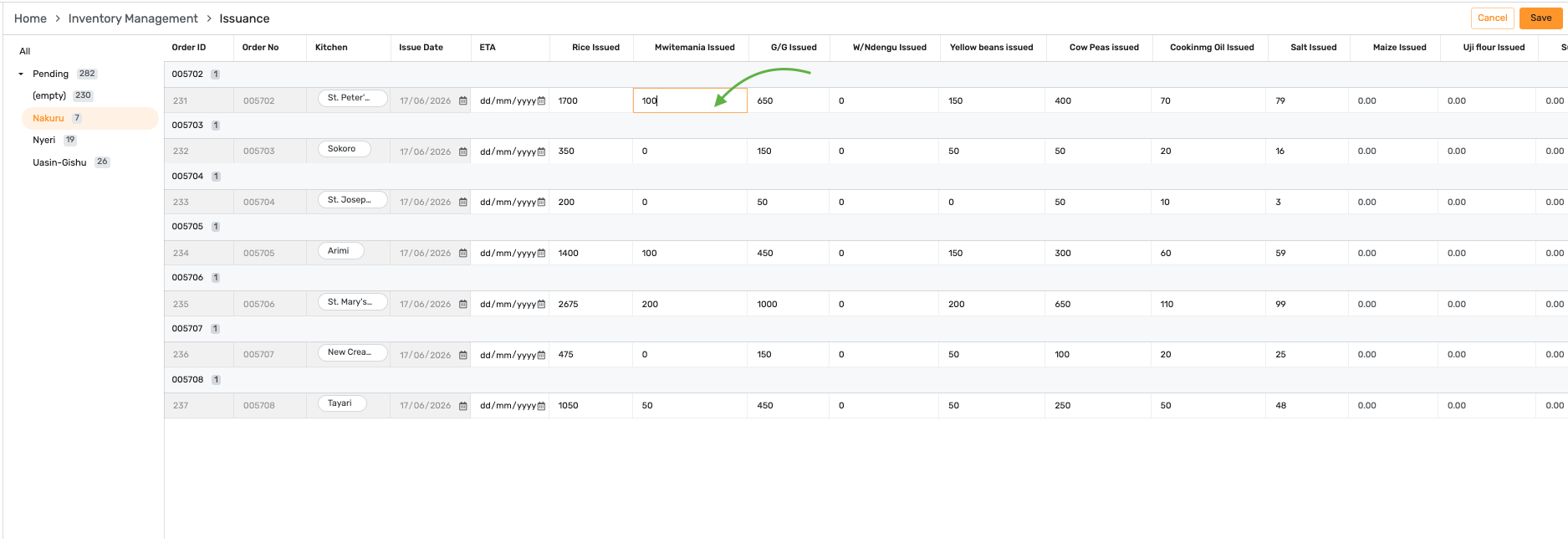
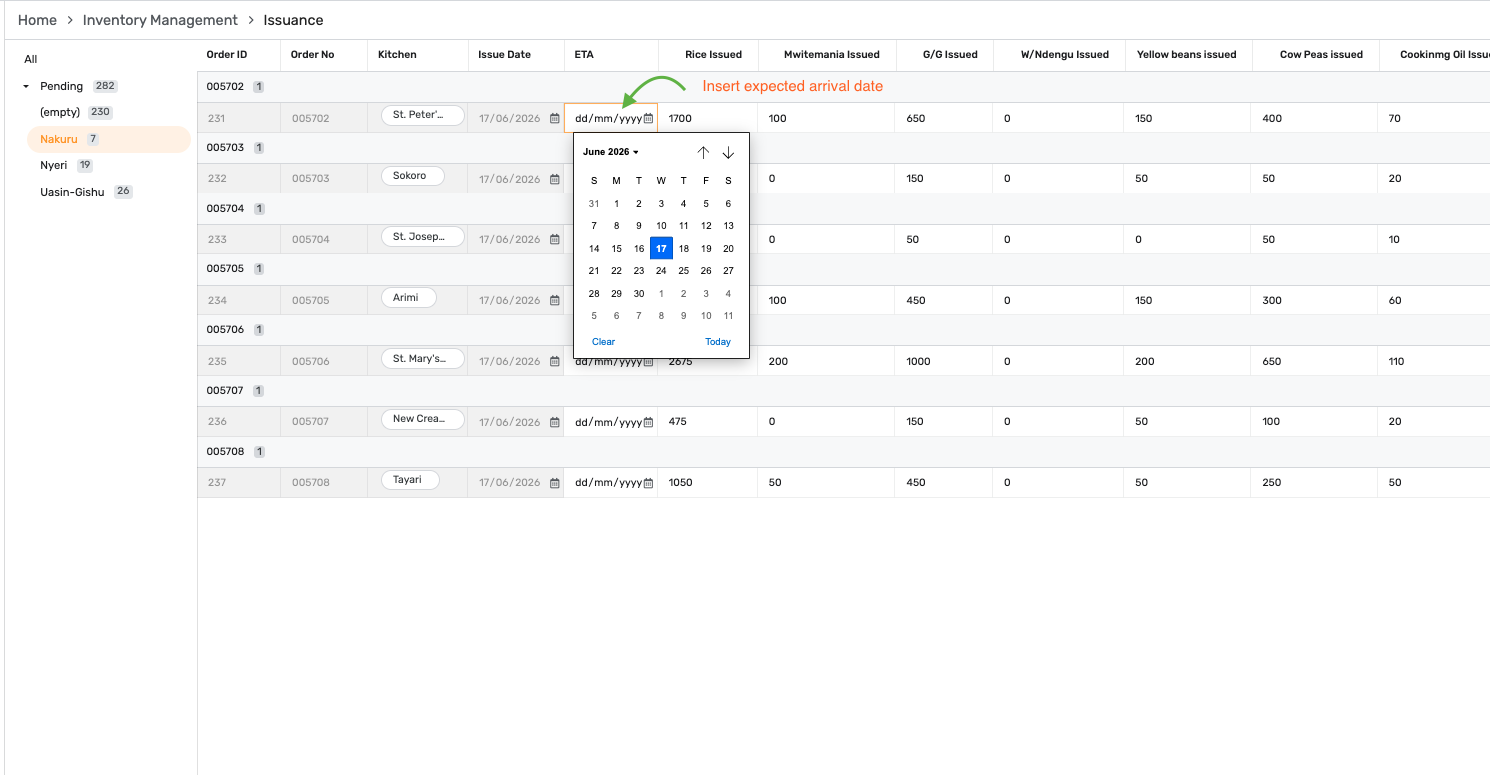
Step 5 — Set the expected arrival date
Enter the ETA for each order using the date picker.
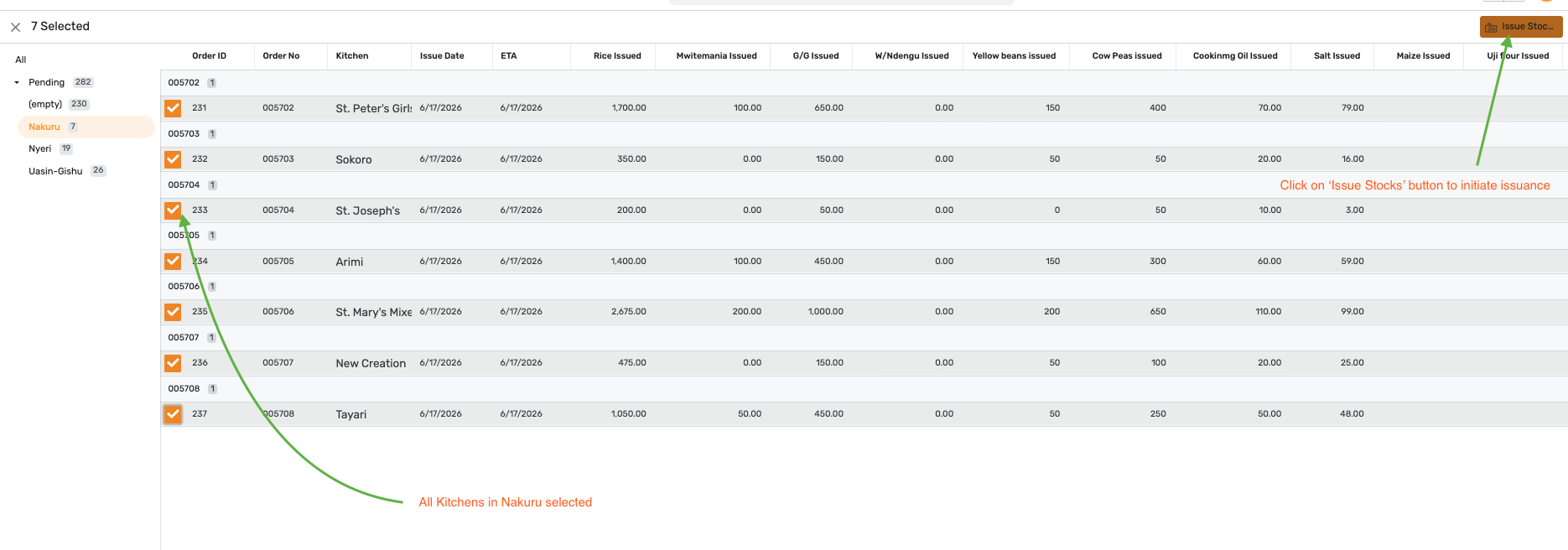
Step 6 — Select the kitchens and issue
Select every kitchen in the region, then tap Issue Stocks to start the issuance.
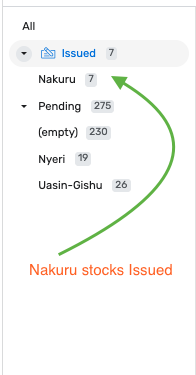
Step 7 — Confirm the orders are issued
The region moves out of Pending and into an Issued group. Issuing also sends an "Order Issued" email notification to the relevant team.
Receiving stock
The kitchen officer then receives the issued stock at kitchen level.