build@food4education.org
ወደ ዋናው ይዘት ዝለል

የኢትዮጵያ ልዑክ ስልጠና

ለኢትዮጵያ ልዑክ የተዘጋጁ ልዩ የቪዲዮ ማስተማሪያዎች፣ በሁለቱም በእንግሊዝኛ እና በአማርኛ ትረካ ይገኛሉ። ከዚህ በታች ያለው እያንዳንዱ ርዕስ ሁለት የቪዲዮ አማራጮች አሉት — ለስብሰባው የሚስማማውን ይምረጡ።

የምግብ እቅድ ማውጣት (Meal Planning)

የእንግሊዝኛ ትረካ (English narration)

አማርኛ ትረካ

እቅድ እና ትንበያ (Plan & Projections)

የእንግሊዝኛ ትረካ (English narration)

አማርኛ ትረካ

Kitchen Manager Plan & Projections Step by Step

A written companion to the videos above, walking through Kitchen Plan & Projections end to end — from opening a plan through picking, actuals, and closing — using real Ethiopia school data. See the full Plan & Projection guide for detailed instructions alongside these screenshots.

Step 1 — Navigate to Projections
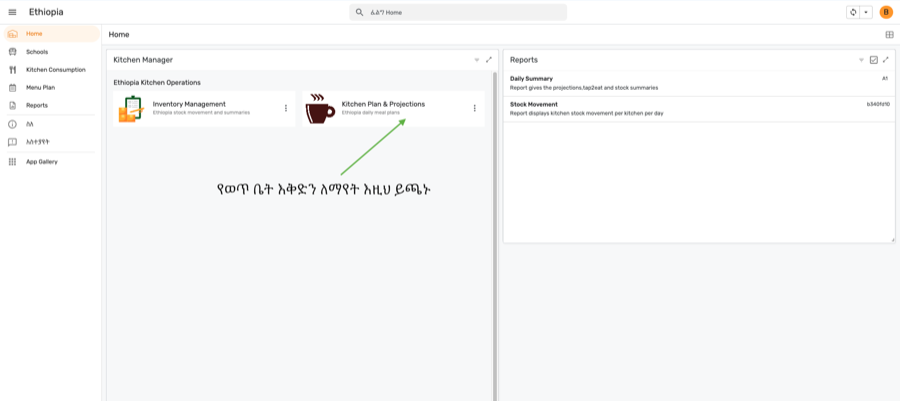
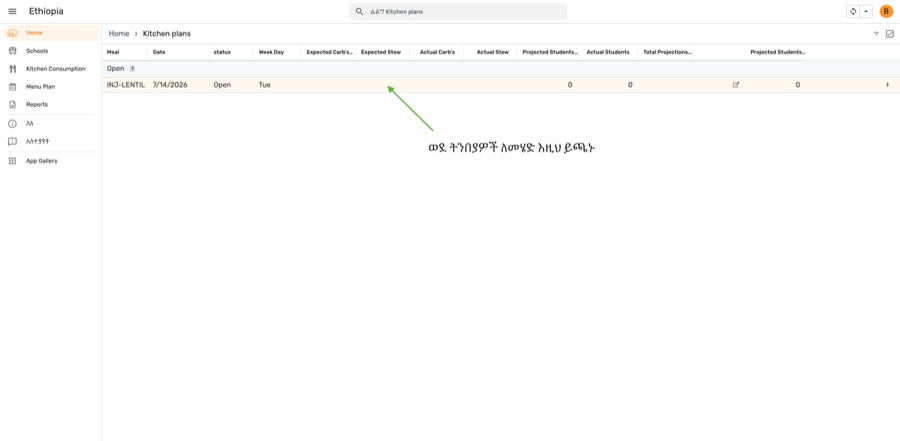
Home screen — tap Kitchen Plan & Projections

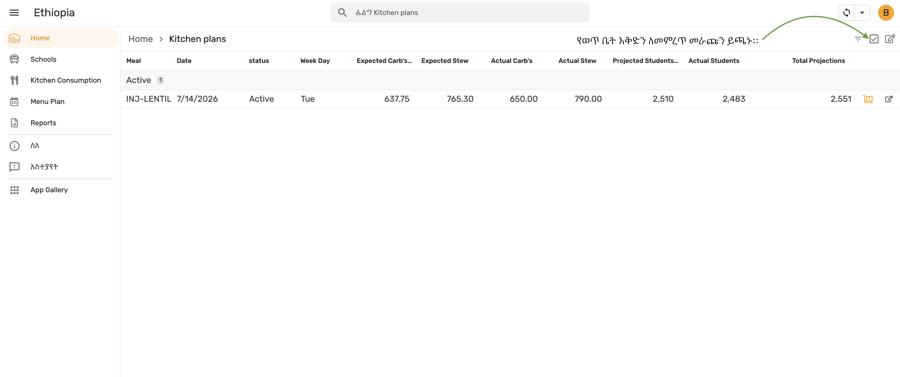
Kitchen plans list — tap an Open row to enter its projections

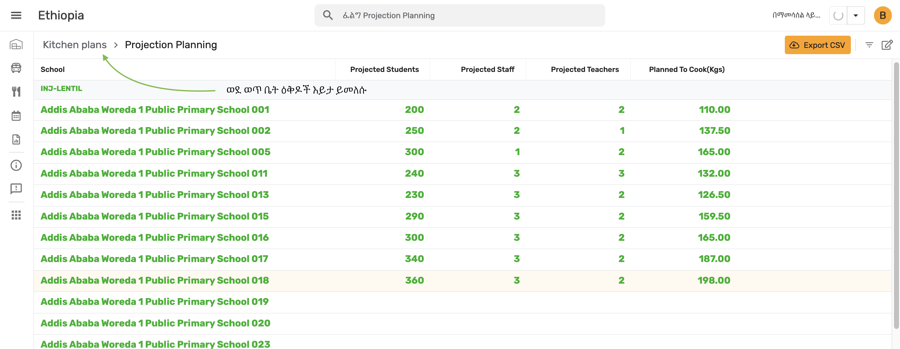
Step 2 — Open a Projection for Editing
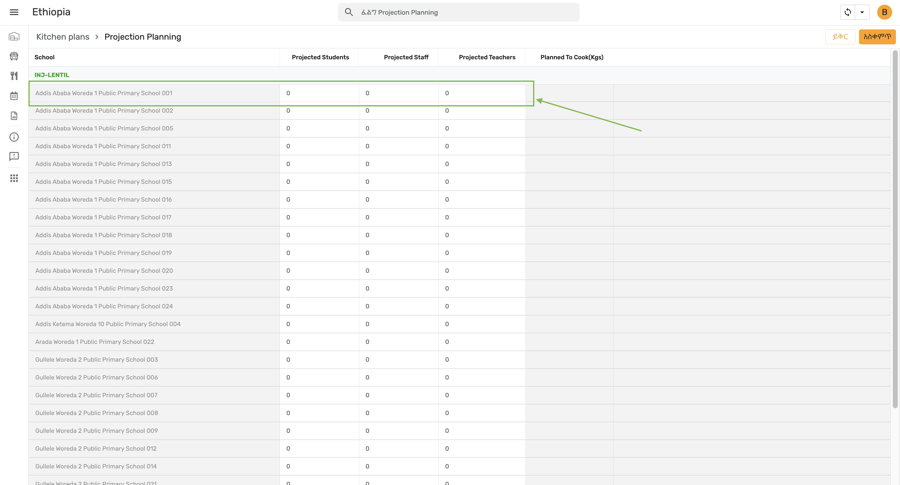
Projection Planning — school list with headcount fields

Step 3 — Fill in Projected Students, Staff & Teachers
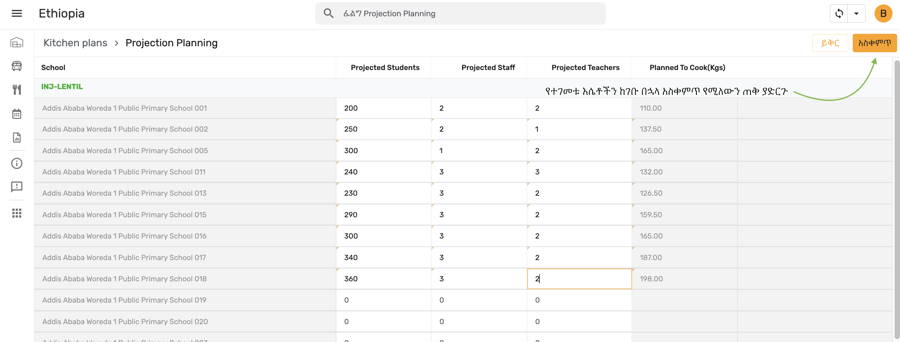
Headcounts entered for all schools — tap Save

Saved — values confirmed, return to Kitchen plans

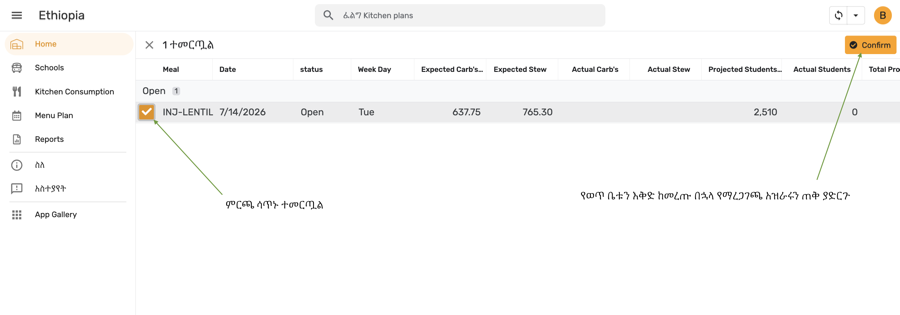
Step 4 — Confirm Plan & Projections
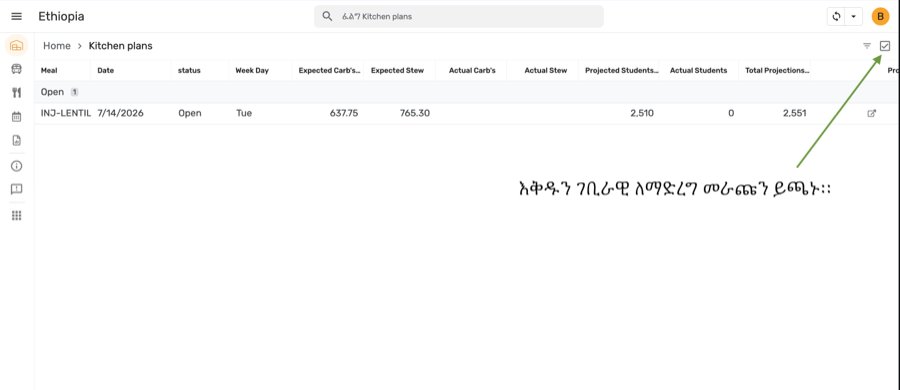
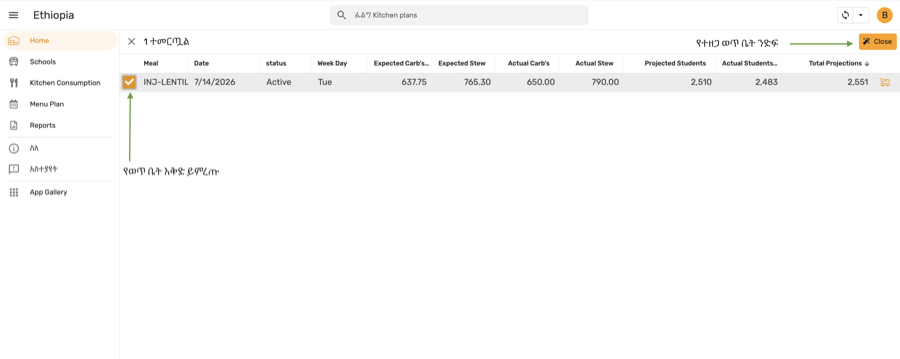
Row selected — tap the Confirm button

Confirmation — plan checkbox selected, Confirm highlighted

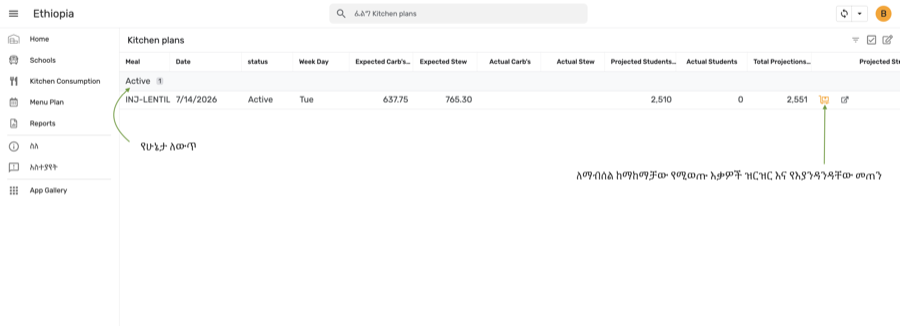
Step 5 — View the Active Plan

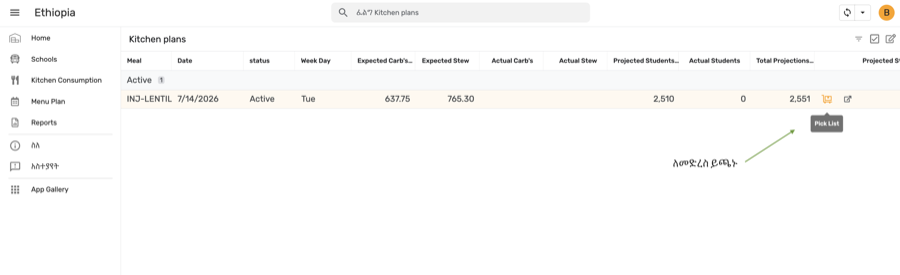
Plan now Active — the Picking List icon appears on the row

Step 6 — Complete the Picking List
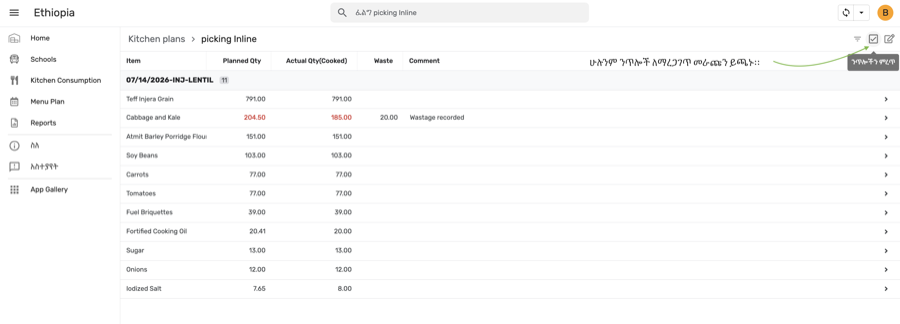
Tap the Picking List icon

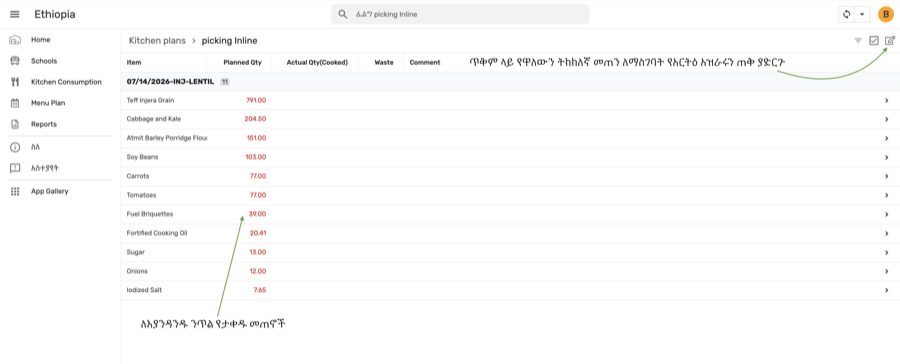
Picking list — planned quantity per item, tap Edit

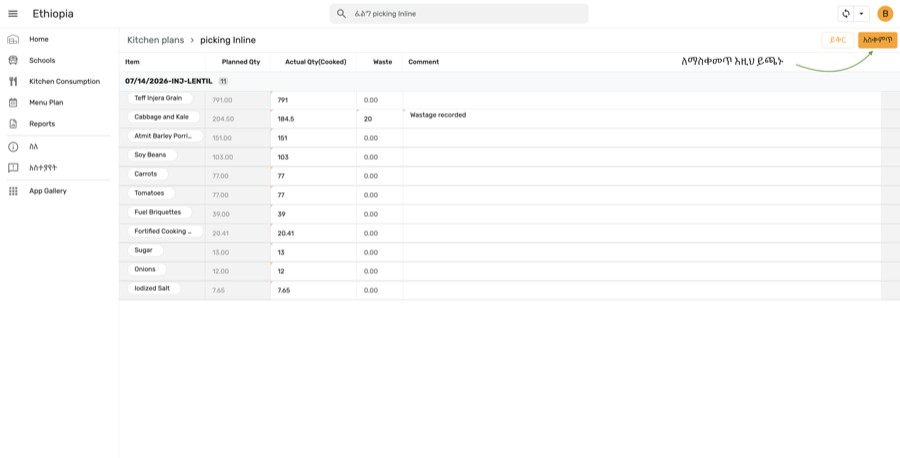
Actual quantities and waste entered — tap Save

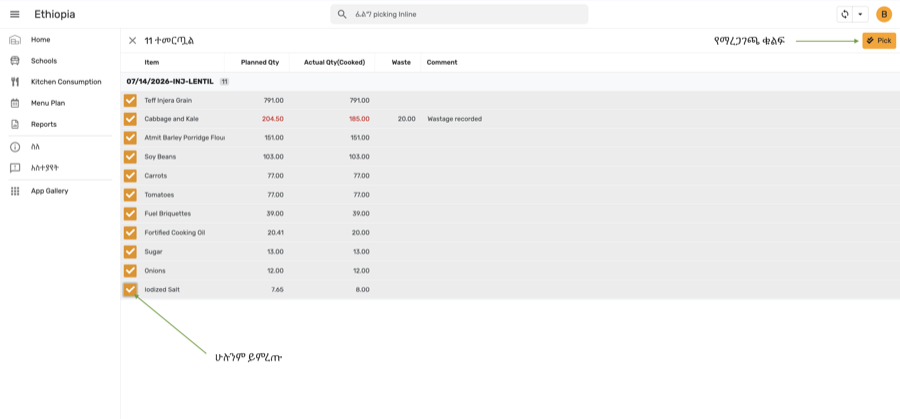
Saved — select all picking rows

All items selected — tap Pick to confirm

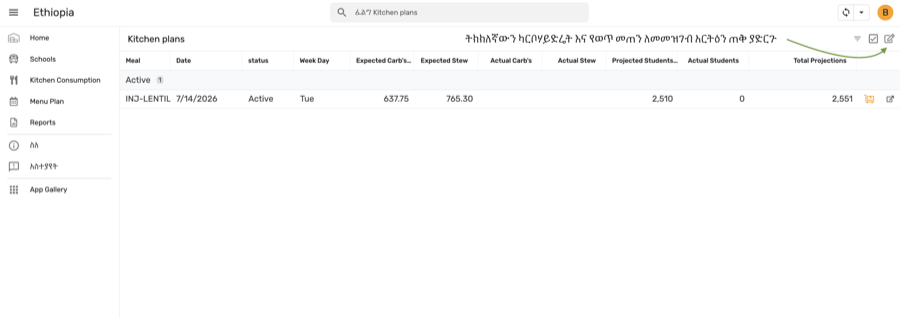
Step 7 — Update Actual Yield in Kitchen Plans
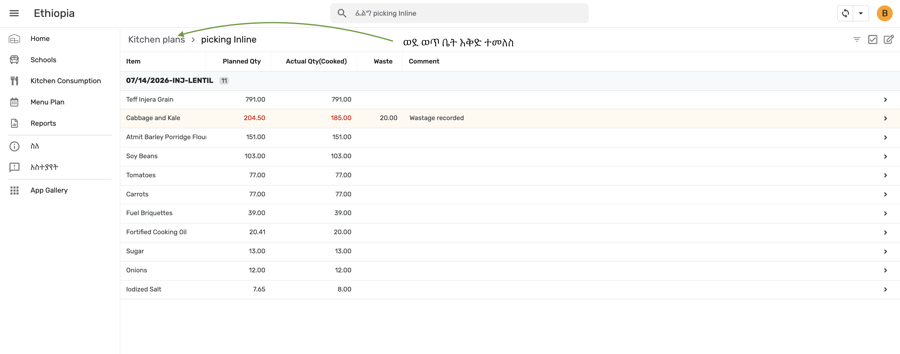
Return to Kitchen plans

Tap the Edit icon to enter actual carb/stew

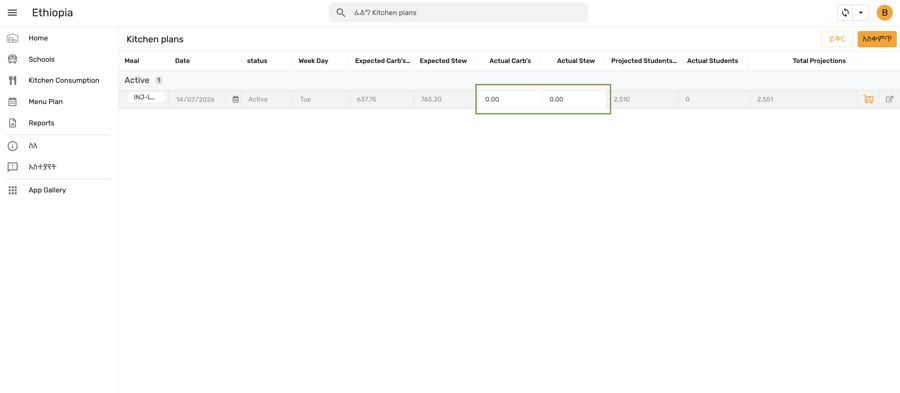
Quick Edit mode — Actual Carb's and Actual Stew fields open

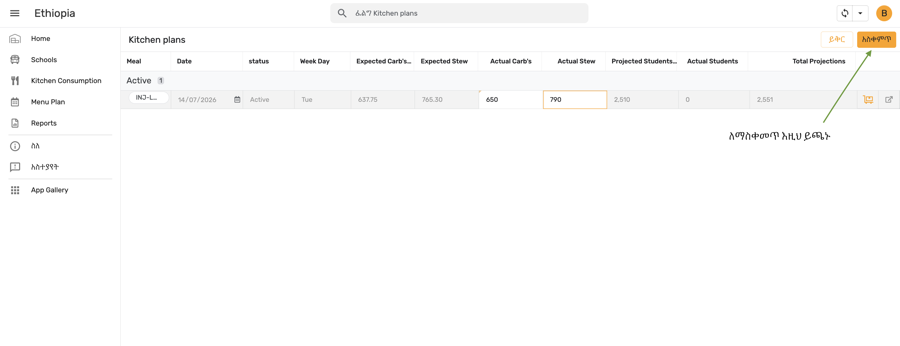
Values entered — tap Save

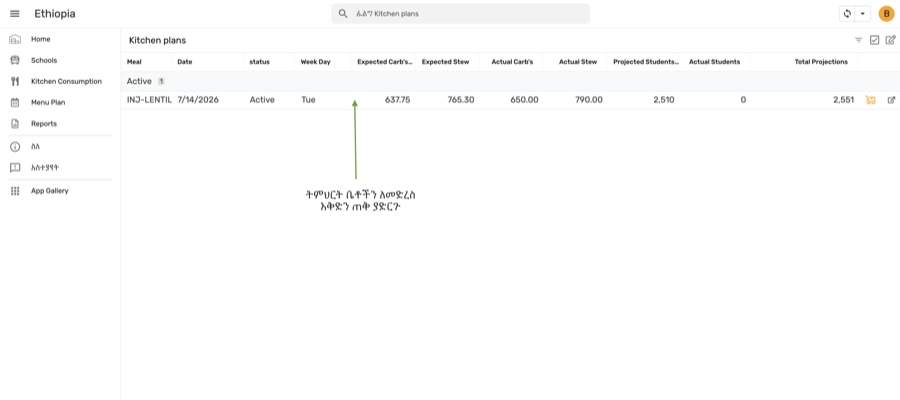
Saved — tap the plan row to access per-school actuals

Step 8 — Fill in Actuals per School
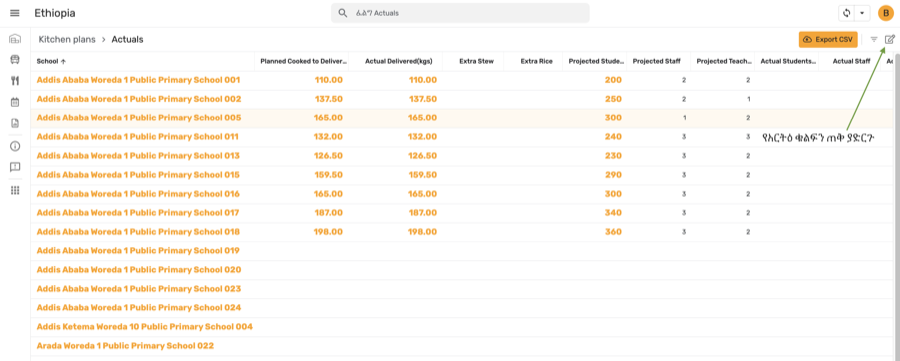
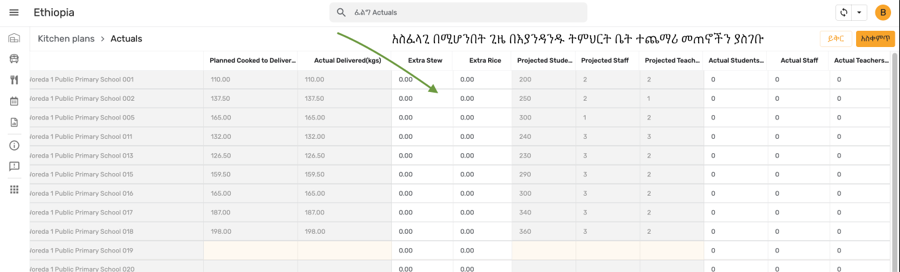
Actuals per school — tap Edit

Quick Edit mode — Extra Stew / Extra Rice and actuals columns open

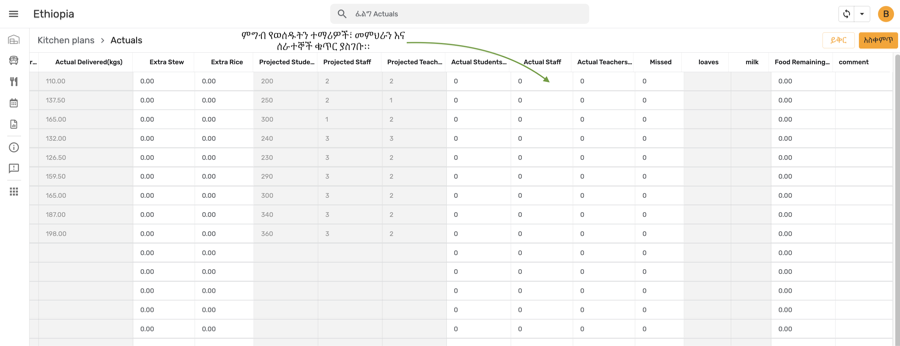
Enter Actual Students, Staff, and Teachers per school

Step 9 — Save Actuals

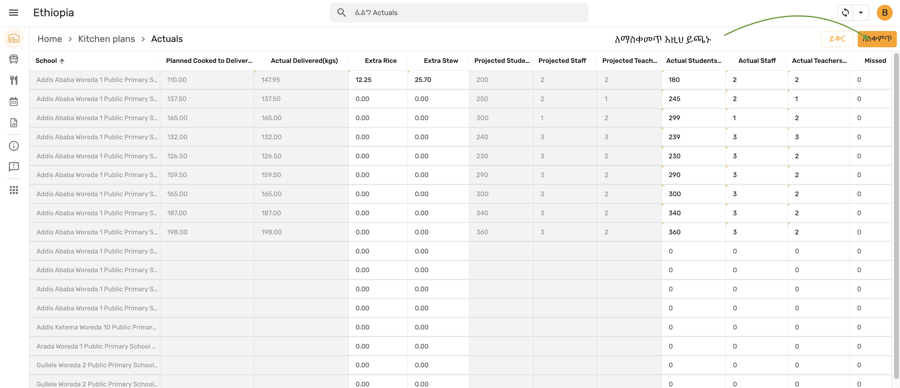
Actuals entered for all schools — tap Save

Step 10 — Close the Plan

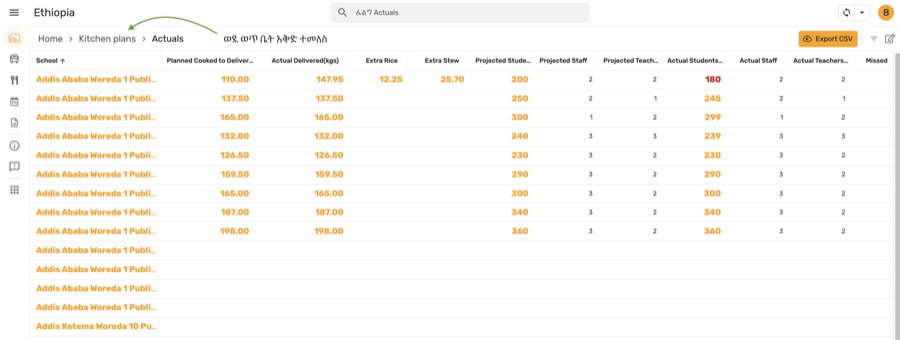
Saved — return to Kitchen plans

Actual totals now shown — select the plan row

Row selected — tap Close to finalize the plan