Meal Planning — Centralized
How to create, confirm, and approve a meal plan for centralized kitchens.
If your kitchens are decentralized or semi-centralized, the plan entry form and the approval flow are different. Use Meal Planning (Decentralized) instead.
Video walkthrough
Step by step
A written companion to the video above. In the centralized model you create one plan for a date and menu, and the system fans it out to every centralized kitchen — 33 in the example below. You then review and approve each kitchen's plan, overriding the menu for individual kitchens where needed.
Step 1 — Open Planning
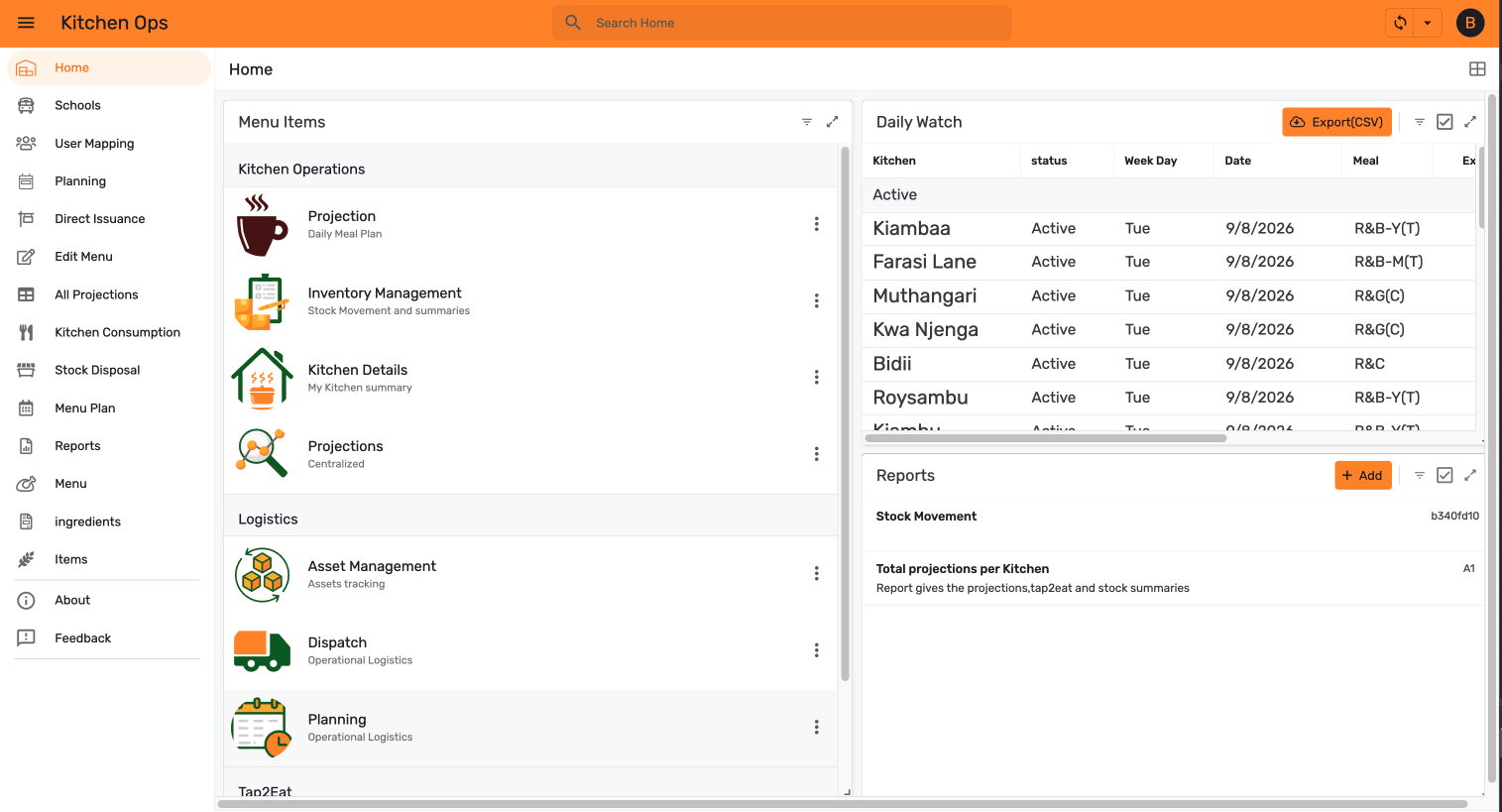
From Home, select Planning in the left navigation.
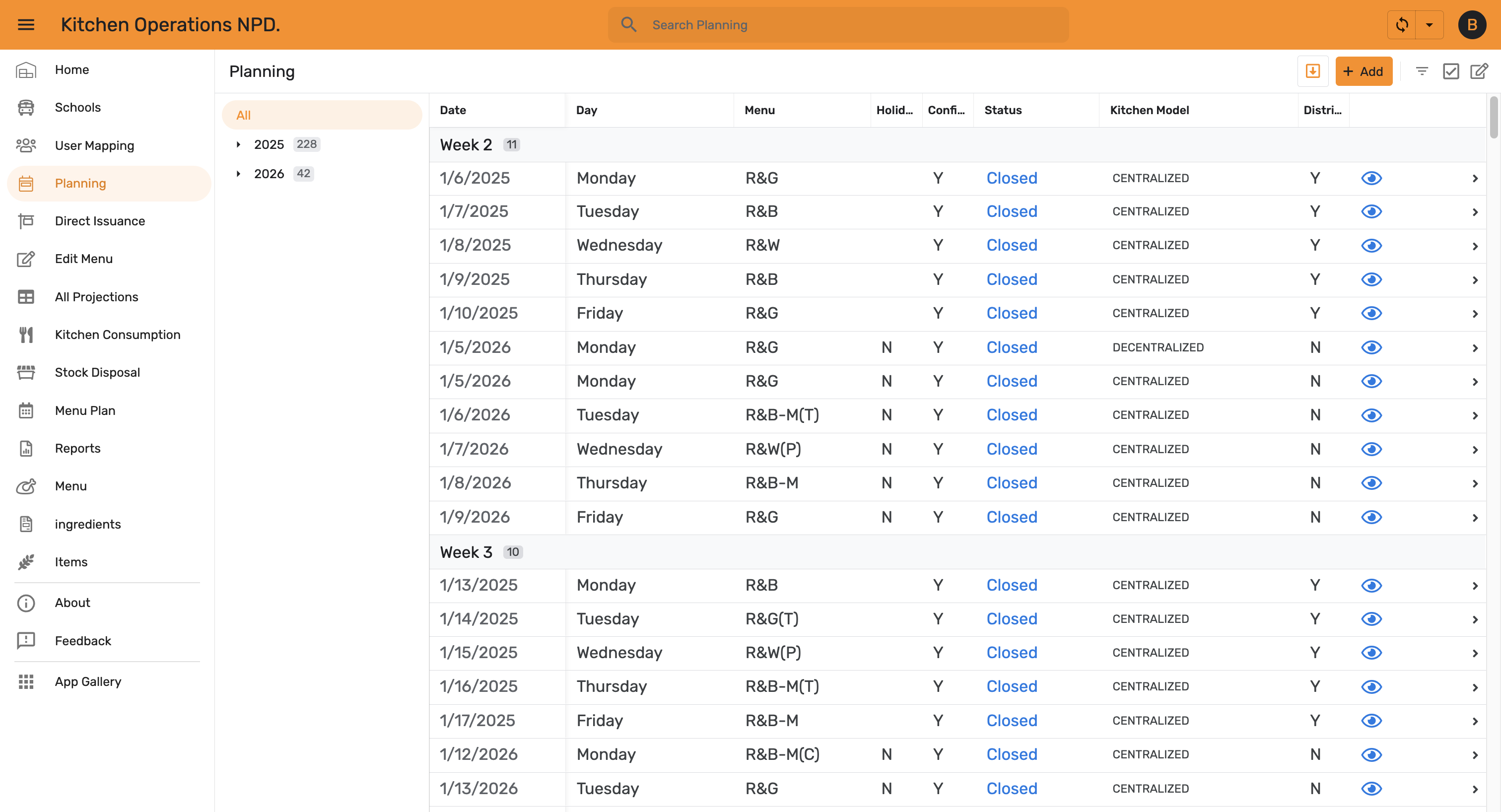
The Planning view lists existing plans grouped by week, showing each plan's date, day, menu, holiday flag, confirmation, status, kitchen model, and whether it has been distributed. Use the year filters on the left to narrow the list, then tap + Add.
Step 2 — Fill in the Plan Entry form
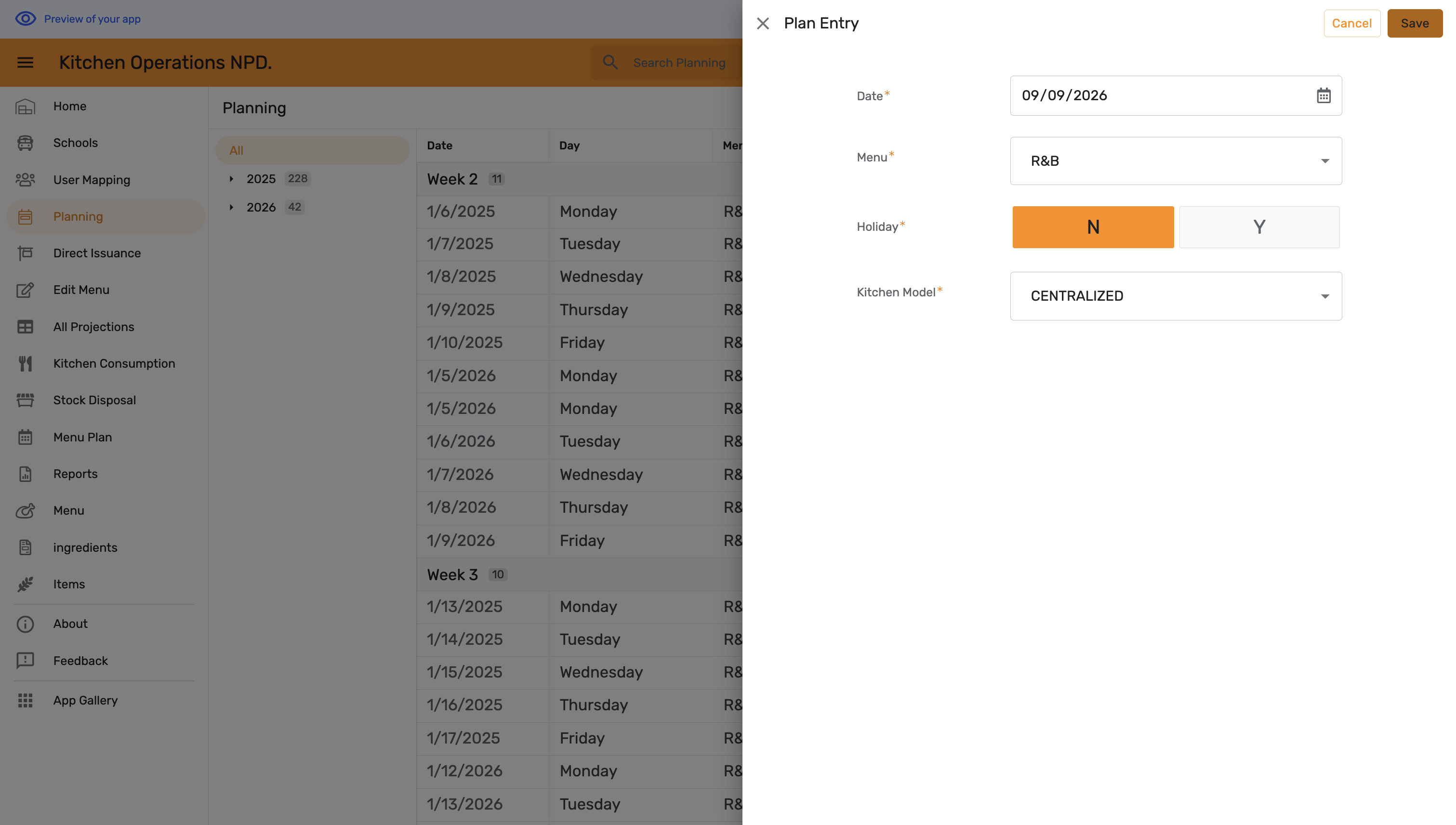
The Plan Entry form opens with four required fields: Date, Menu, Holiday, and Kitchen Model.
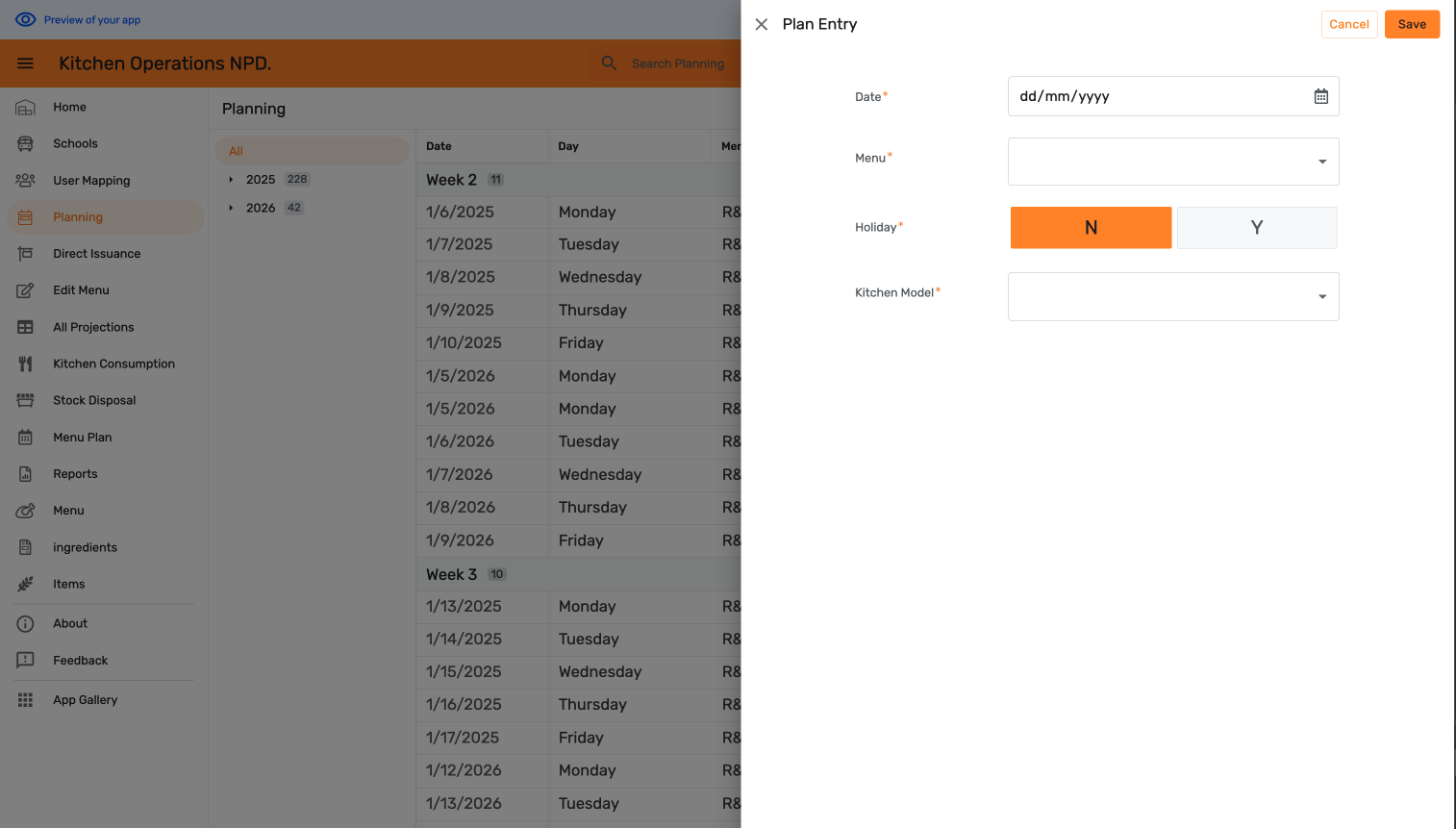
Set the date, pick the menu code, leave Holiday on N for a normal service day, and choose CENTRALIZED as the kitchen model. Tap Save.
Step 3 — Check the saved plan
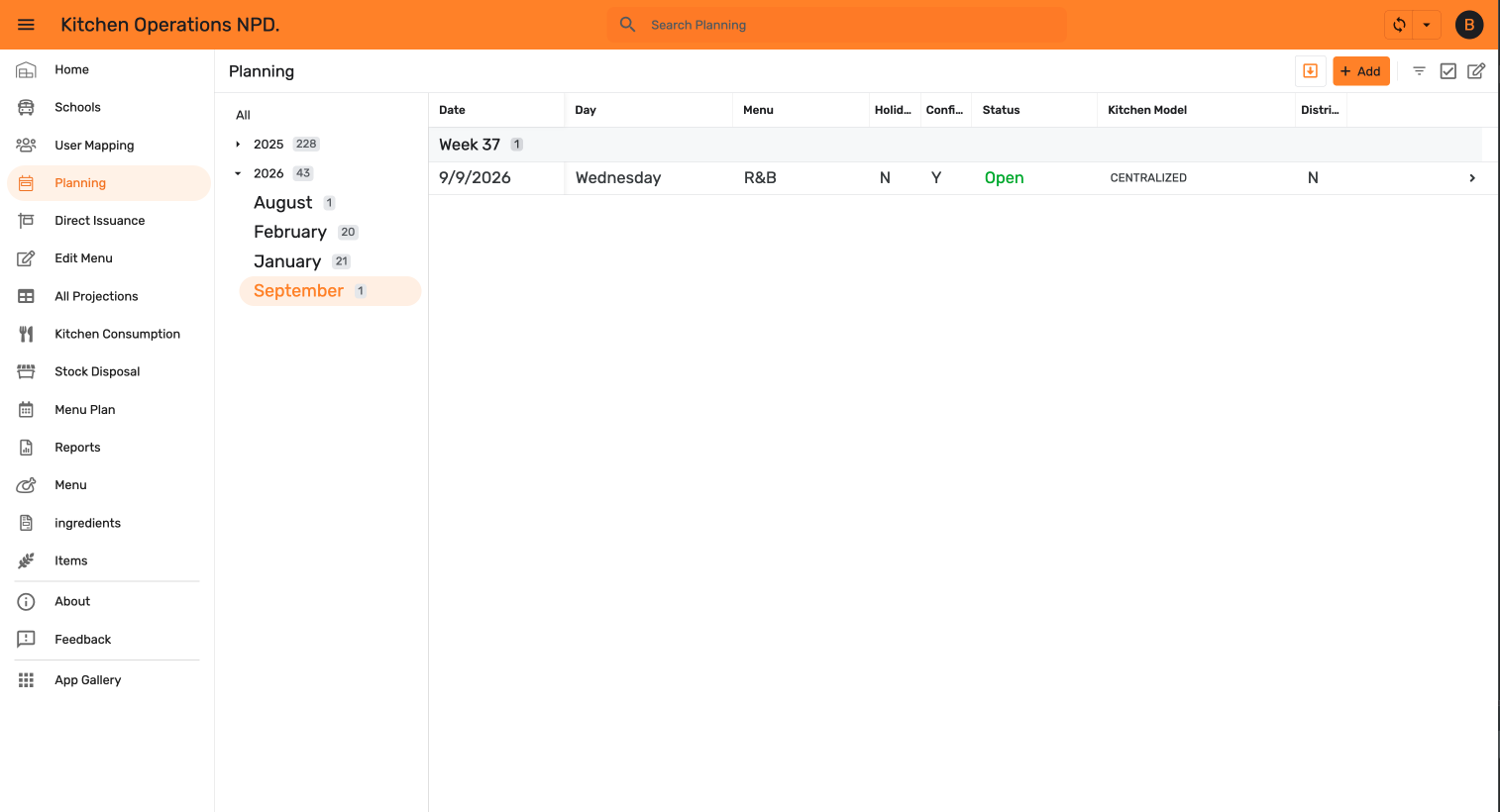
The new plan appears in the Planning list with status Open. Filter by year and month on the left to find it quickly.
Step 4 — Confirm the plan
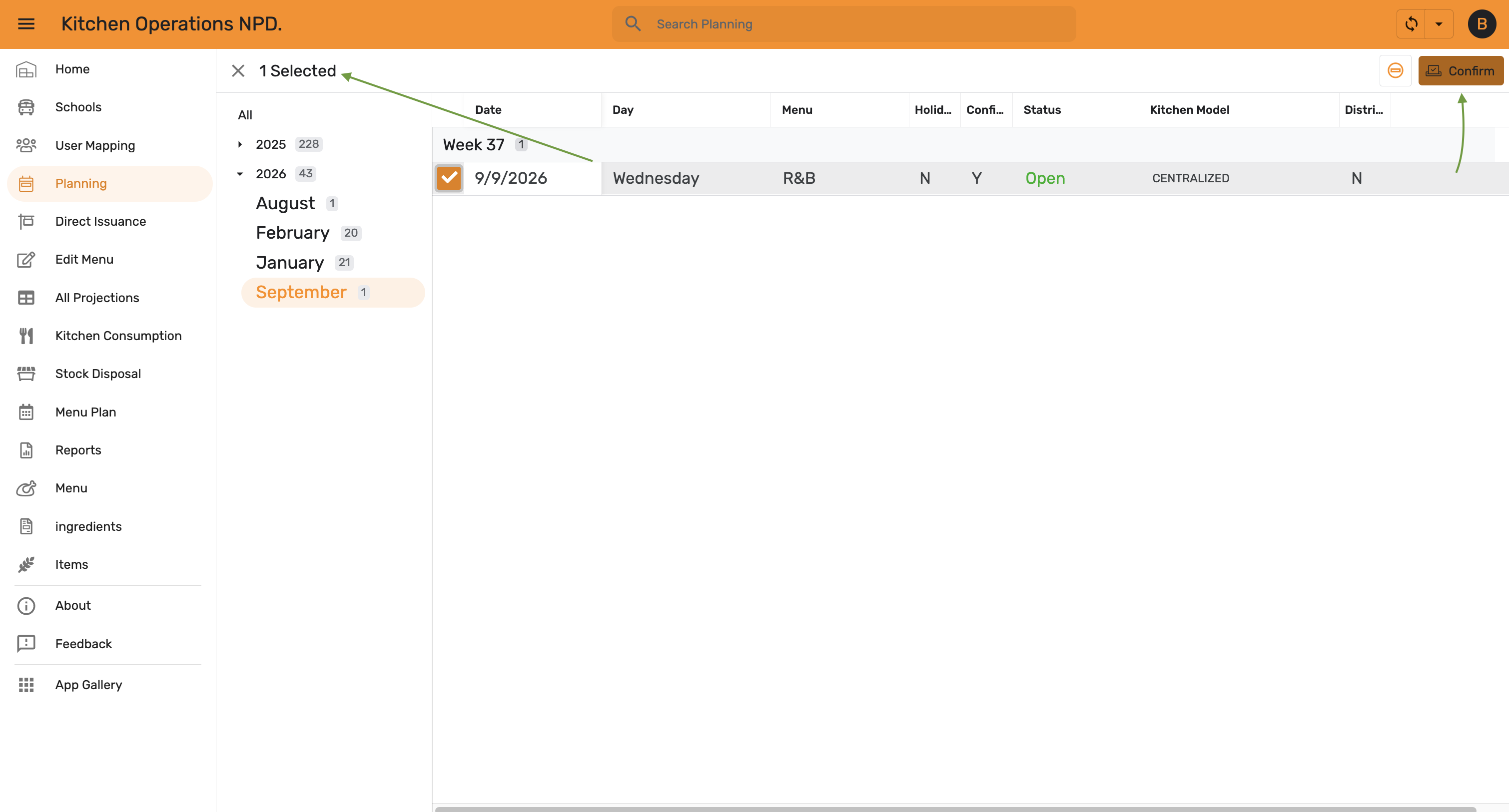
Select the plan's row, then tap Confirm.
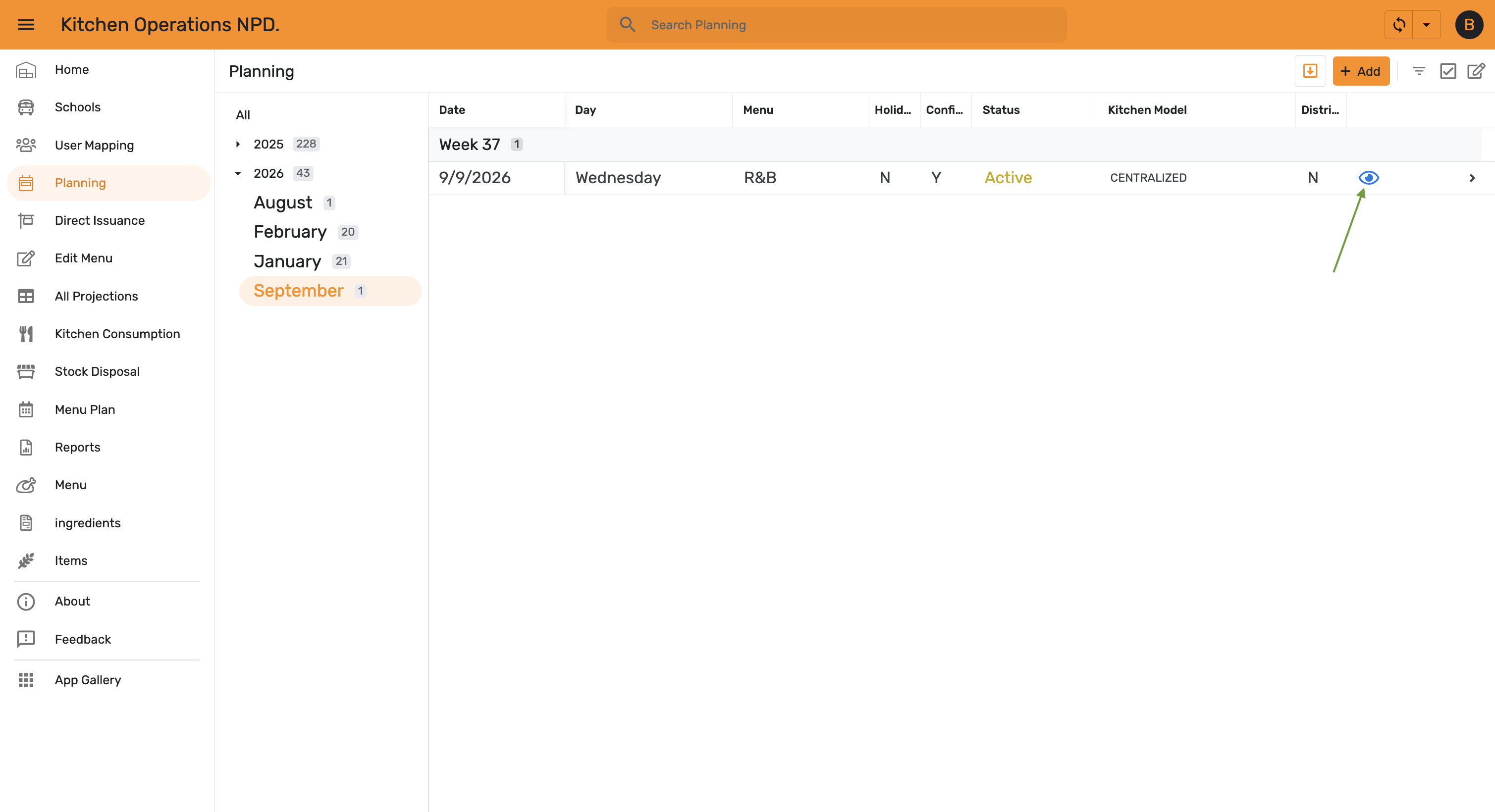
The status changes from Open to Active, and a view icon appears on the row. Tap it to open the kitchen plans generated from this plan.
Step 5 — Review the generated kitchen plans
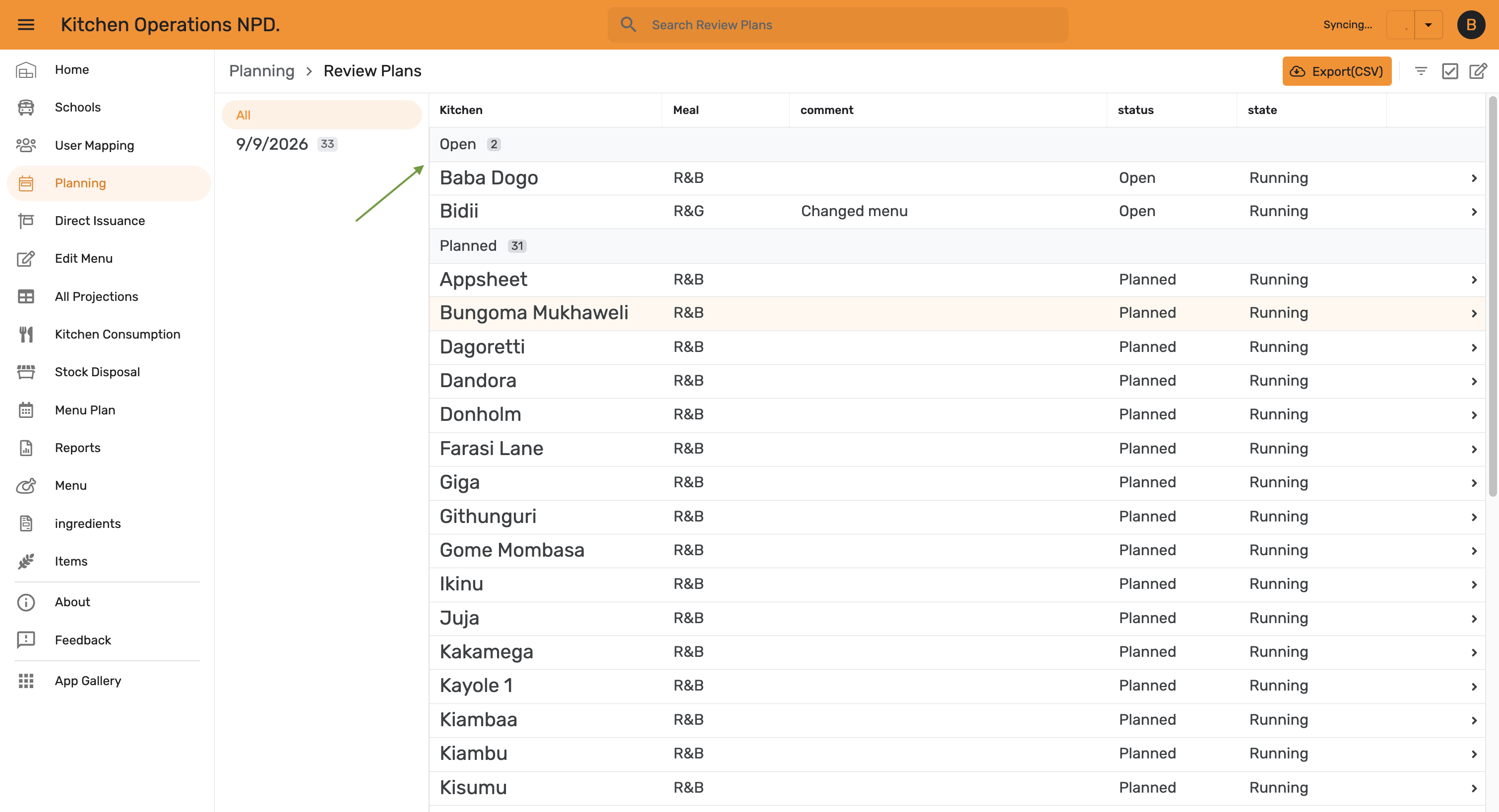
Review Plans lists a plan for every centralized kitchen — 33 in this example — each carrying the menu from the parent plan and starting at status Planned.
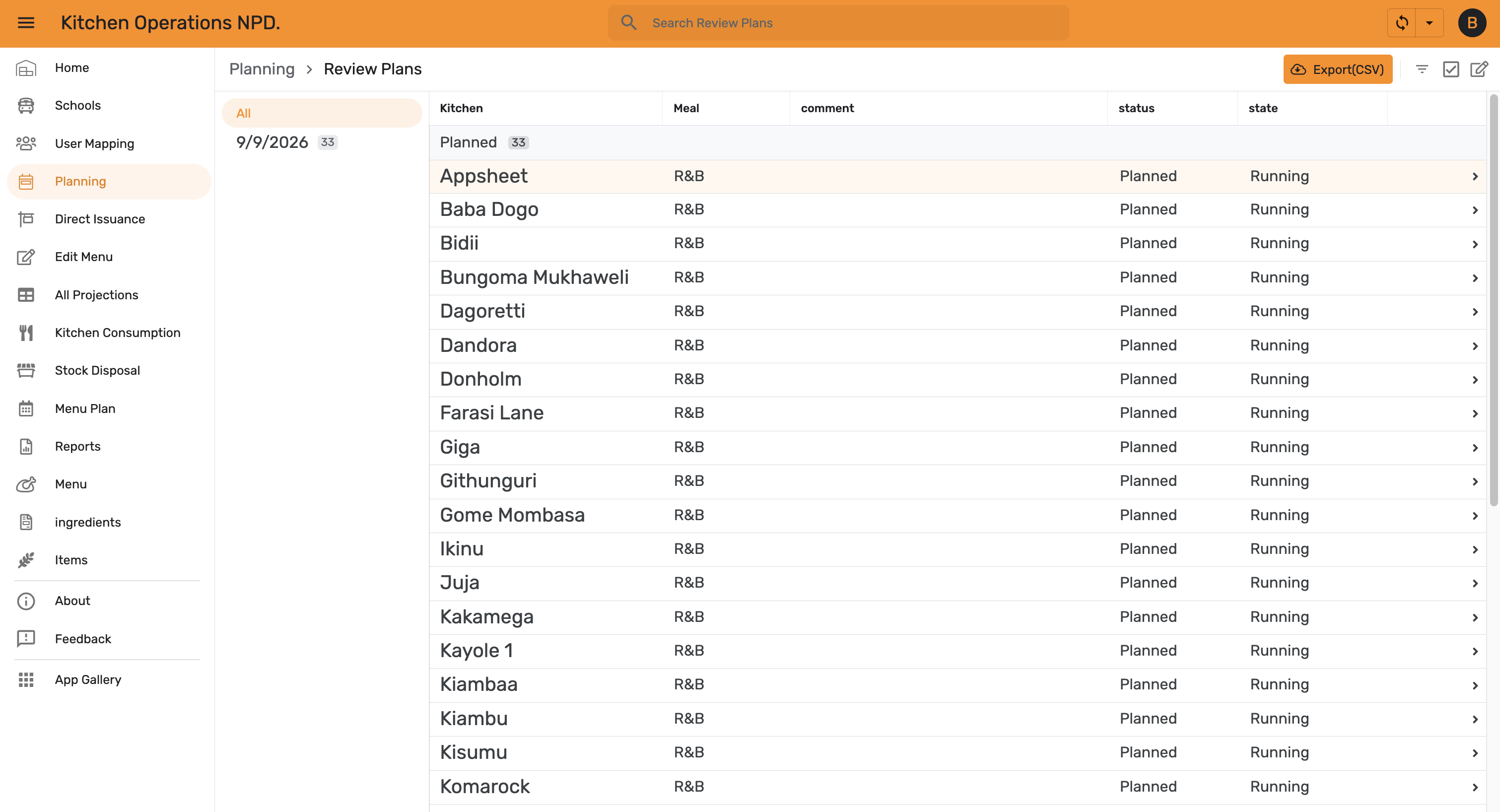
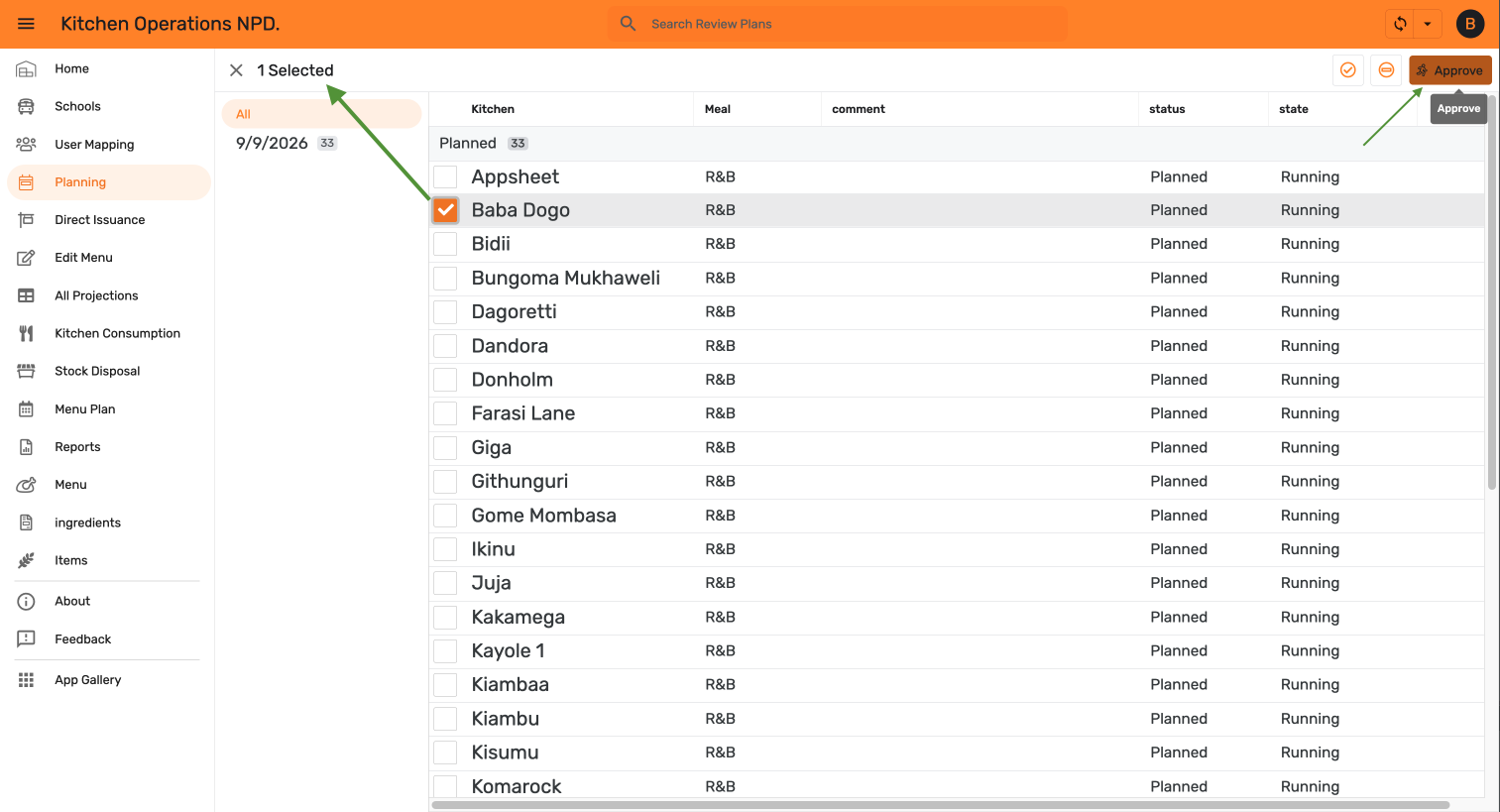
Step 6 — Approve a kitchen plan
Select a kitchen's row and tap Approve.
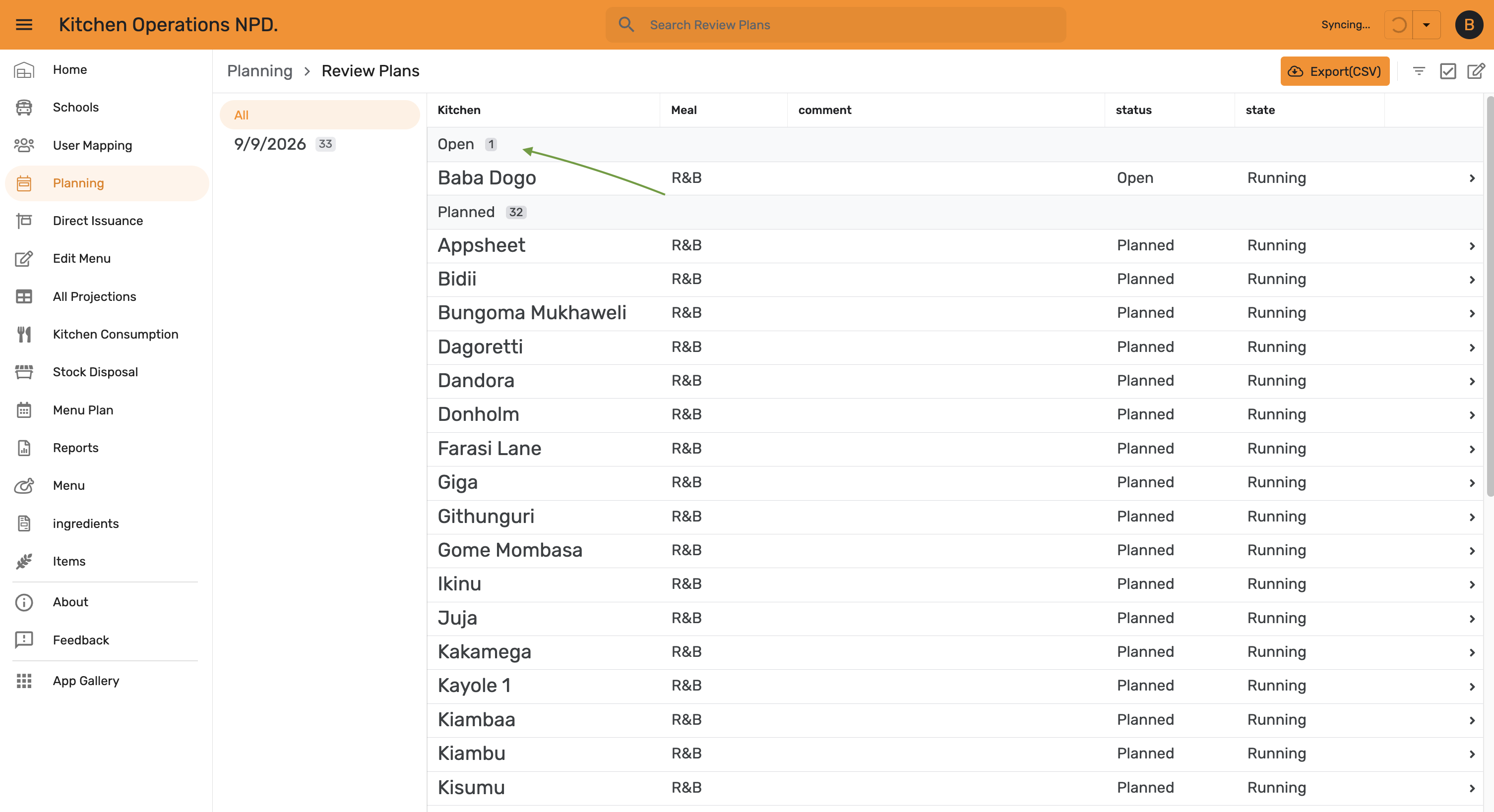
The approved kitchen moves into the Open group; the rest stay Planned.
Step 7 — Override a kitchen's menu (optional)
If a kitchen needs a different menu from the rest, open Quick Edit and pick a new code from the Meal dropdown on that kitchen's row.
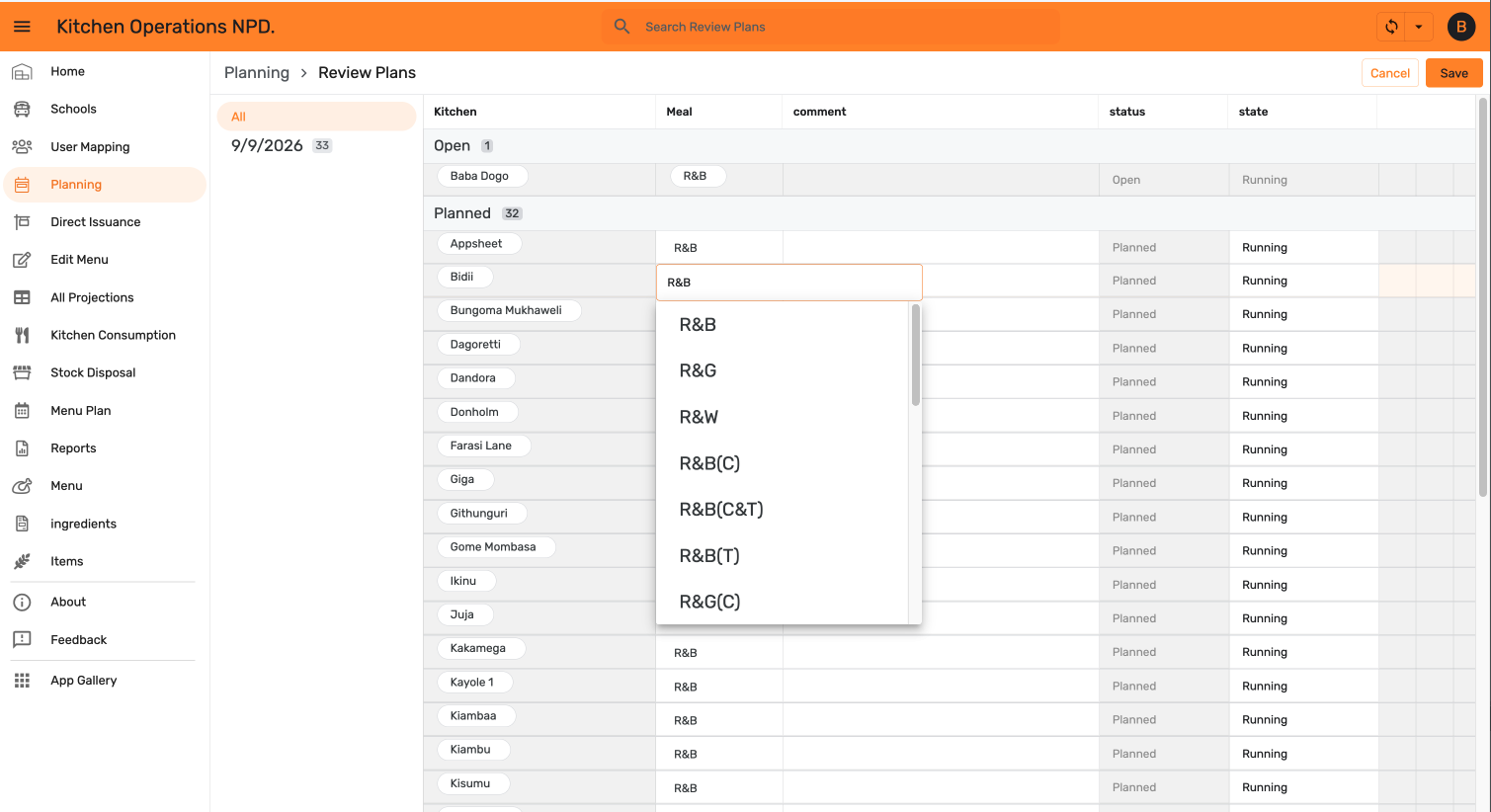
Record the reason in the comment column, then select the row and tap Approve.
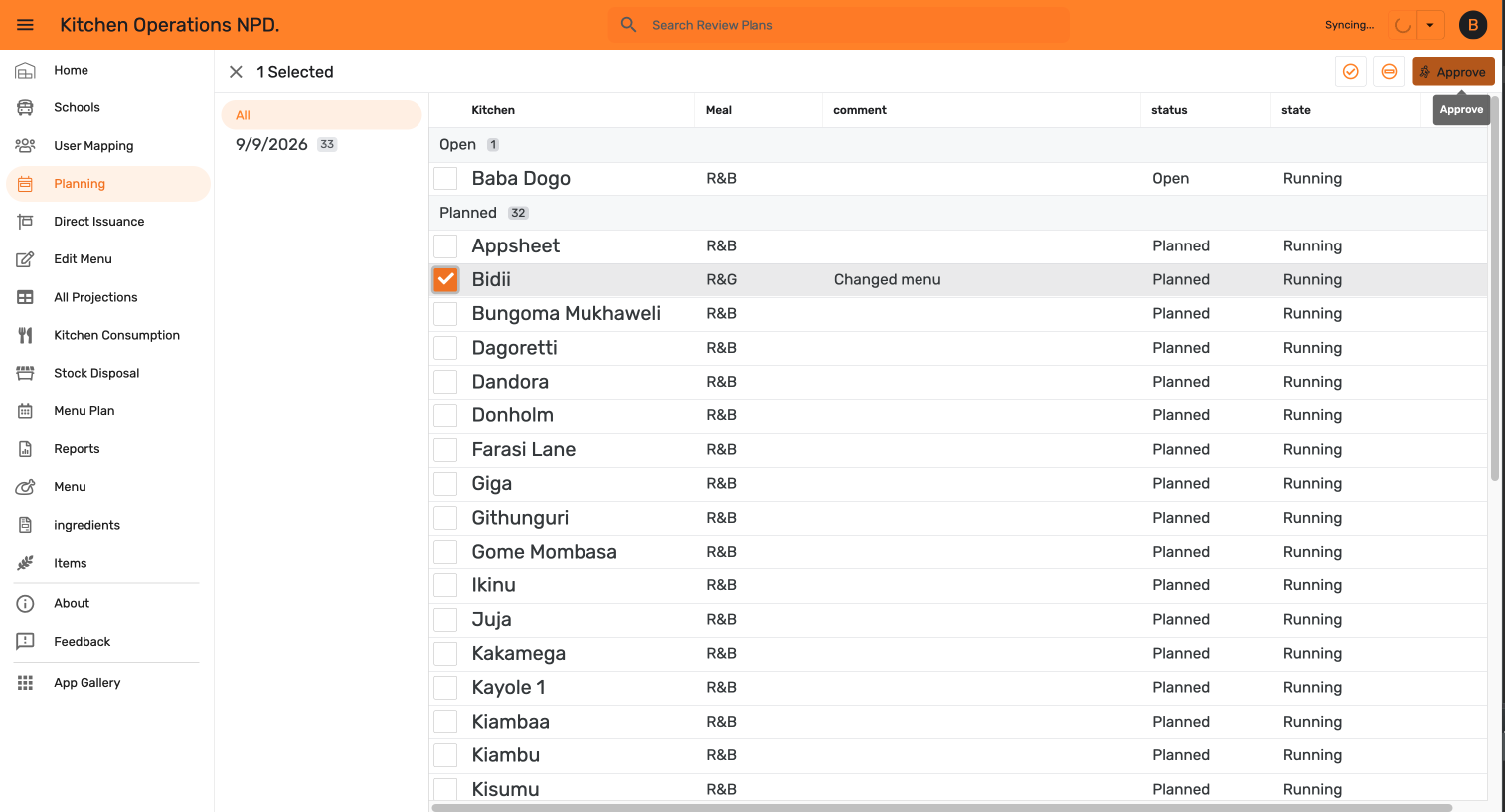
Both approved kitchens now sit under Open, with the overridden kitchen showing its new menu and comment. Repeat until every kitchen has been approved.