Meal Planning — Decentralized
How to create, confirm, and approve a meal plan for decentralized and semi-centralized kitchens.
If you are planning for centralized kitchens, the plan entry form has fewer fields and the confirmation flow is different. Use Meal Planning (Centralized) instead.
Video walkthrough
Step by step
A written companion to the video above. The key difference from the centralized flow is location: a decentralized plan is scoped to one or more counties, so it fans out only to the kitchens in those clusters — 24 in the Nyeri example below — rather than to every kitchen nationally. The form also carries an Include UJI flag.
Step 1 — Open Planning
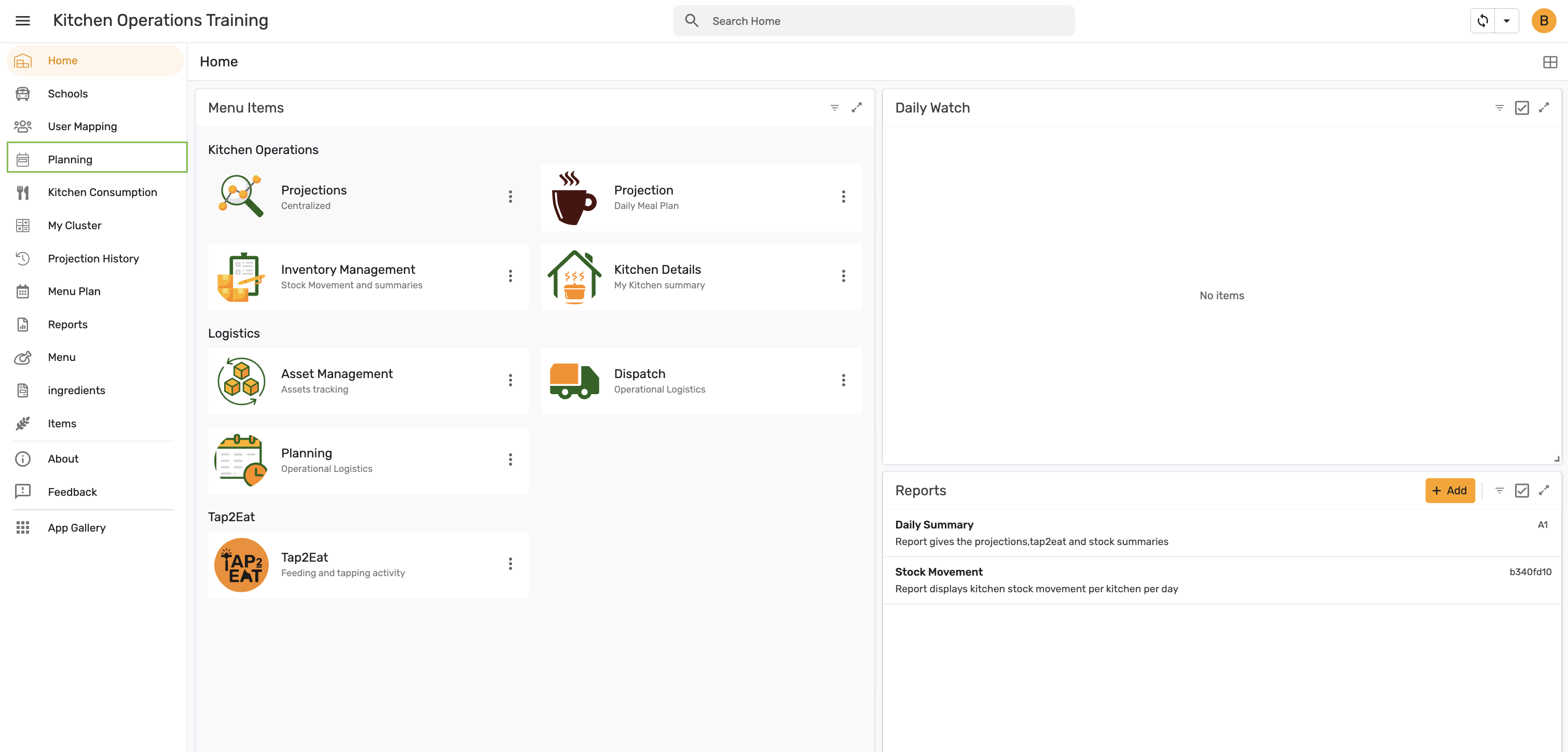
From Home, select Planning in the left navigation.
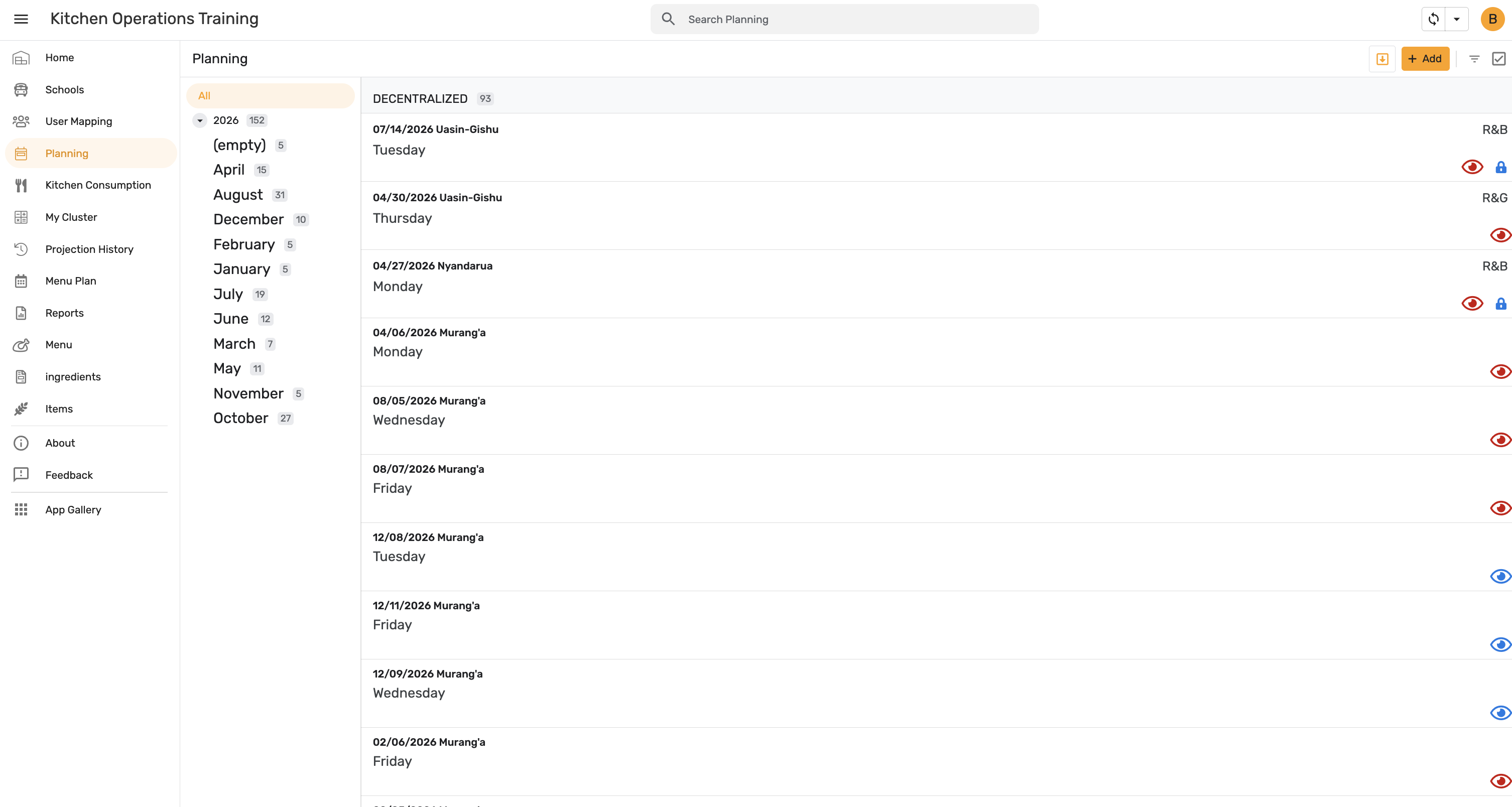
The Planning view lists existing plans grouped by kitchen model, each entry showing its date, cluster, day, and menu code. Use the month filters on the left to narrow the list, then tap + Add.
Step 2 — Fill in the Plan Entry form
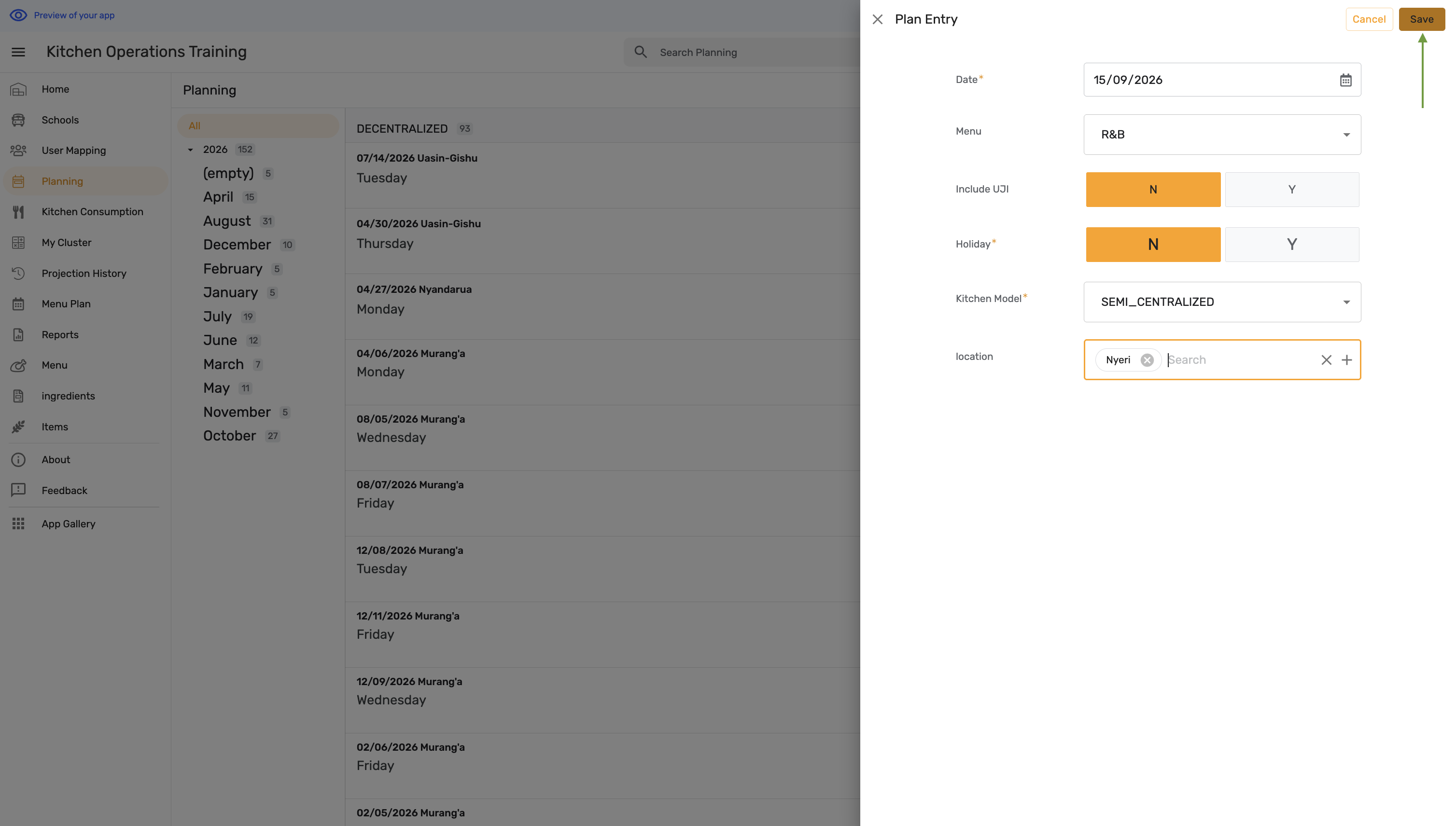
The Plan Entry form opens. Alongside Date, Menu, Holiday, and Kitchen Model, it carries two fields the centralized form does not have: Include UJI, and location — a multi-select list of counties.
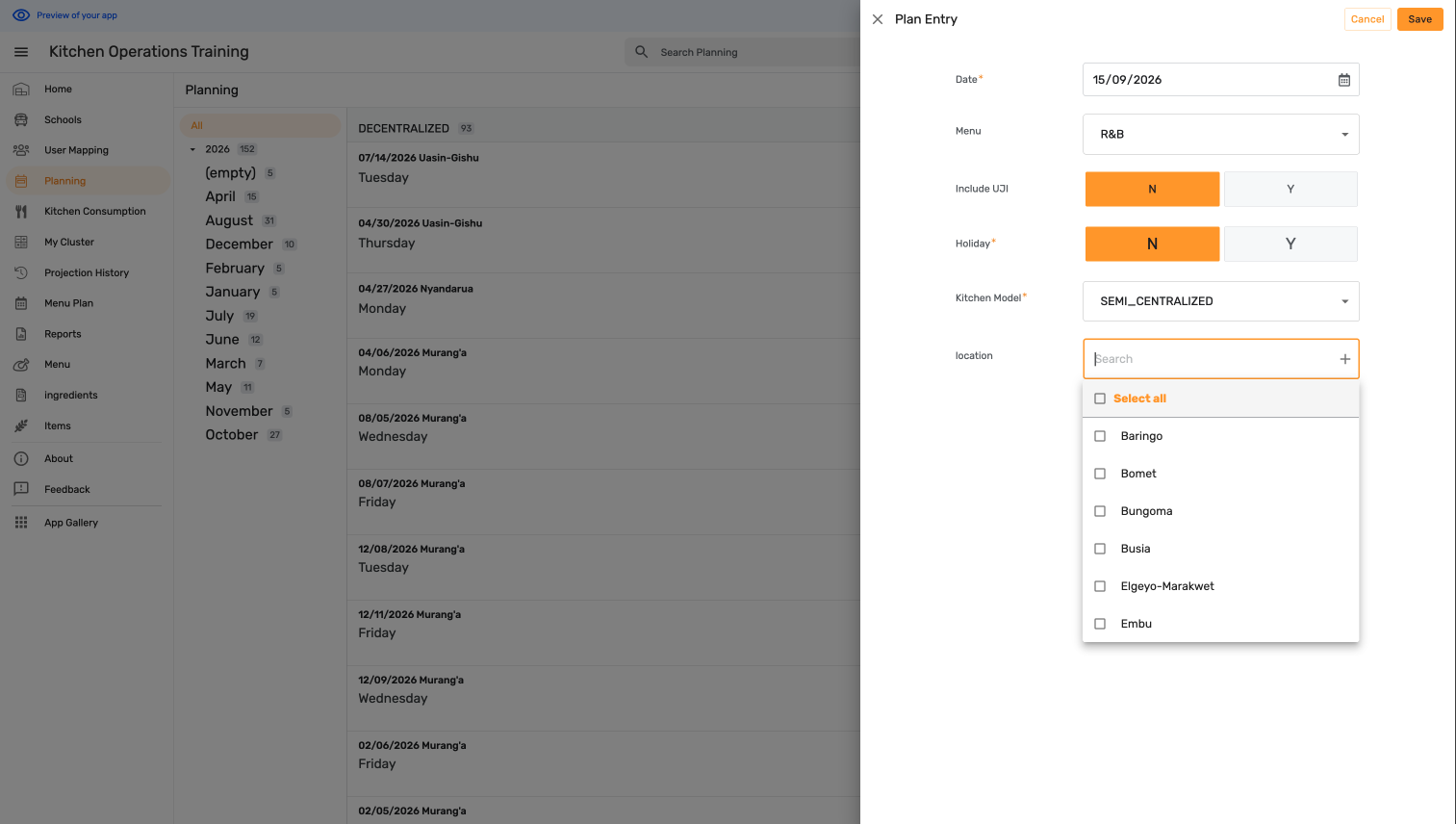
Set the date and menu, leave Include UJI and Holiday on N unless they apply, choose the kitchen model, and pick the county the plan covers. Tap Save.
Step 3 — Confirm the plan
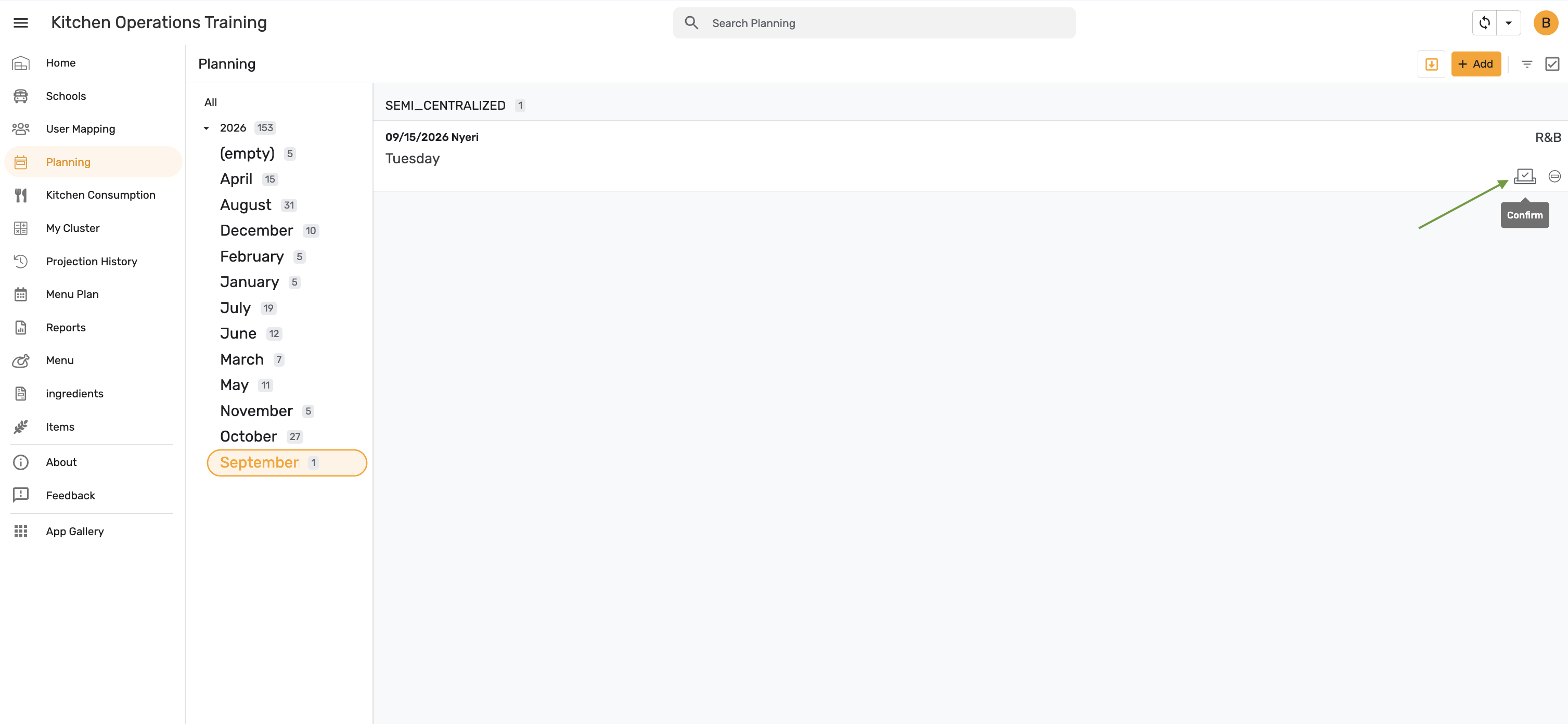
The new plan appears in the Planning list, grouped under its kitchen model and labelled with the county. Tap the Confirm icon on the row.
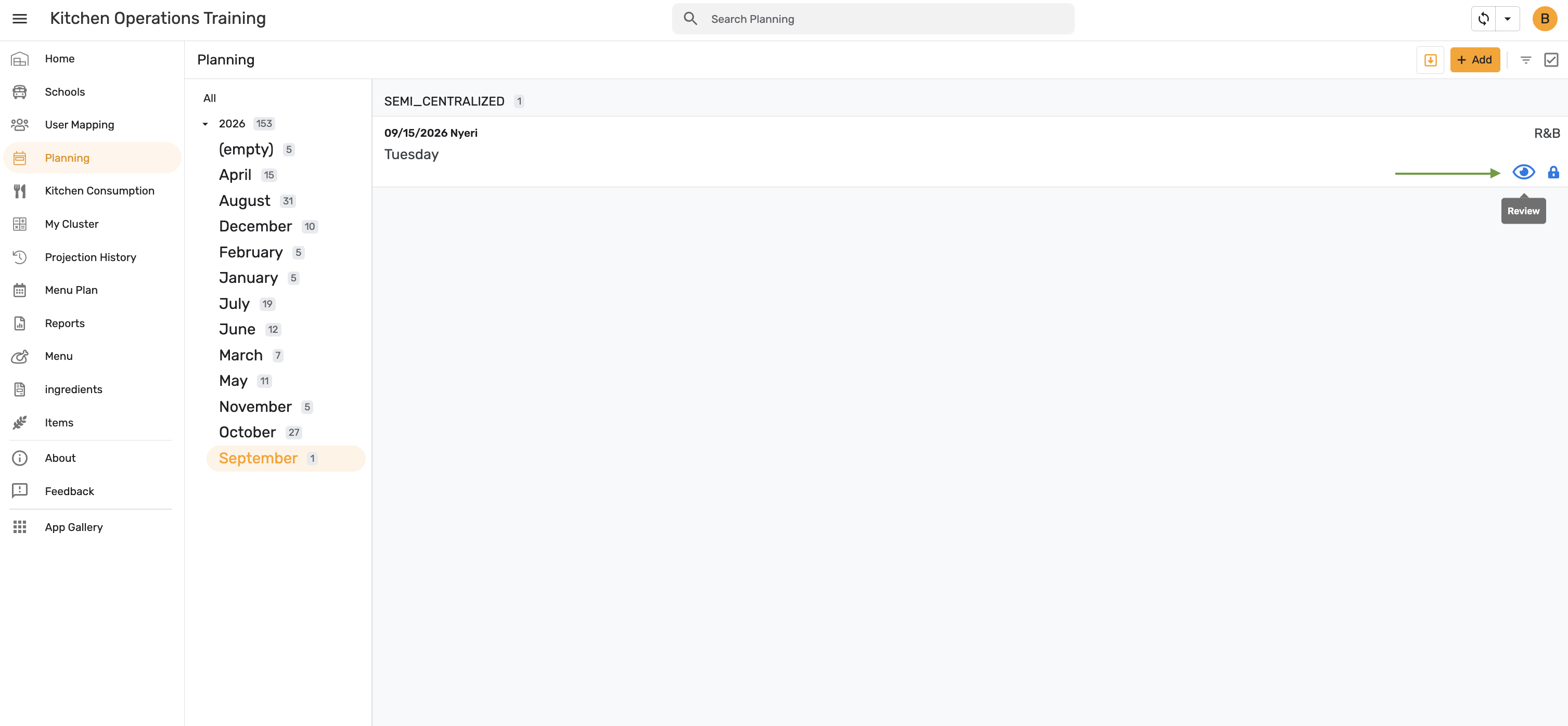
Once confirmed, the row's icons change to Review and a lock. Tap Review to open the kitchen plans generated from this plan.
Step 4 — Review the generated kitchen plans
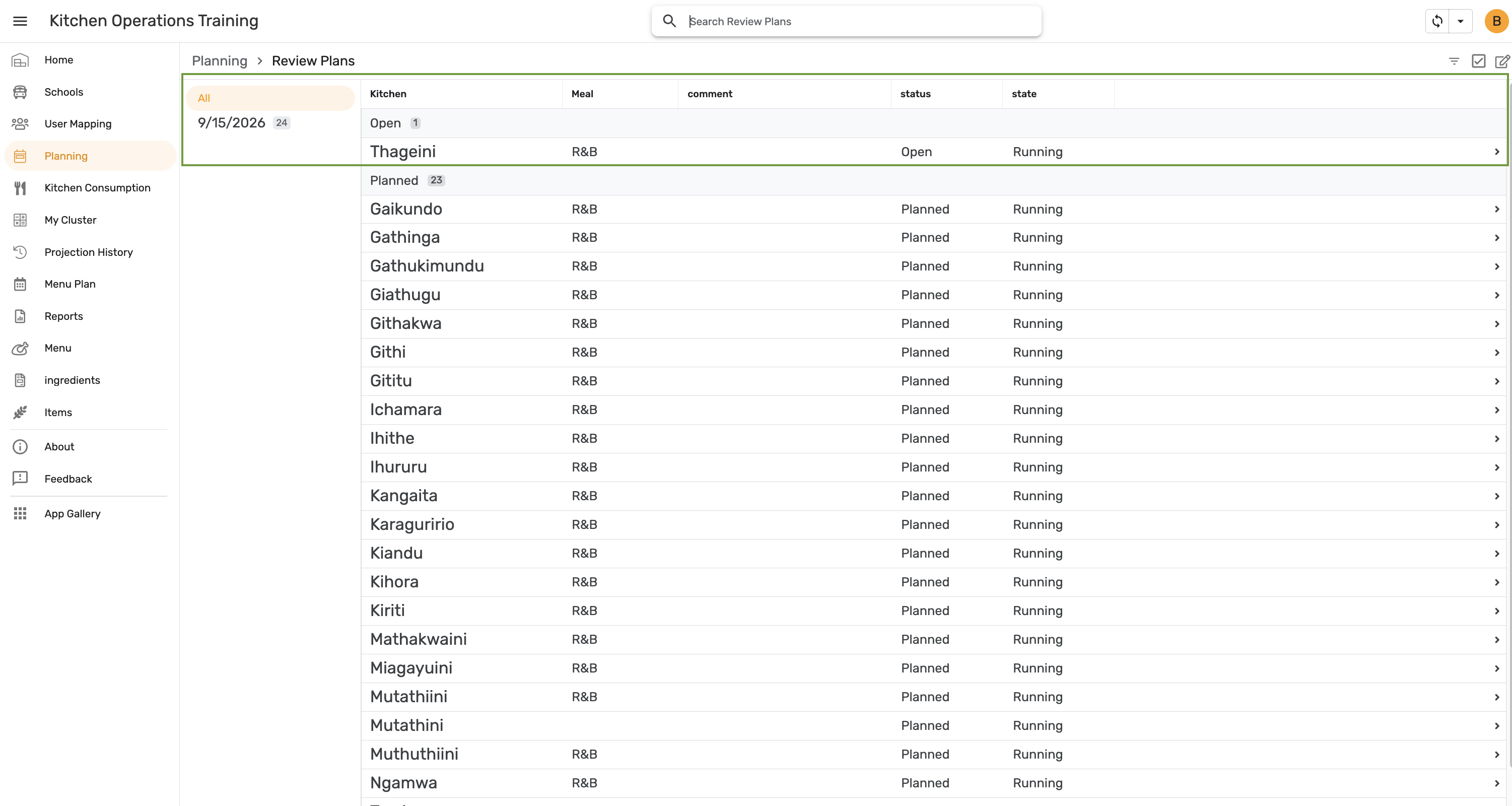
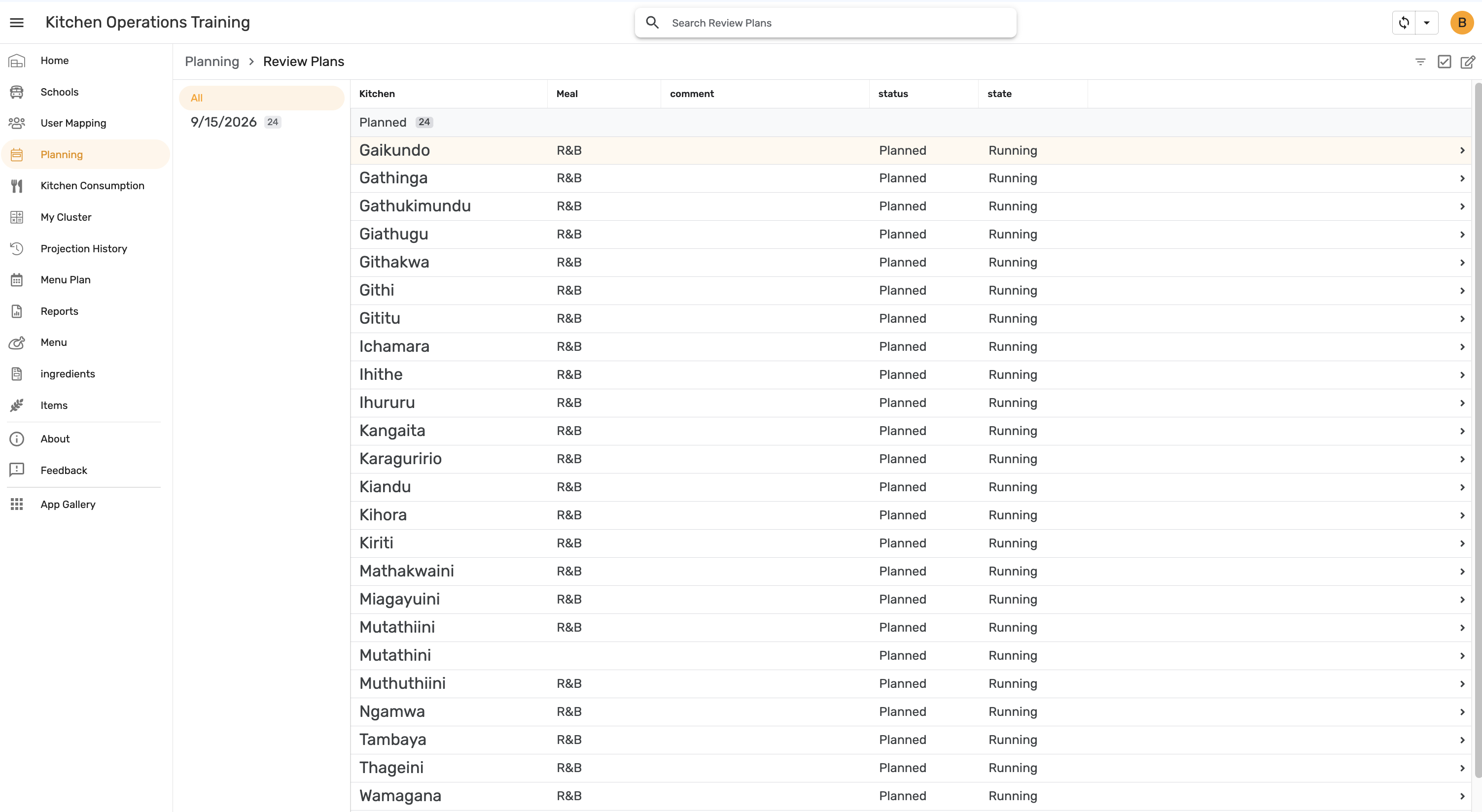
Review Plans lists a plan for every kitchen in the selected cluster — 24 for Nyeri — each carrying the menu from the parent plan and starting at status Planned.
Step 5 — Approve a kitchen plan
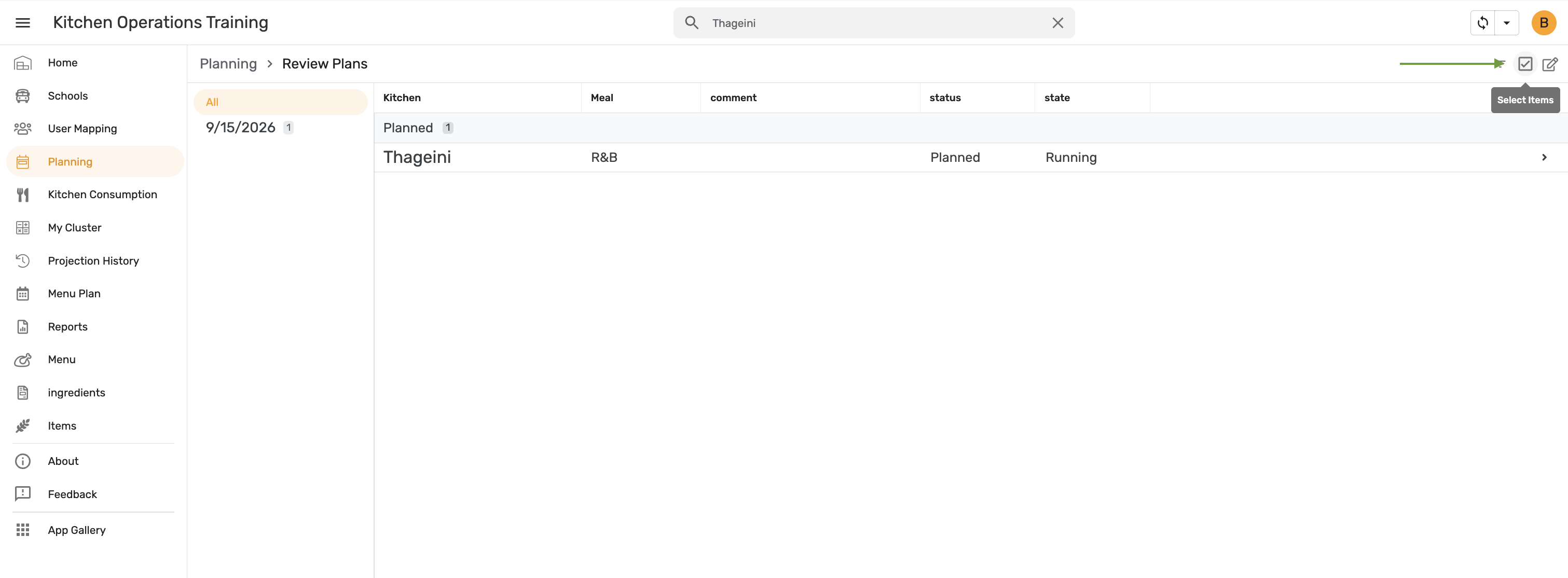
With a long cluster list, search for the kitchen by name to narrow the view, then tap Select Items.
Select the kitchen's row and tap Approve.
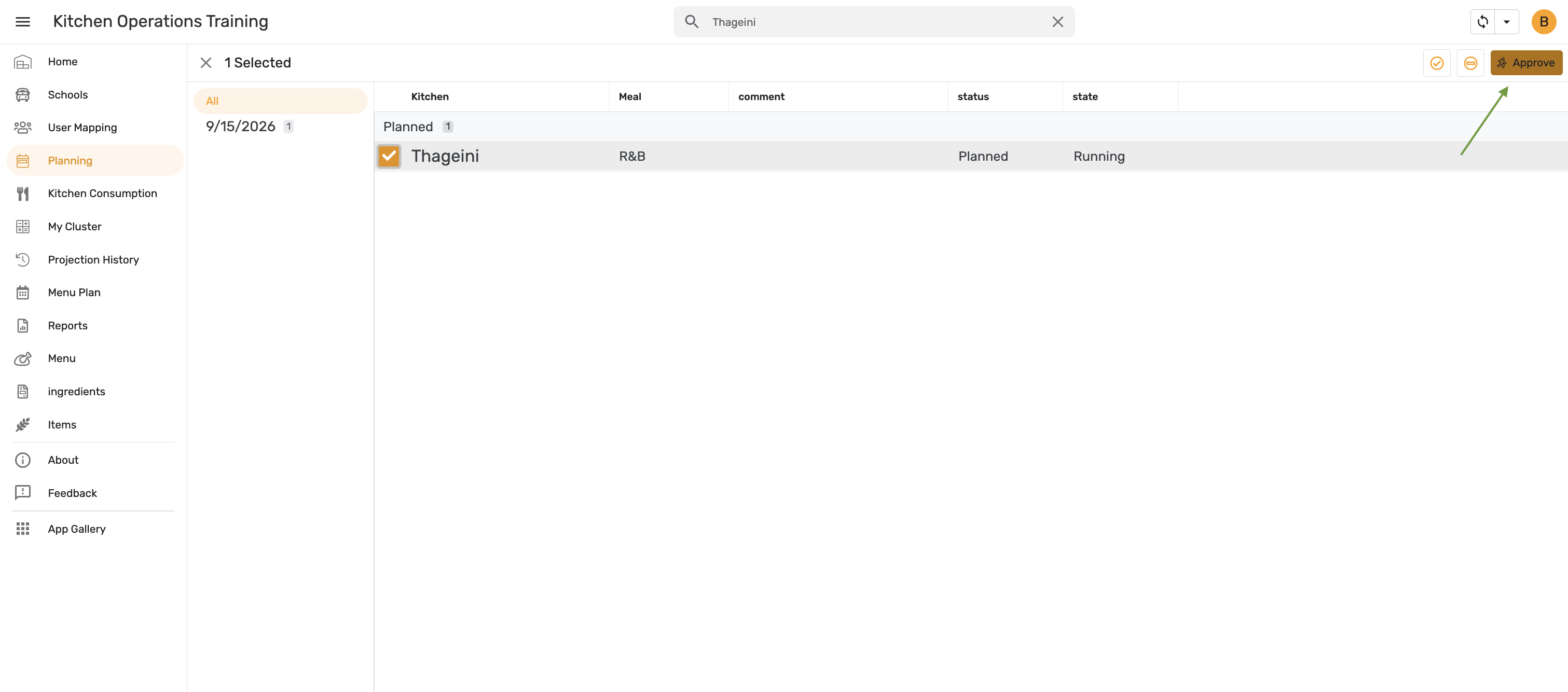
The approved kitchen moves into the Open group; the remaining 23 stay Planned. Repeat until every kitchen in the cluster has been approved.