Stock Adjustment — Decentralized
How to record a stock adjustment, post it, and approve it. The flow is the same for centralized and decentralized kitchens.
Video walkthrough
Step by step
A written companion to the video above. An adjustment moves through three statuses: Open when it is created, Posted once it is posted, and Approved once it has been approved. The example adds 5 units of rice to a kitchen as an inter-kitchen transfer.
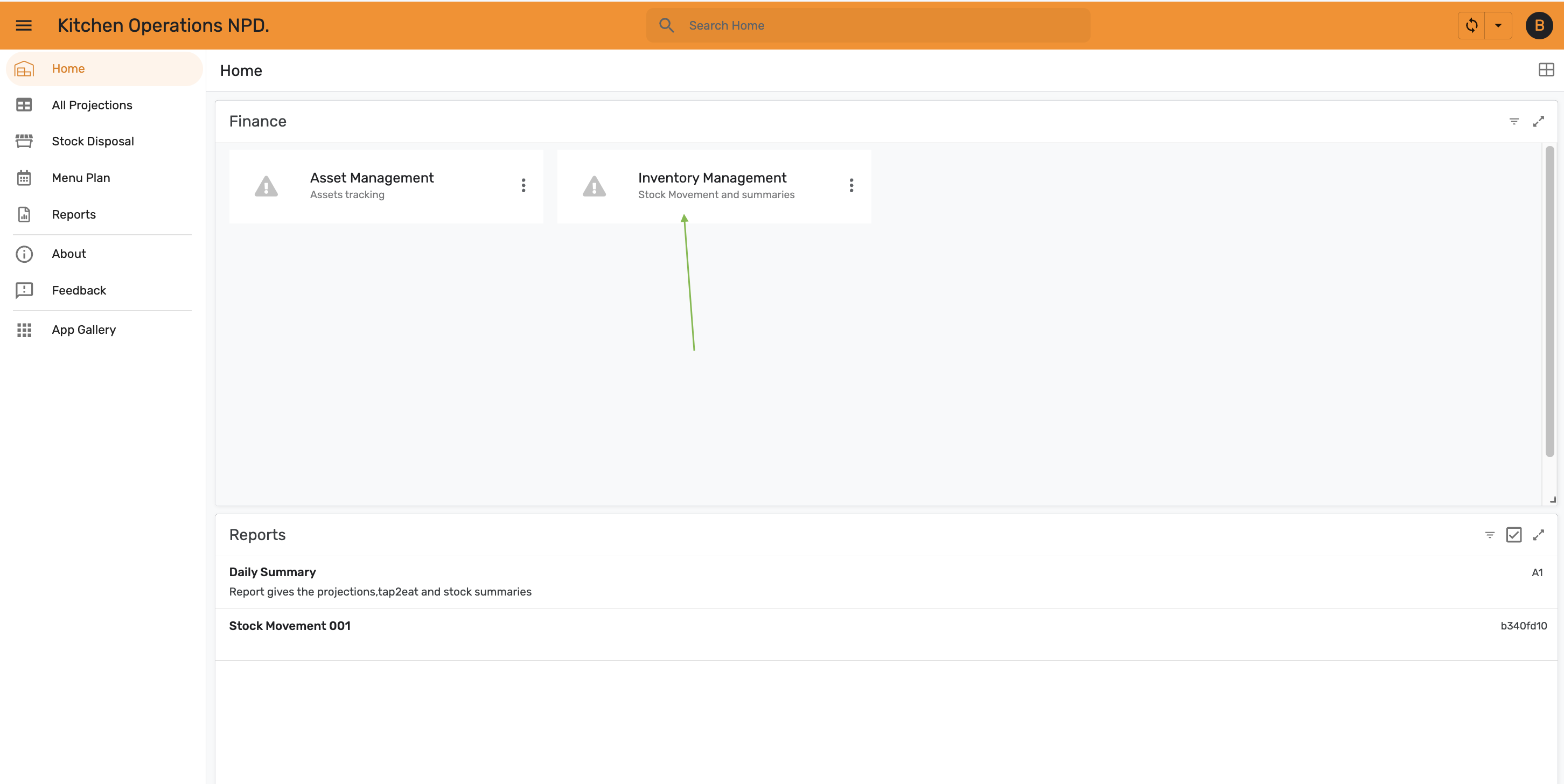
Step 1 — Open Inventory Management
From Home, open Inventory Management.
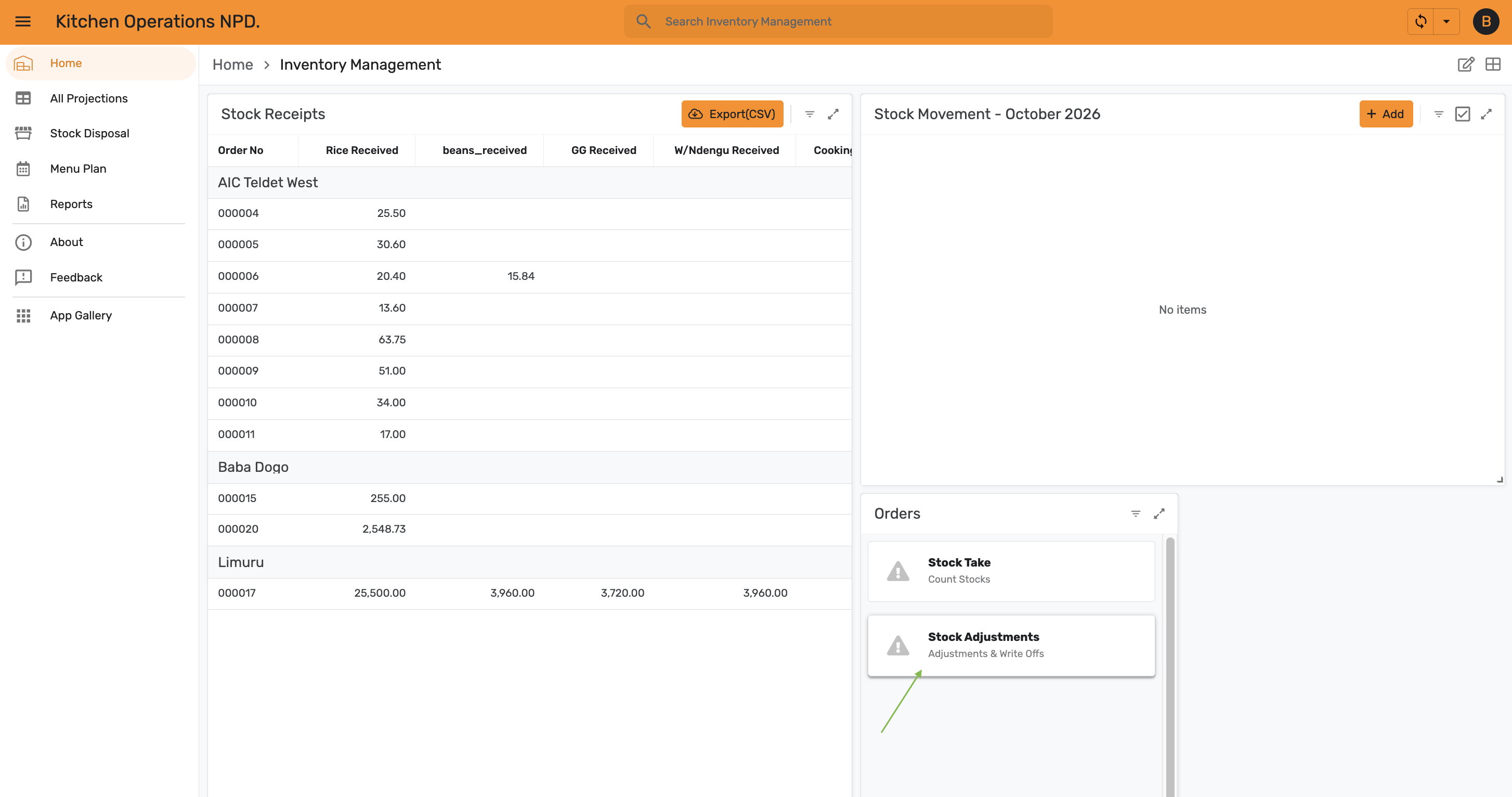
Step 2 — Open Stock Adjustments
In the Orders panel, select Stock Adjustments (Adjustments & Write Offs).
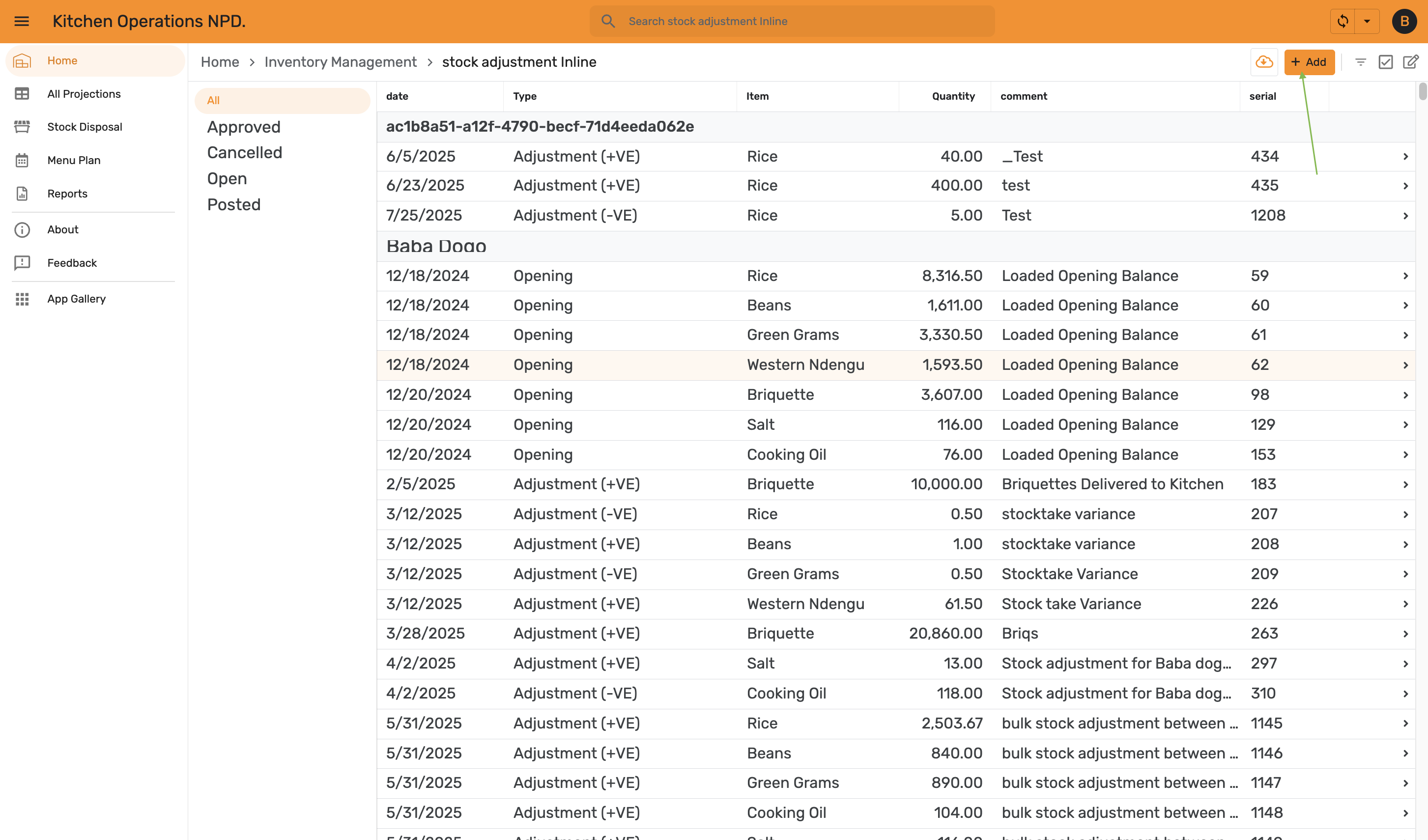
Step 3 — Add an adjustment
The list shows every adjustment grouped by kitchen, with filters for Approved, Cancelled, Open and Posted on the left. Tap + Add.
Step 4 — Fill in the form
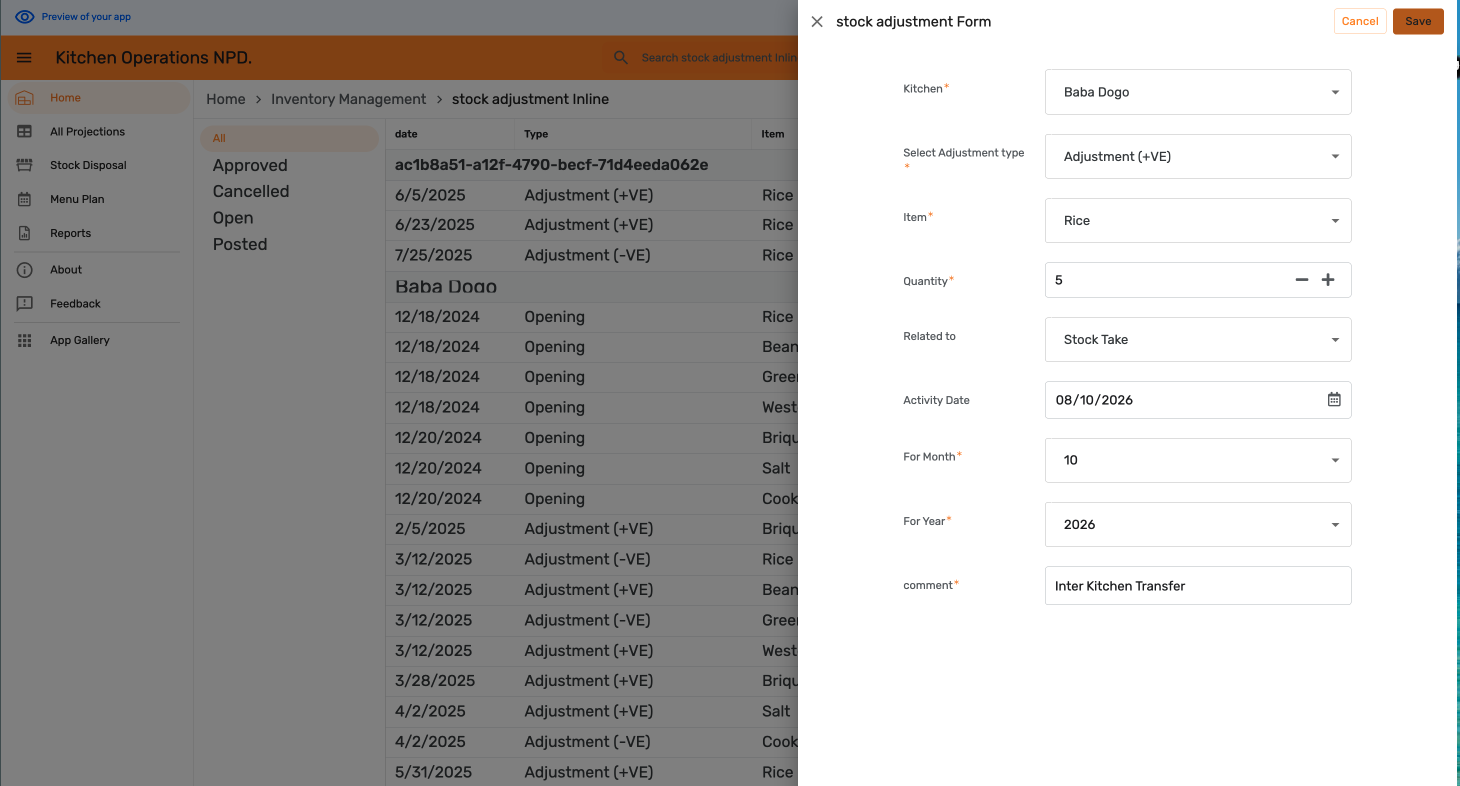
Complete the stock adjustment Form, then tap Save:
- Kitchen — the kitchen being adjusted.
- Select Adjustment type — Adjustment (+VE) to add stock or Adjustment (-VE) to remove it.
- Item and Quantity.
- Related to — for example Stock Take.
- Activity Date, For Month and For Year.
- comment — the reason for the adjustment, for example "Inter Kitchen Transfer".
Step 5 — Post the adjustment
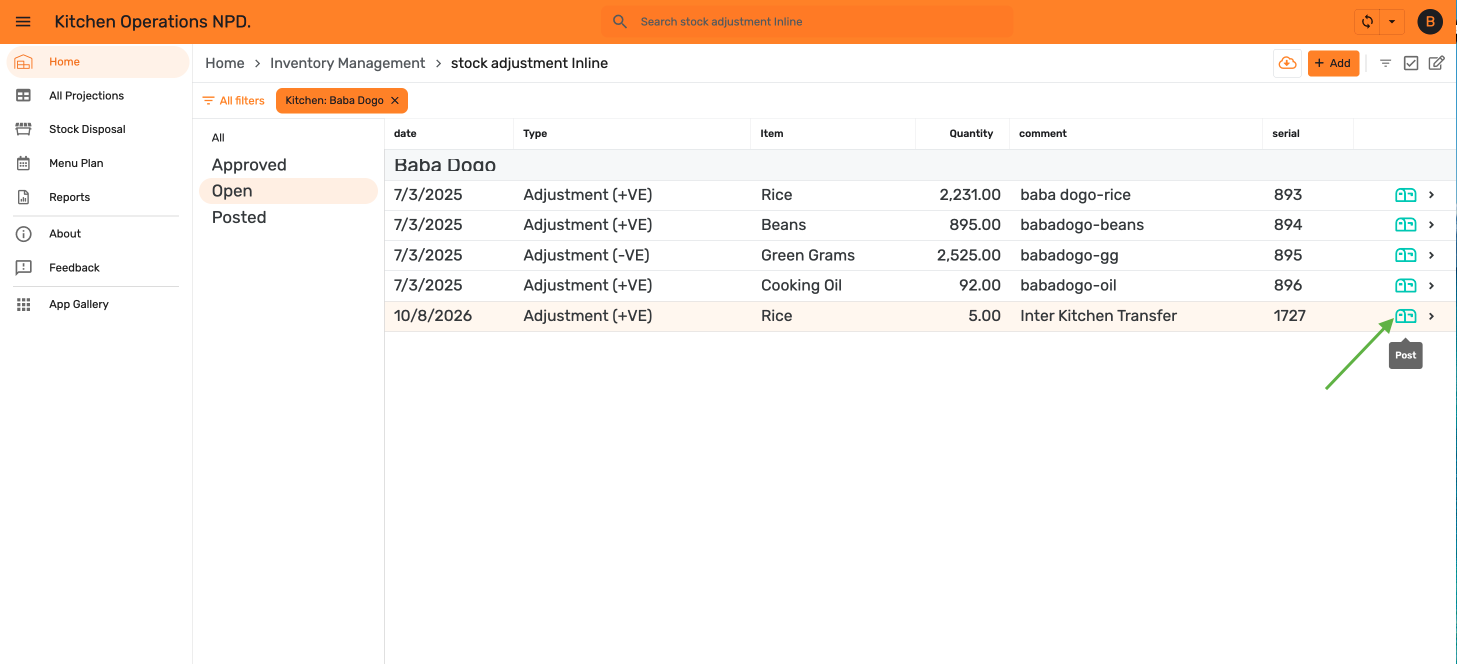
The new adjustment appears under Open. Tap the Post icon on its row.
Step 6 — Find it under Posted
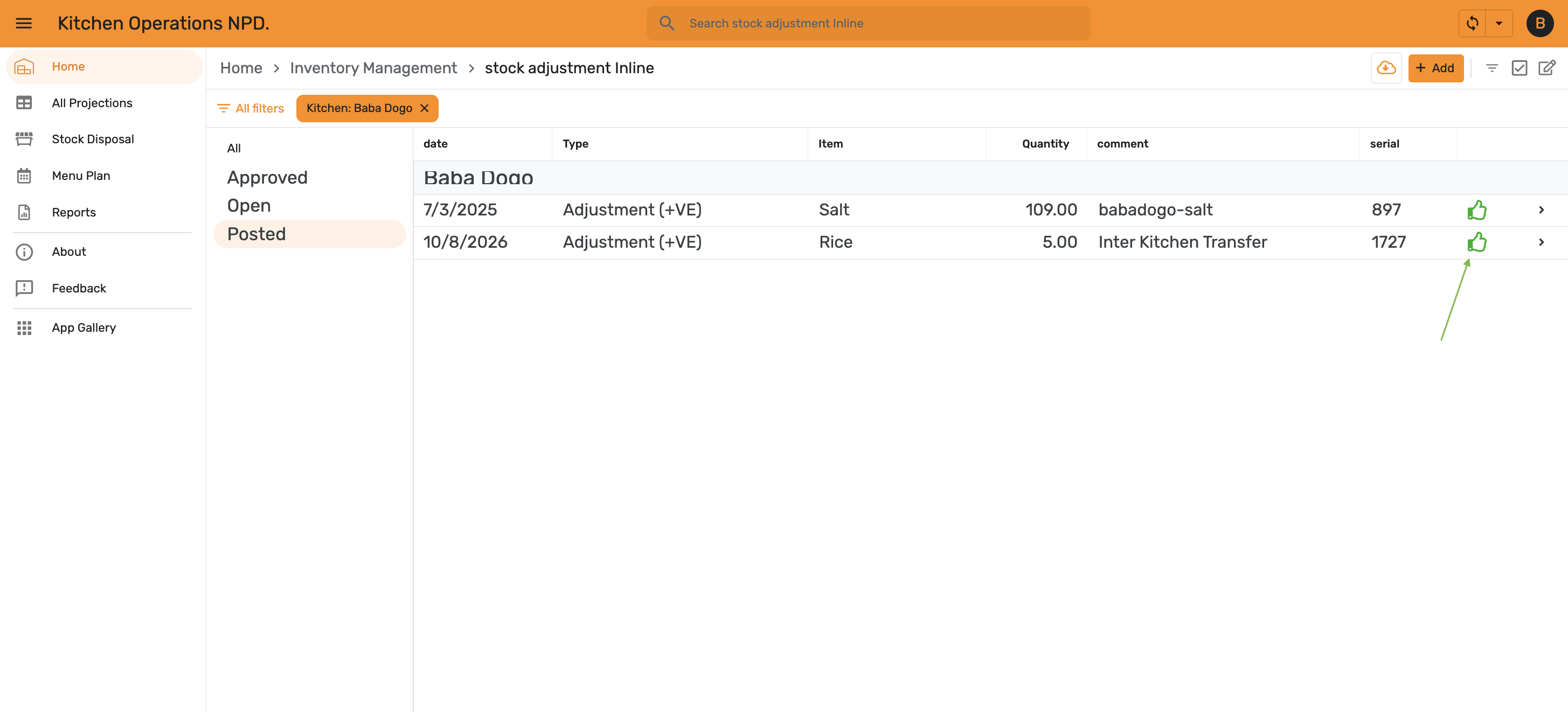
Once posted, the adjustment moves to the Posted tab and shows an approve icon.
Step 7 — Approve it
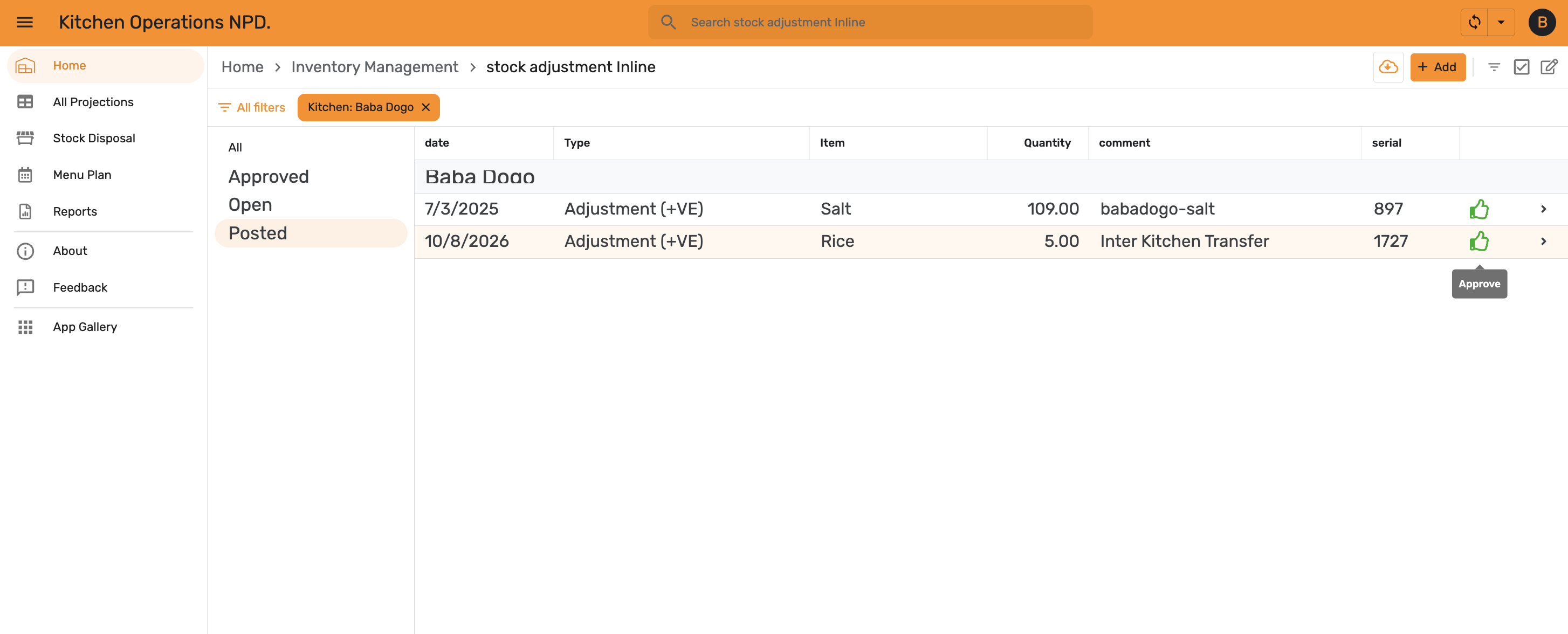
Tap Approve on the row.
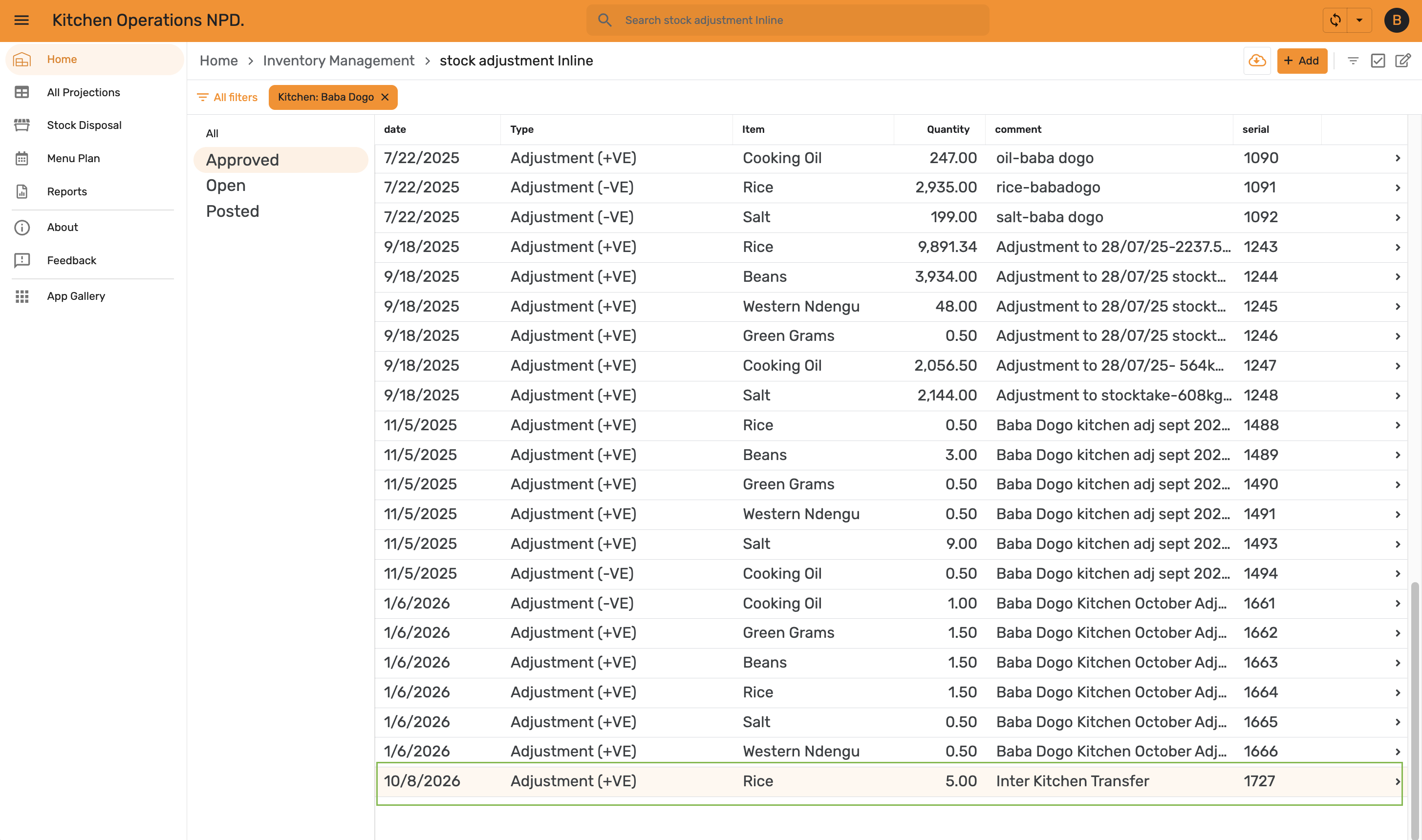
Step 8 — Confirm it is approved
The adjustment now appears under Approved, at the end of the kitchen's list.