Plan & Projections — Decentralized
How a Kitchen Manager fills in school-level projections, confirms the plan, picks stock, and closes it out for a decentralized or semi-centralized kitchen. This picks up after a plan has already been created and confirmed in Meal Planning.
If you are working with centralized kitchens, the picking list is grouped by category (Utility, Stock, Non Stock) and actuals aren't tracked per school in the same way. Use Plan & Projections (Centralized) instead.
Video walkthrough
Step by step
A written companion to the video above, following one kitchen's plan from open projection through to close. The screens below are from the mobile app view.
Step 1 — Open Projections
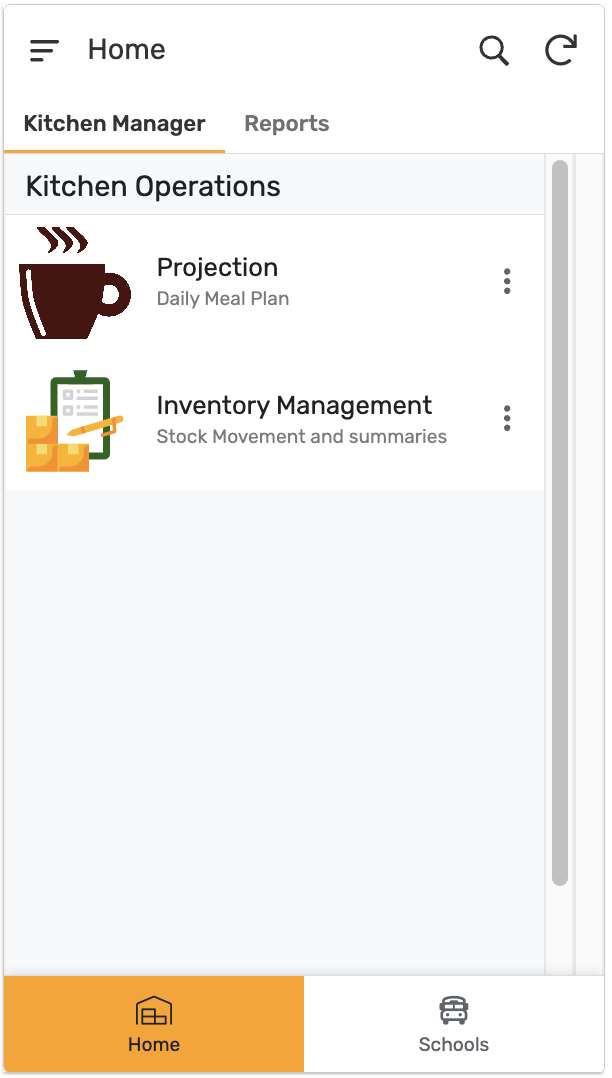
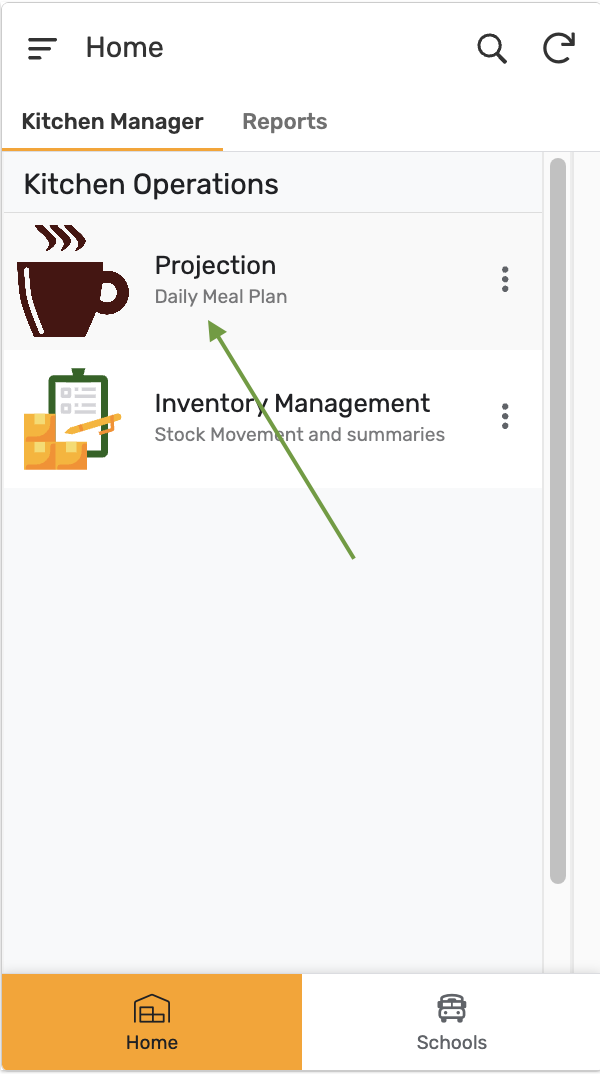
From Home, under the Kitchen Manager tab, tap Projection.
Step 2 — Open the kitchen plan
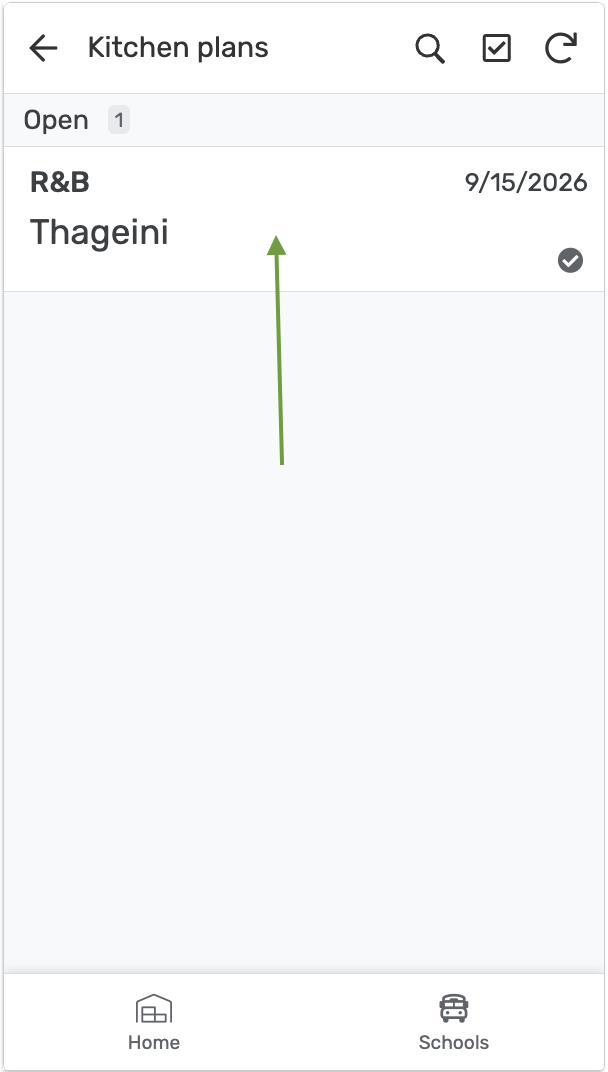
Kitchen plans lists plans still awaiting projections under status Open. Tap the plan to open it.
Step 3 — Fill in projections per school
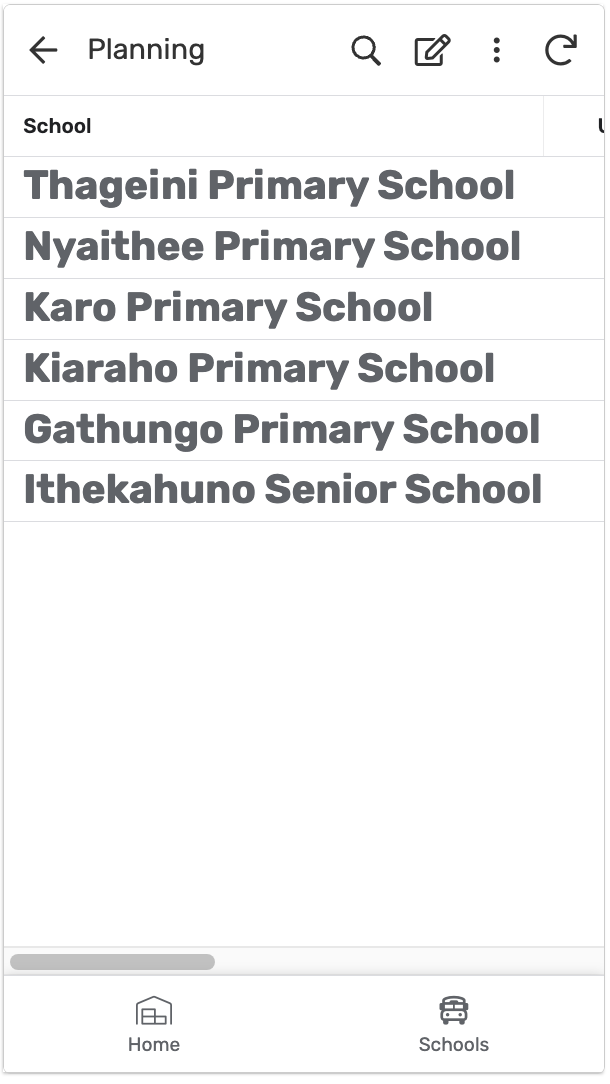
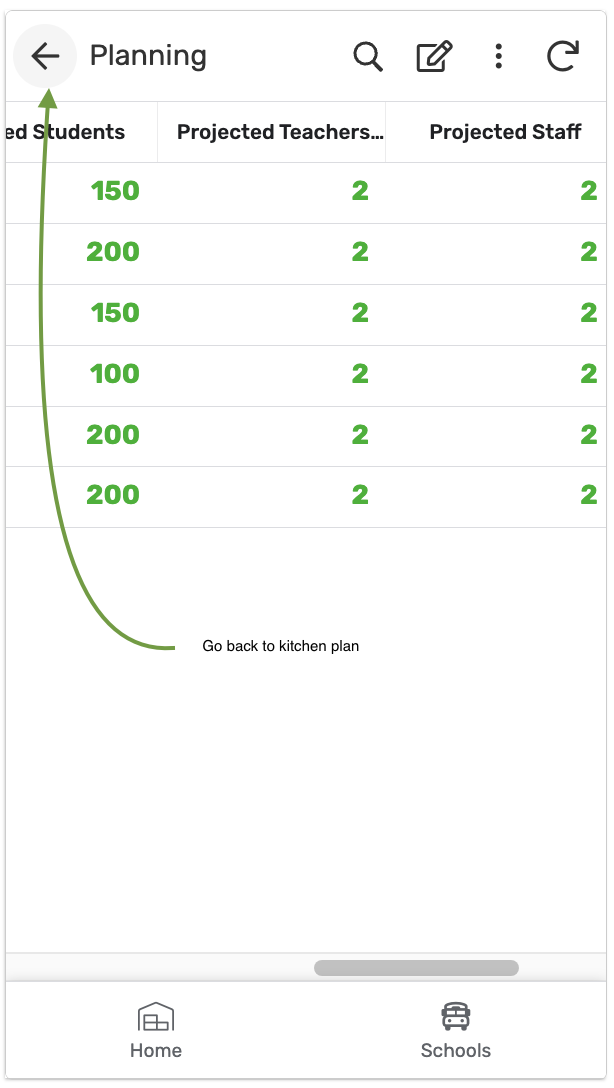
Planning lists every school under this kitchen. Scroll right to reach the input columns — decentralized plans also carry an Uji Cups column alongside Projected Students, Staff, and Teachers.
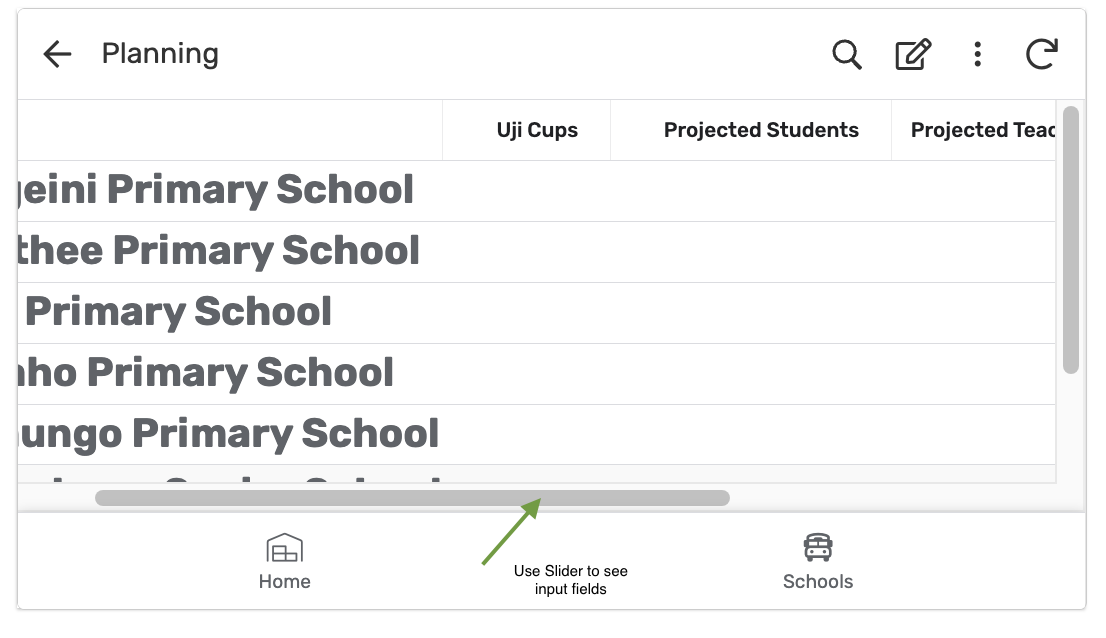
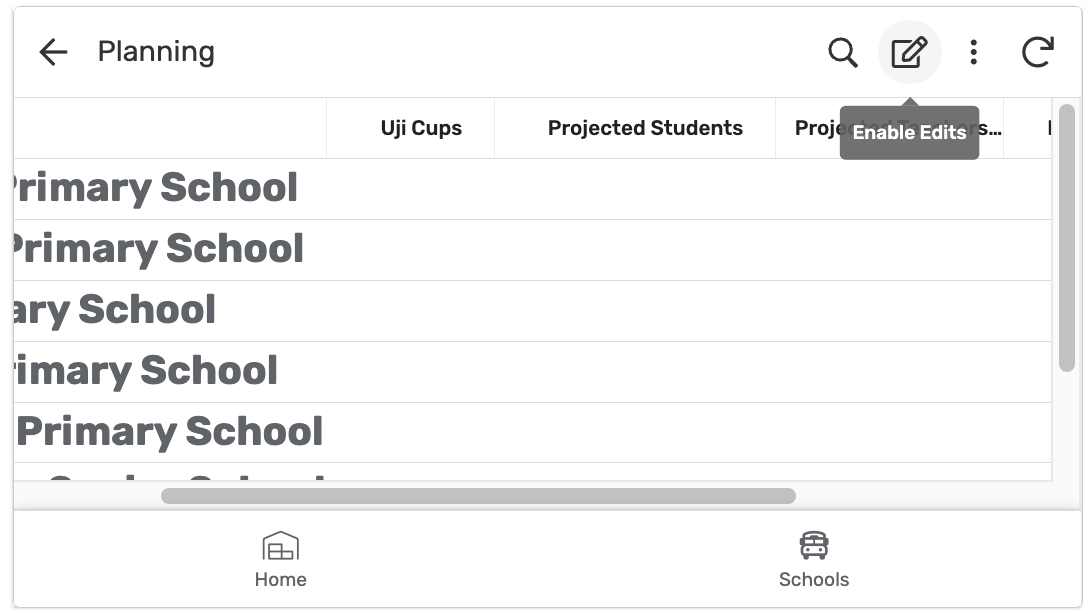
Tap the edit icon to enter headcounts.
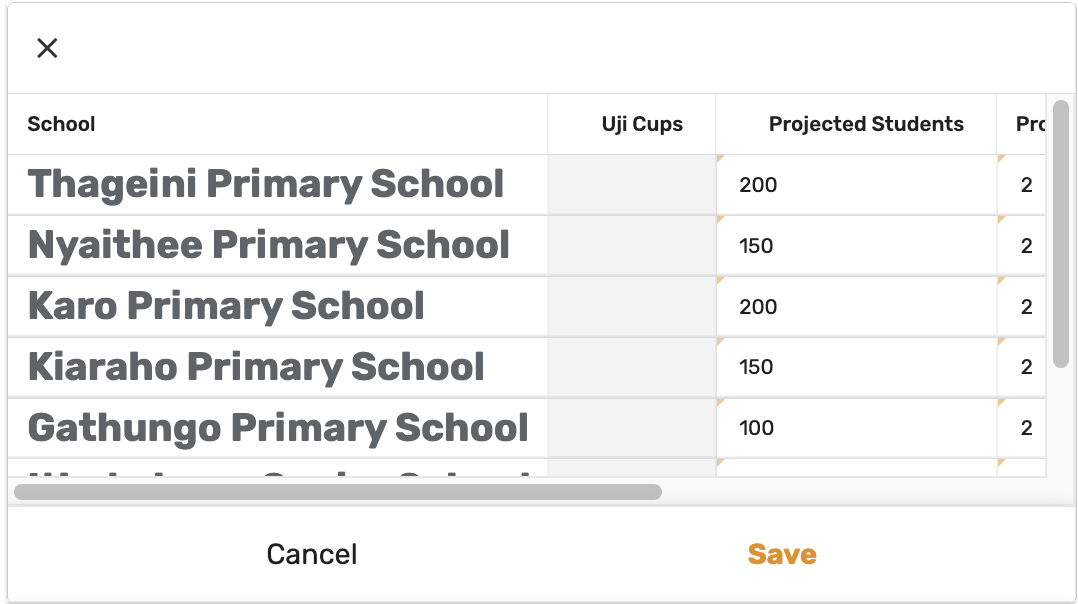
Fill in Projected Students (and the other headcount fields) for each school, then Save.
Step 4 — Confirm the plan
Back at the plan, the values are saved per school. Navigate back to the kitchen plan.
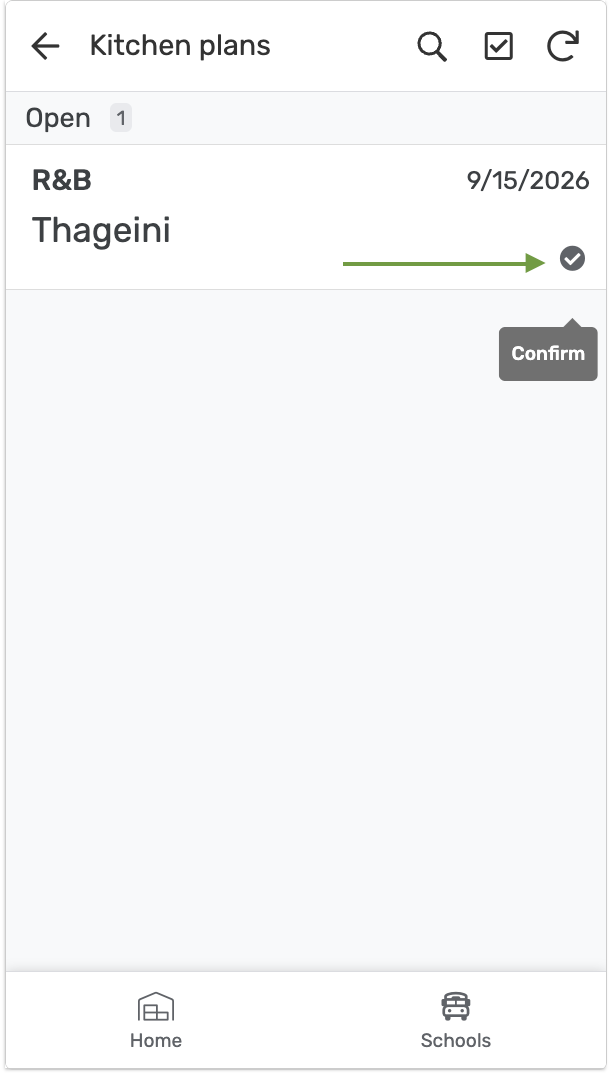
Tap Confirm on the plan's row.
Step 5 — Open the Pick List
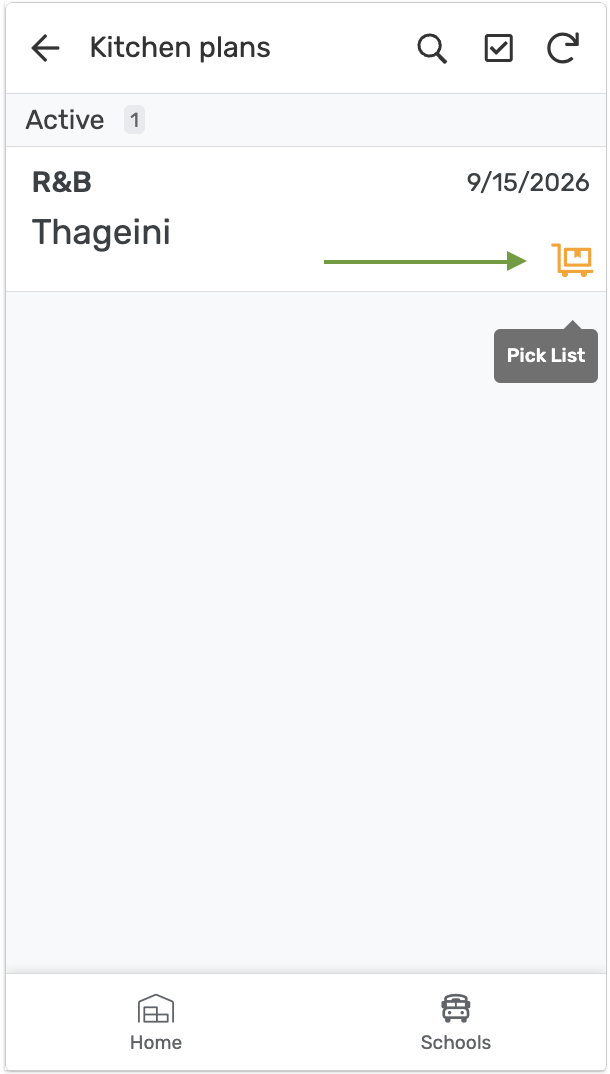
The plan moves to status Active. Tap the Pick List icon.
Step 6 — Record actual quantities cooked
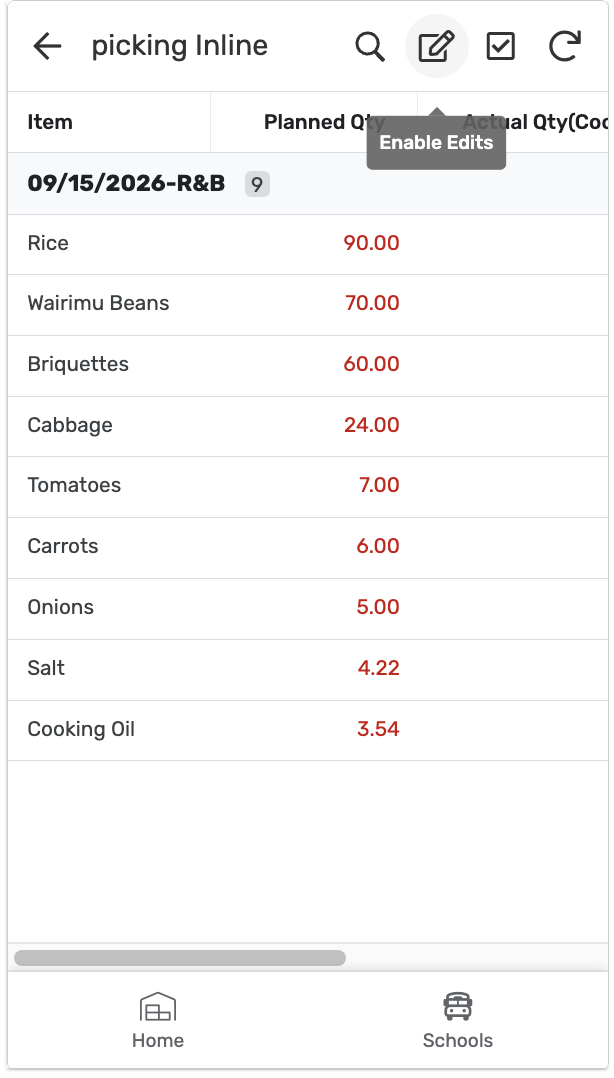
Picking Inline lists the plan's items with their planned quantities.
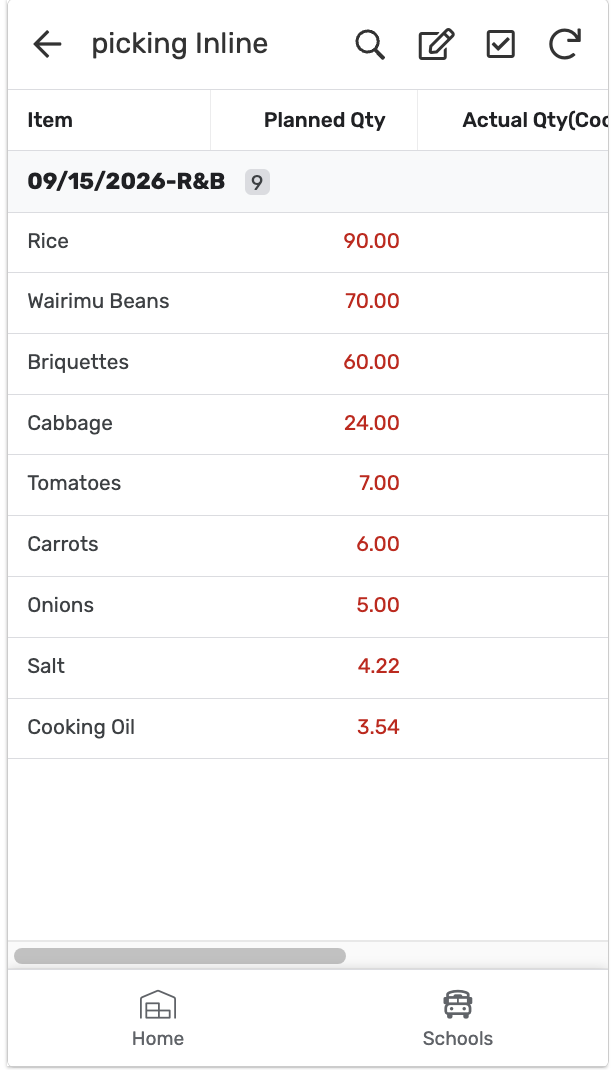
Tap the edit icon to enter actuals.
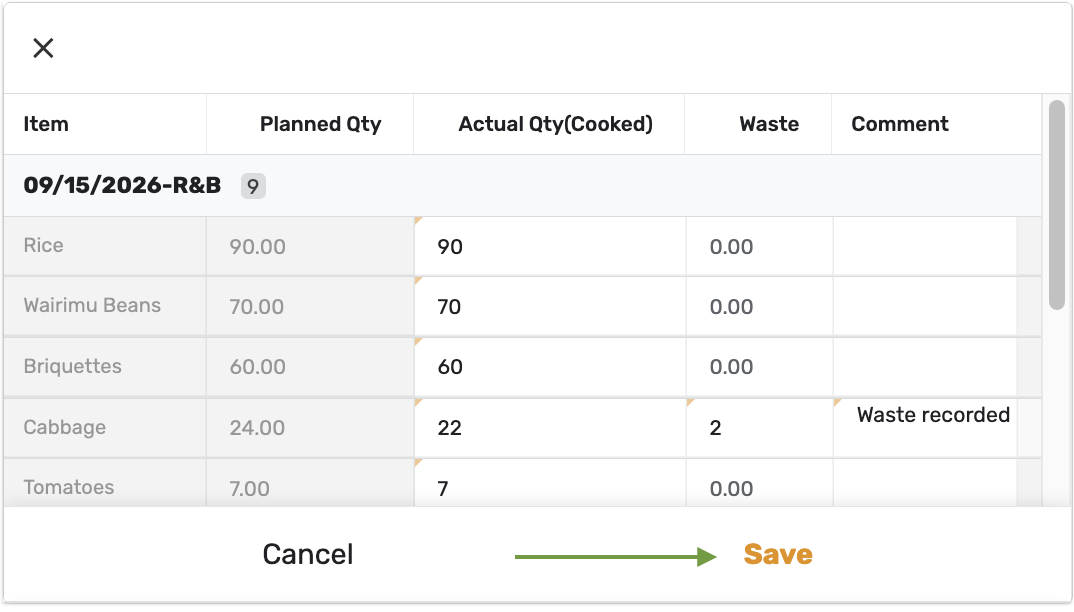
Enter the Actual Qty (Cooked) for each item, recording Waste and a Comment where the actual differs from planned, then Save.
Step 7 — Pick the items
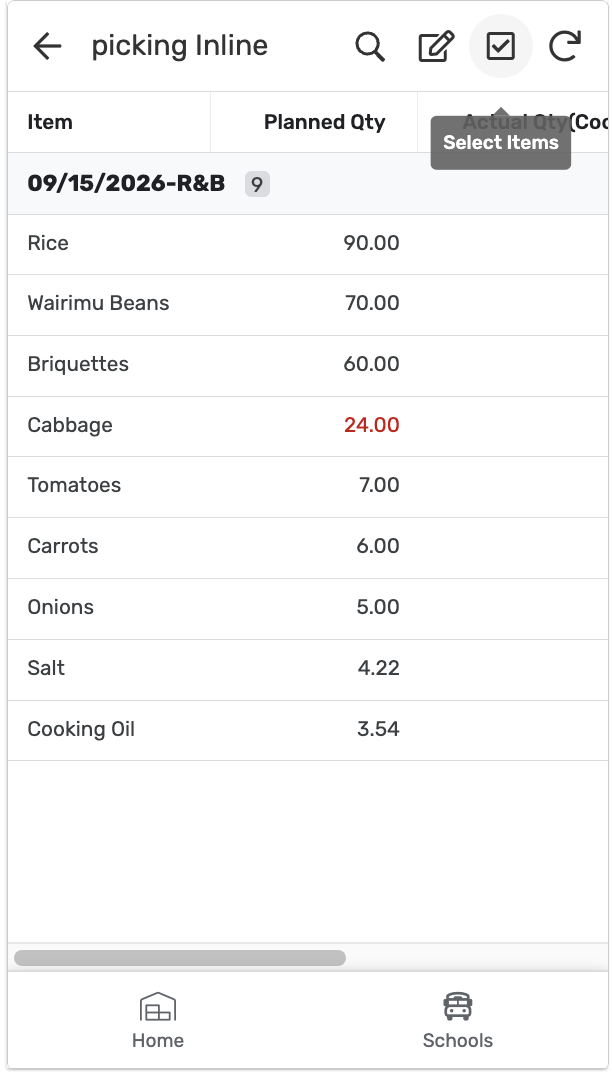
The entries are saved. Tap Select Items.
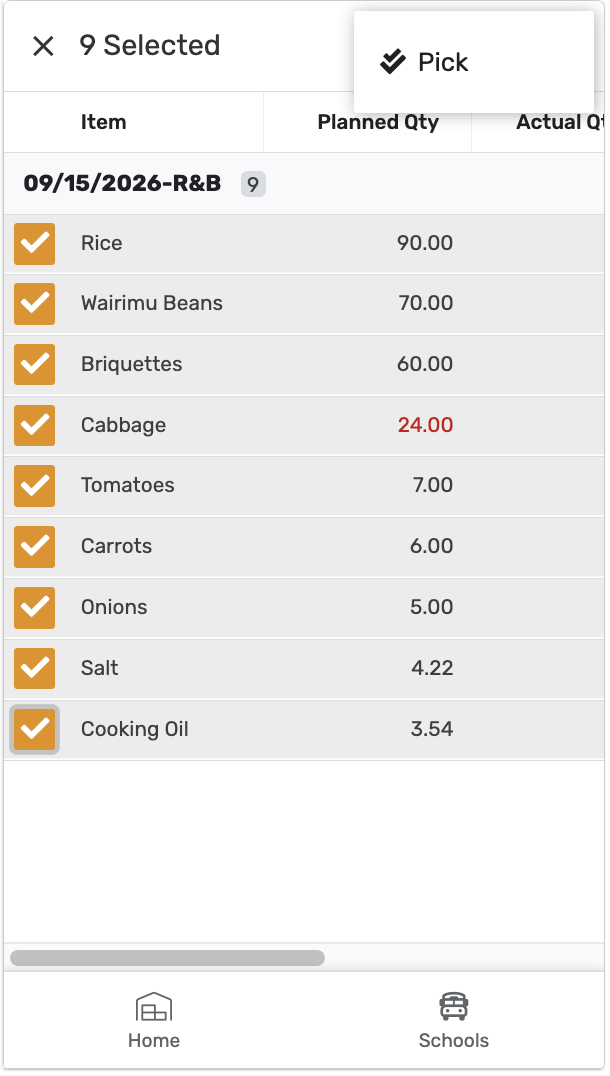
Select every item, then tap Pick.
Navigate back to the kitchen plan.
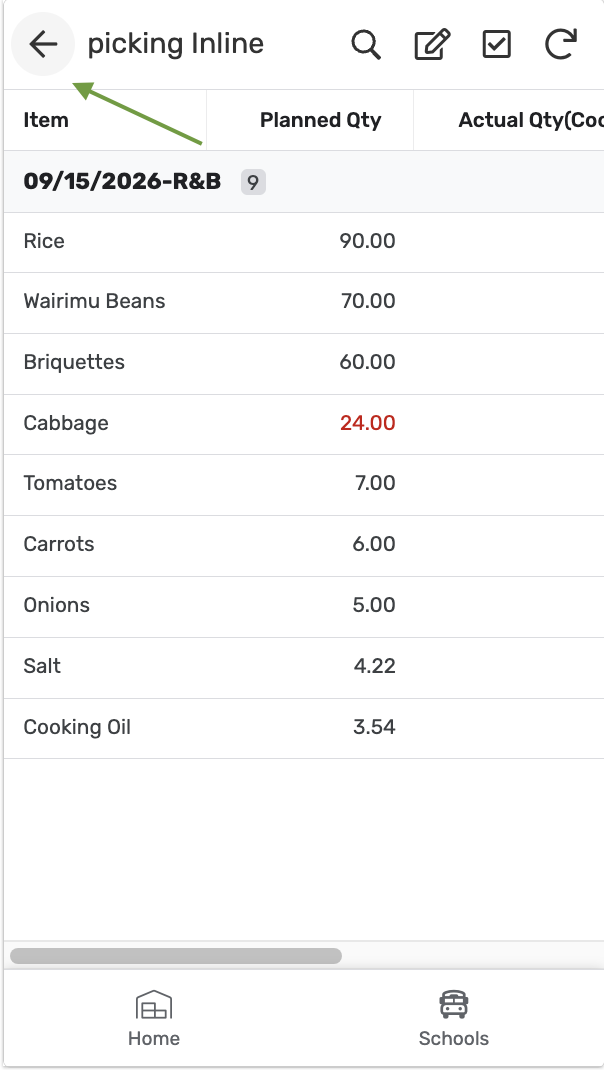
The plan stays Active with its Pick List icon shown.
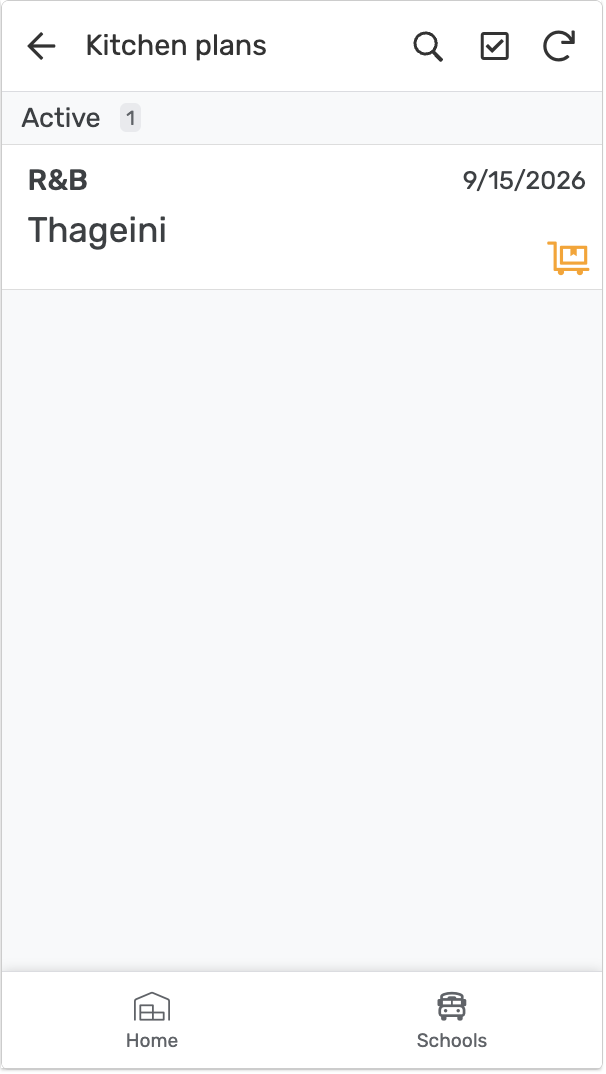
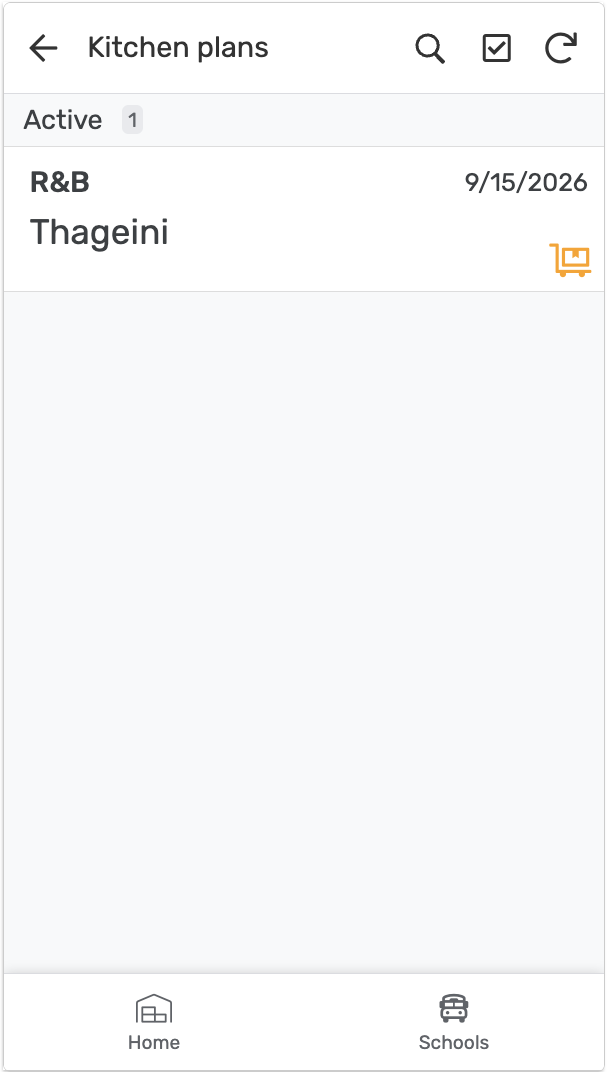
Step 8 — Record actuals per school
Open Actual to record what each school actually received.
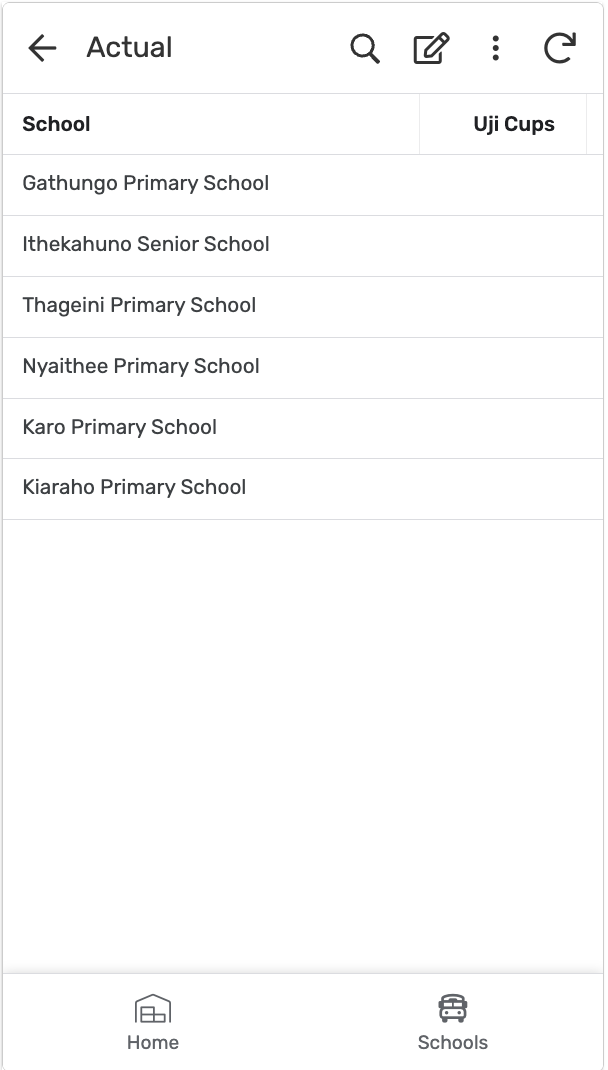
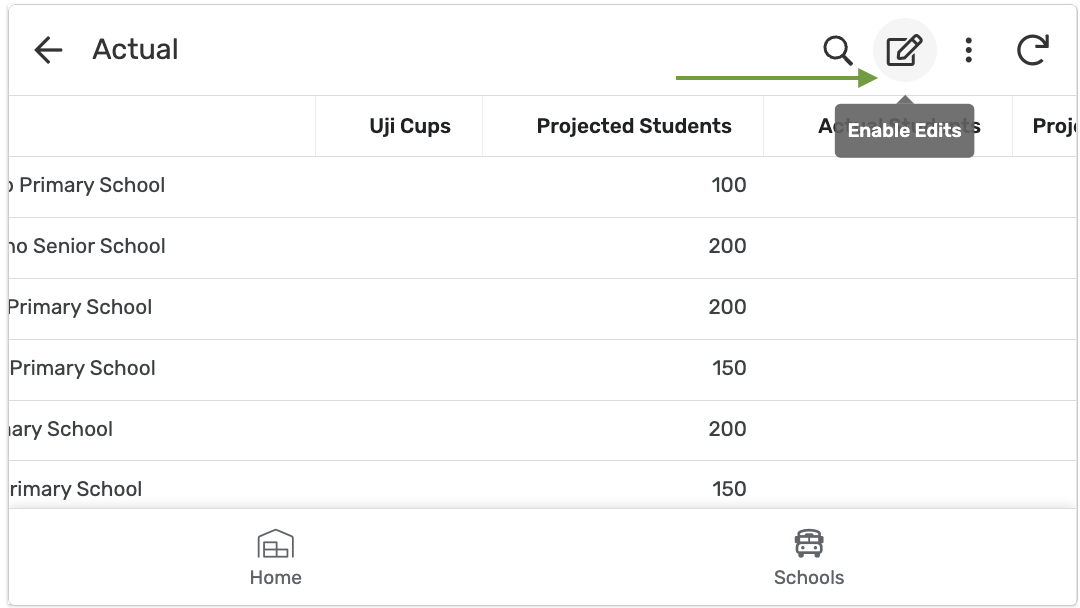
Scroll right to reach the input columns, then tap the edit icon.
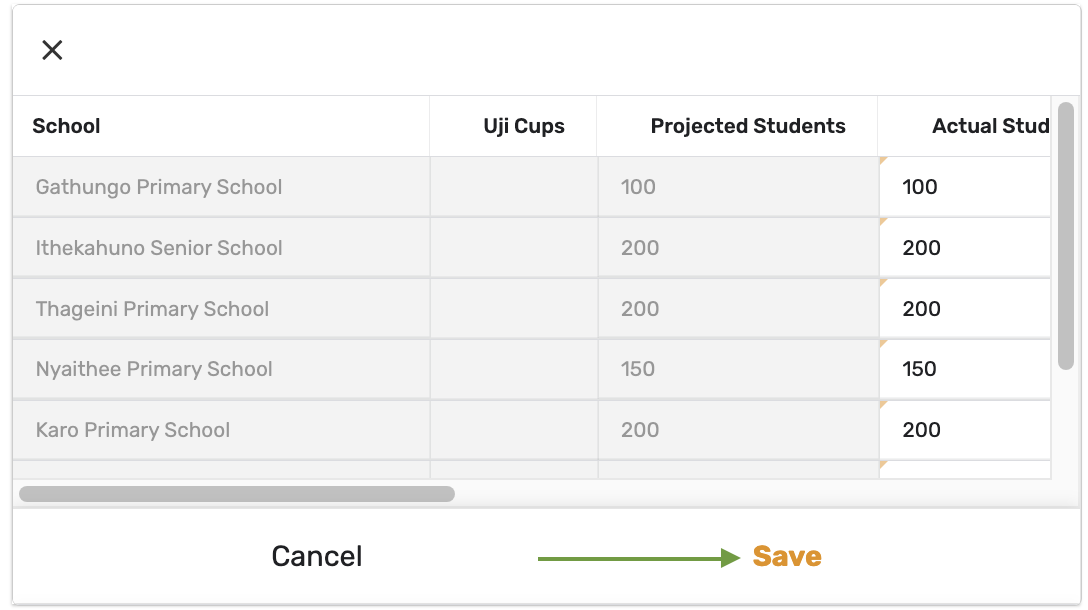
Enter Actual Students for each school, then Save.
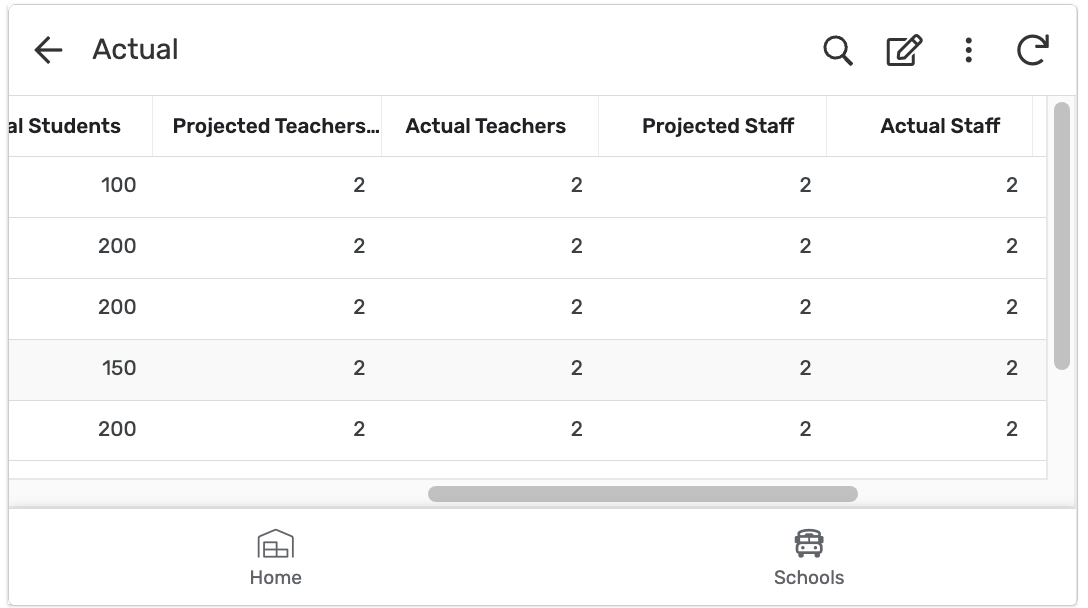
Actual Teachers and Actual Staff are recorded the same way.
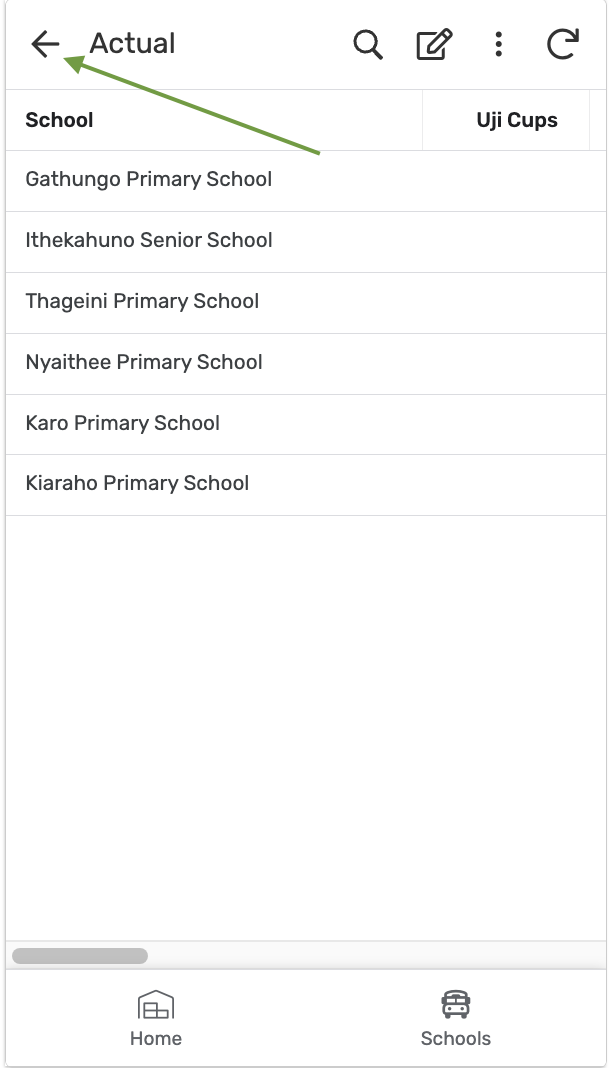
Navigate back to the kitchen plan.
Step 9 — Close the plan
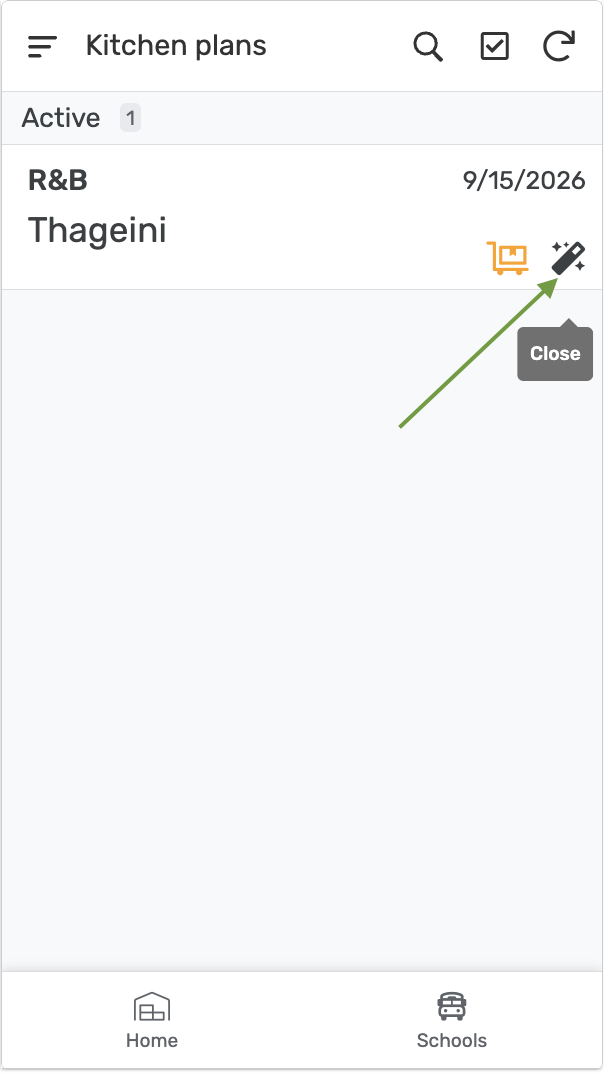
With actuals recorded, tap Close on the plan's row to finalize it.