Plan & Projections — Centralized
How a Kitchen Manager fills in school-level projections, confirms the plan, picks stock, and closes it out for a centralized kitchen. This picks up after a plan has already been created and confirmed in Meal Planning.
If you are working with decentralized or semi-centralized kitchens, this flow is
different — actuals are entered per school under a location cluster, and the
picking list is not grouped by category. Use Plan & Projections (Decentralized) instead.
Video walkthrough
Walkthrough
A written companion to the video above, following one kitchen's plan from open projection through to close.
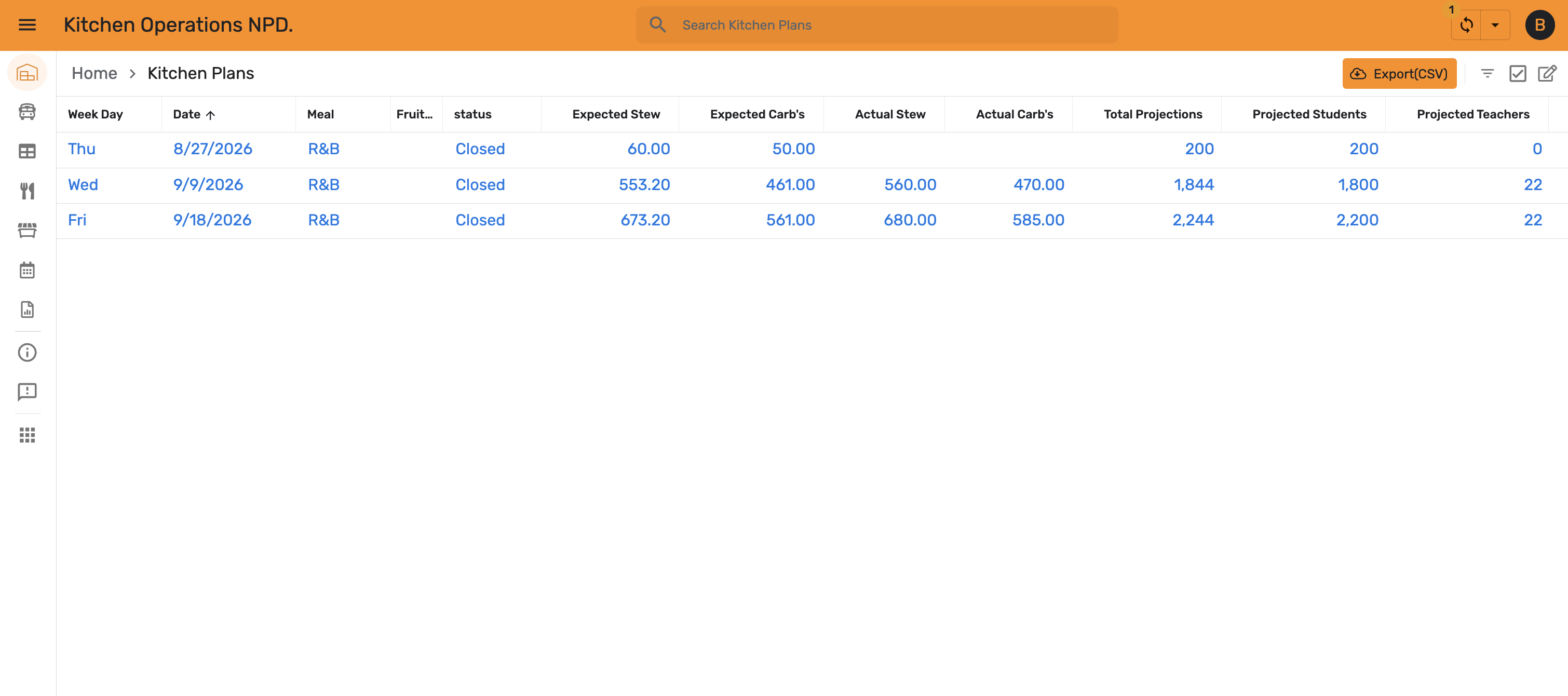
From Home, open Projections under Kitchen Operations.
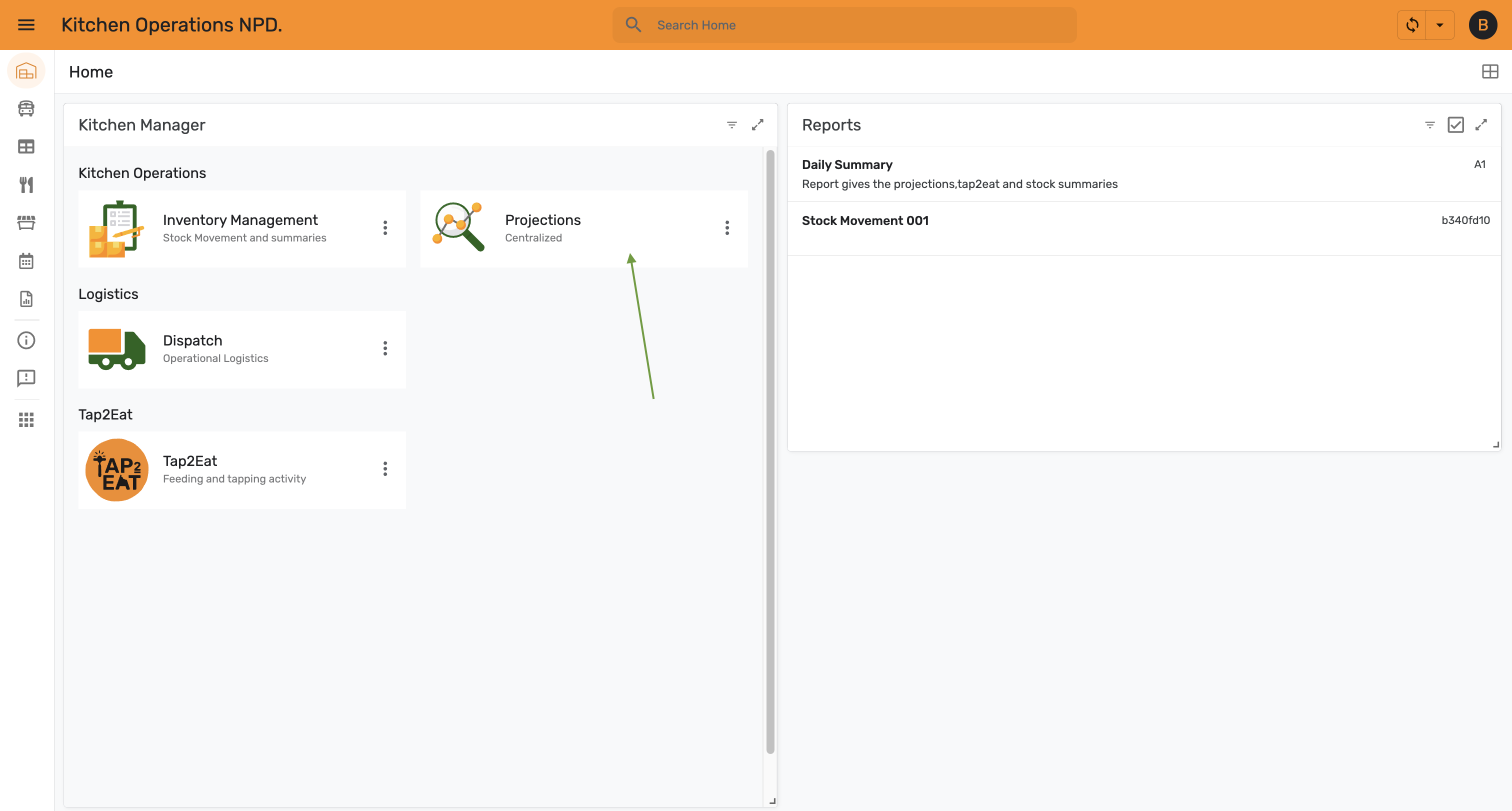
Kitchen Plans lists this kitchen's plans by date. Open plans still awaiting projections show status Open — select one to fill in.
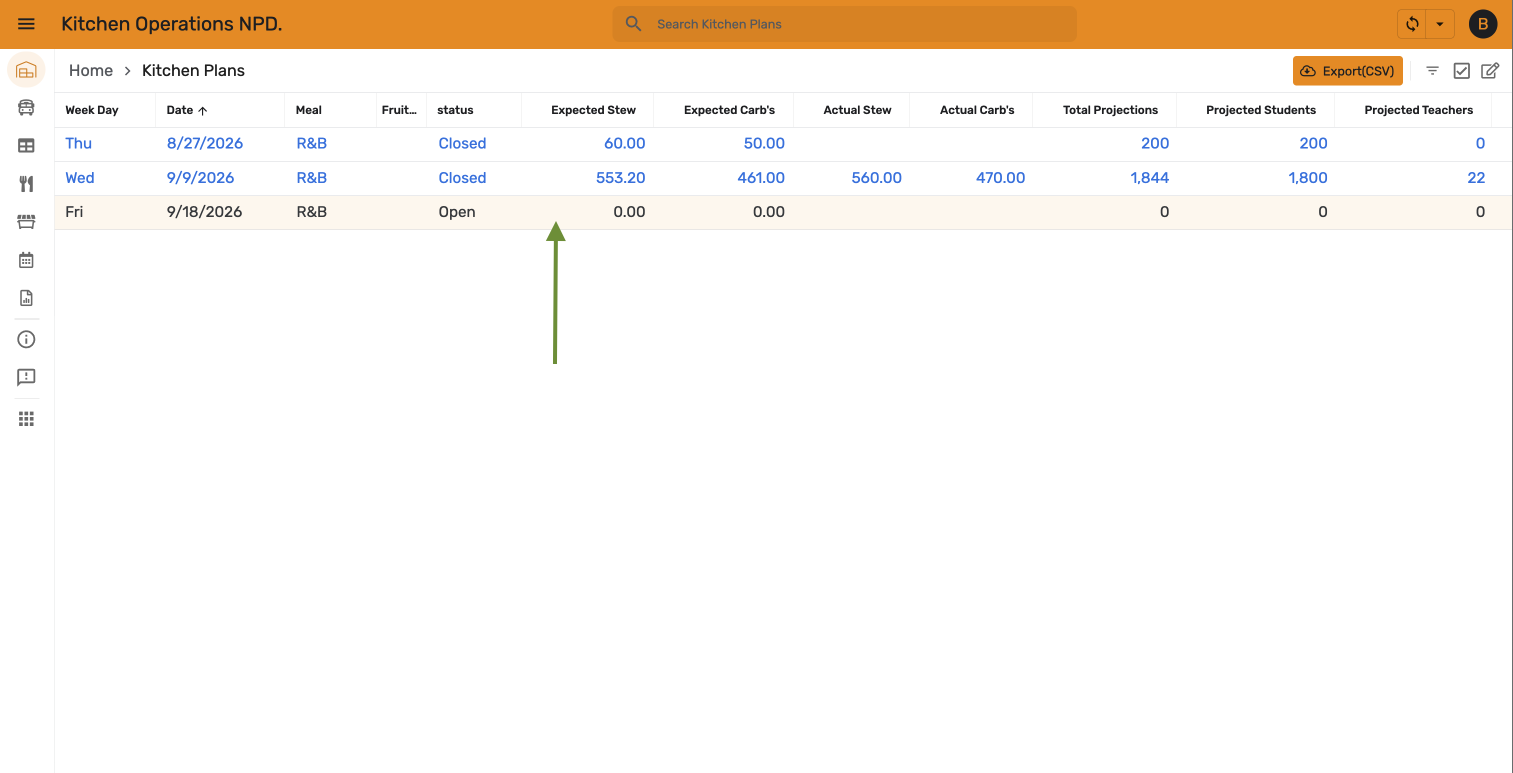
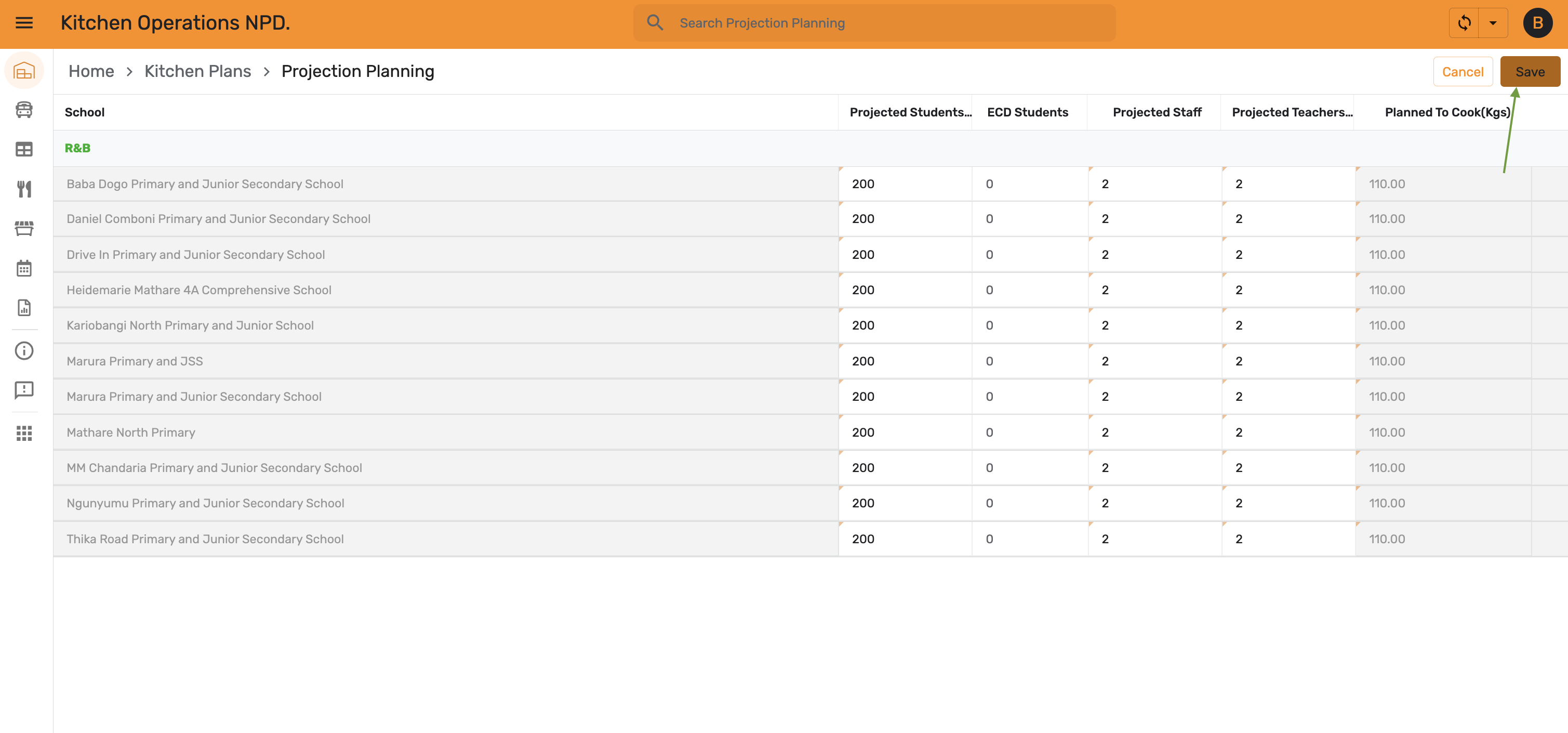
Projection Planning lists every school under the plan's menu. Tap the edit icon to enter headcounts.
Fill in Projected Students, ECD Students, Projected Staff, Projected Teachers, and Planned to Cook (Kgs) for each school, then Save.
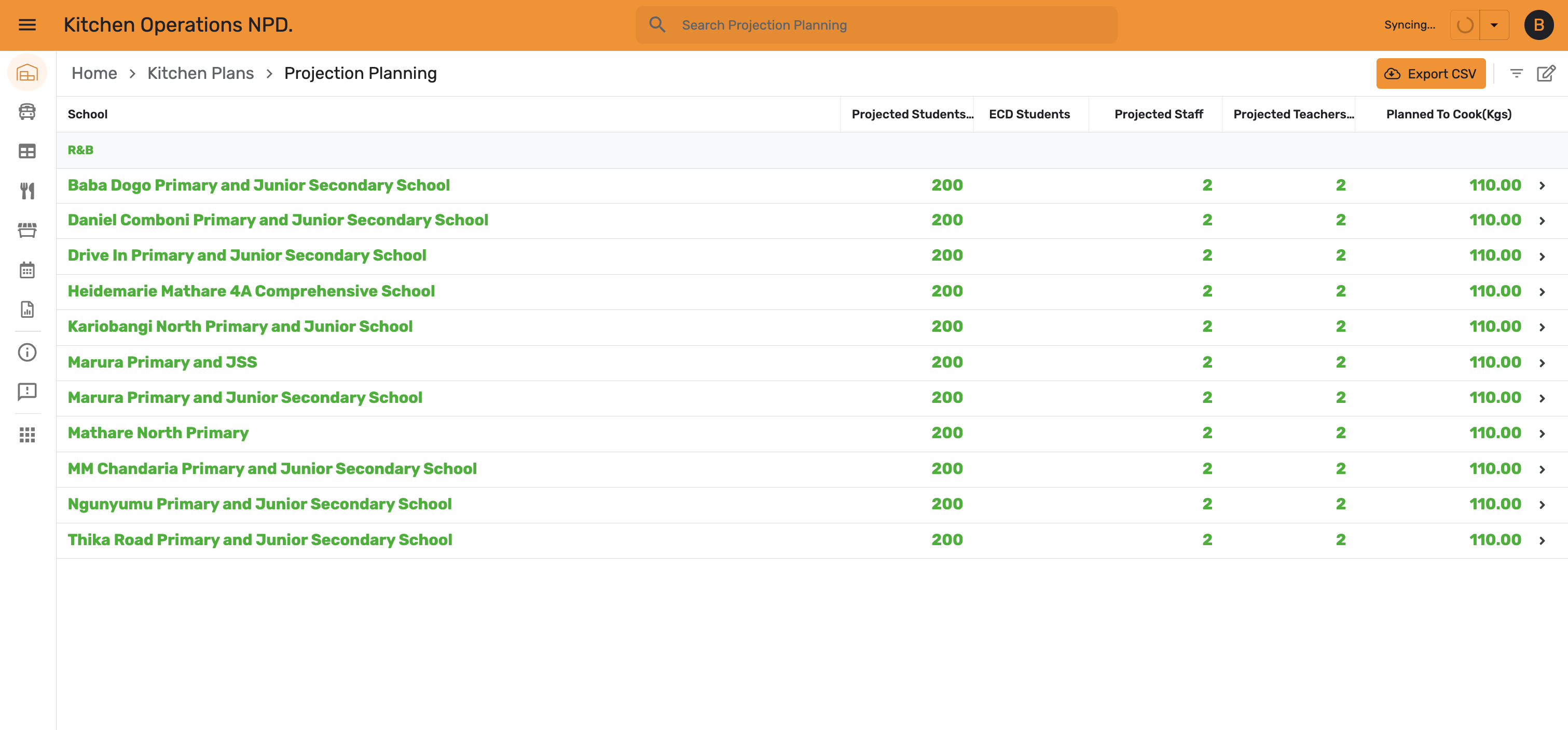
The values are confirmed against each school.
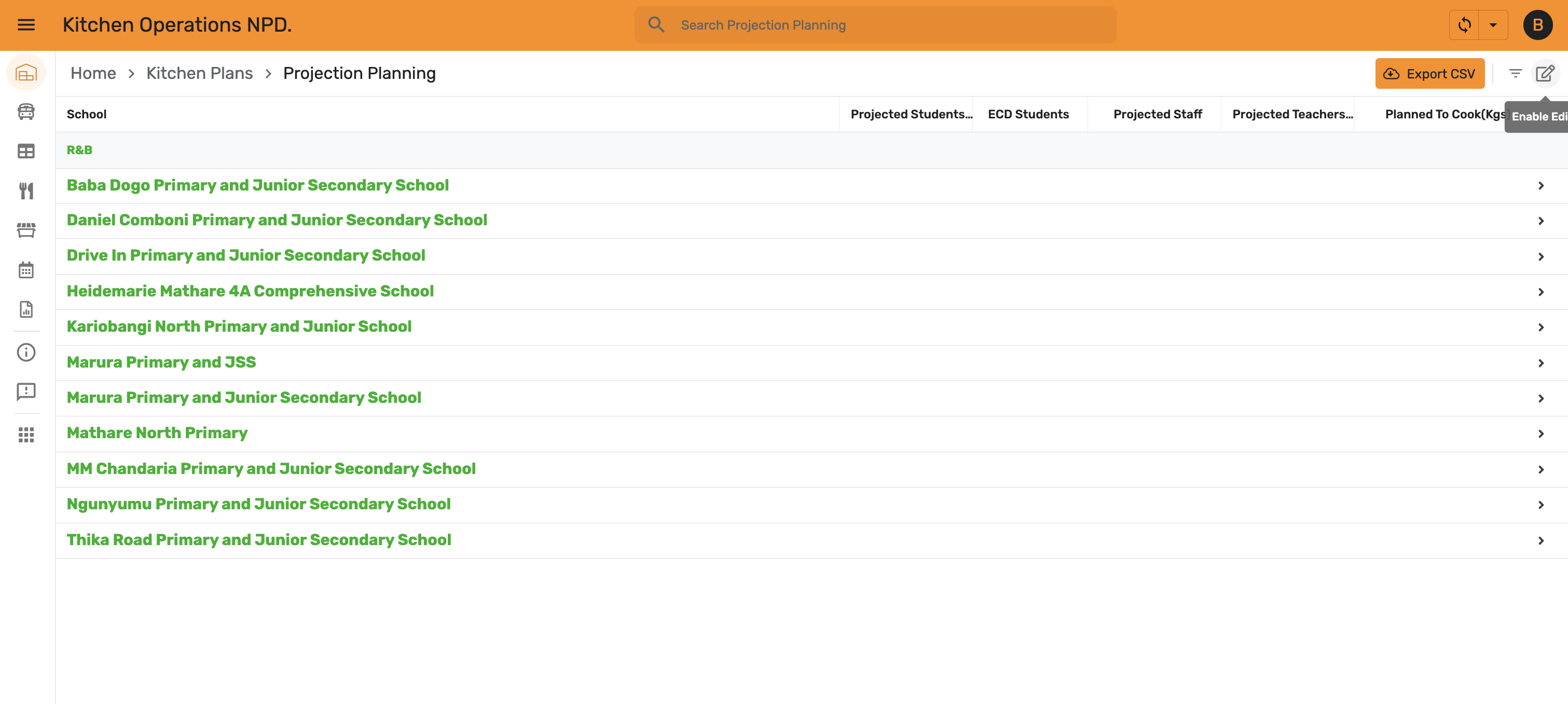
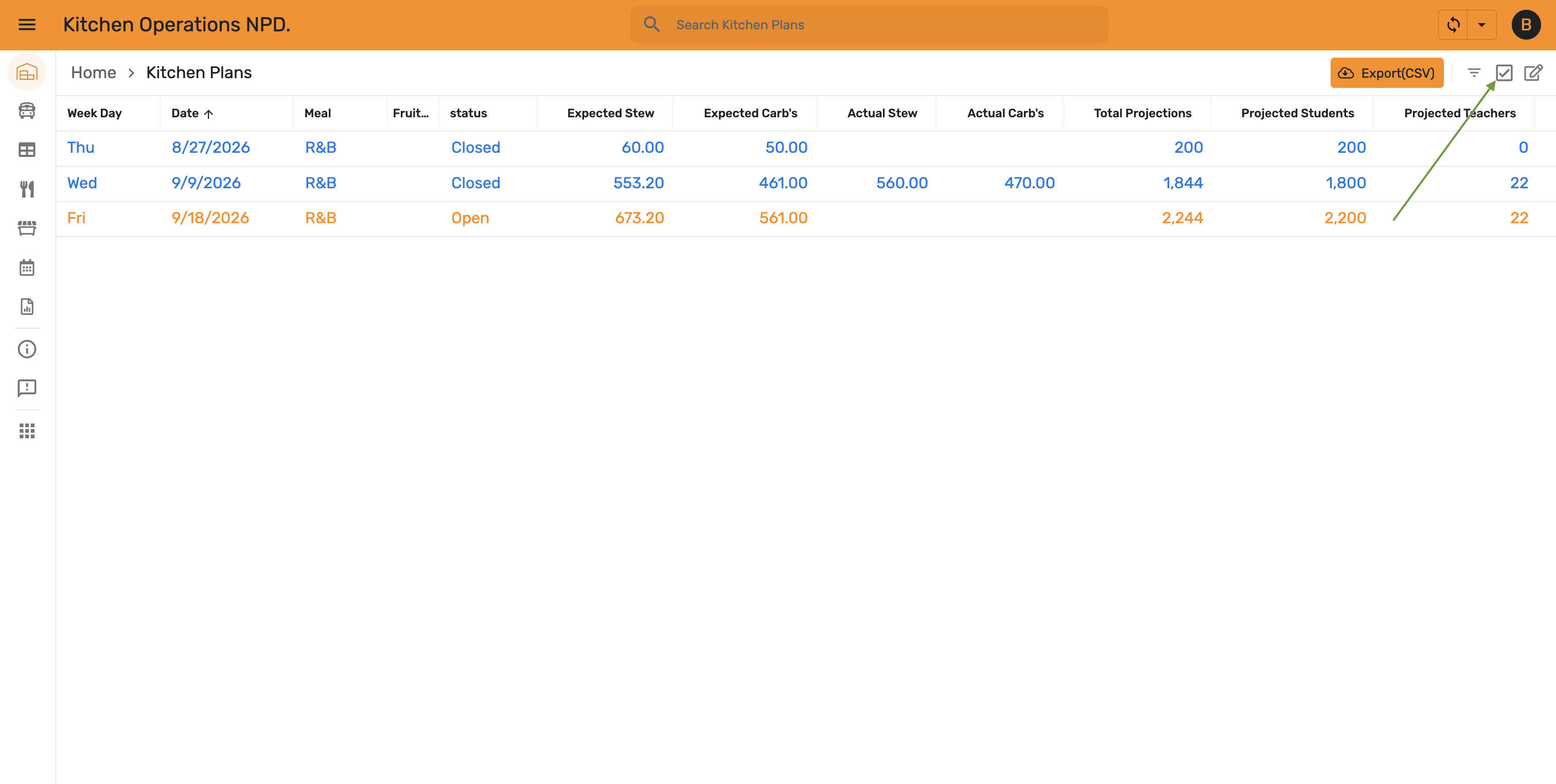
Back in Kitchen Plans, the plan's totals — Expected Stew, Expected Carb's, Total Projections, Projected Students, Projected Teachers — are now computed from what you entered. Select the plan's row.
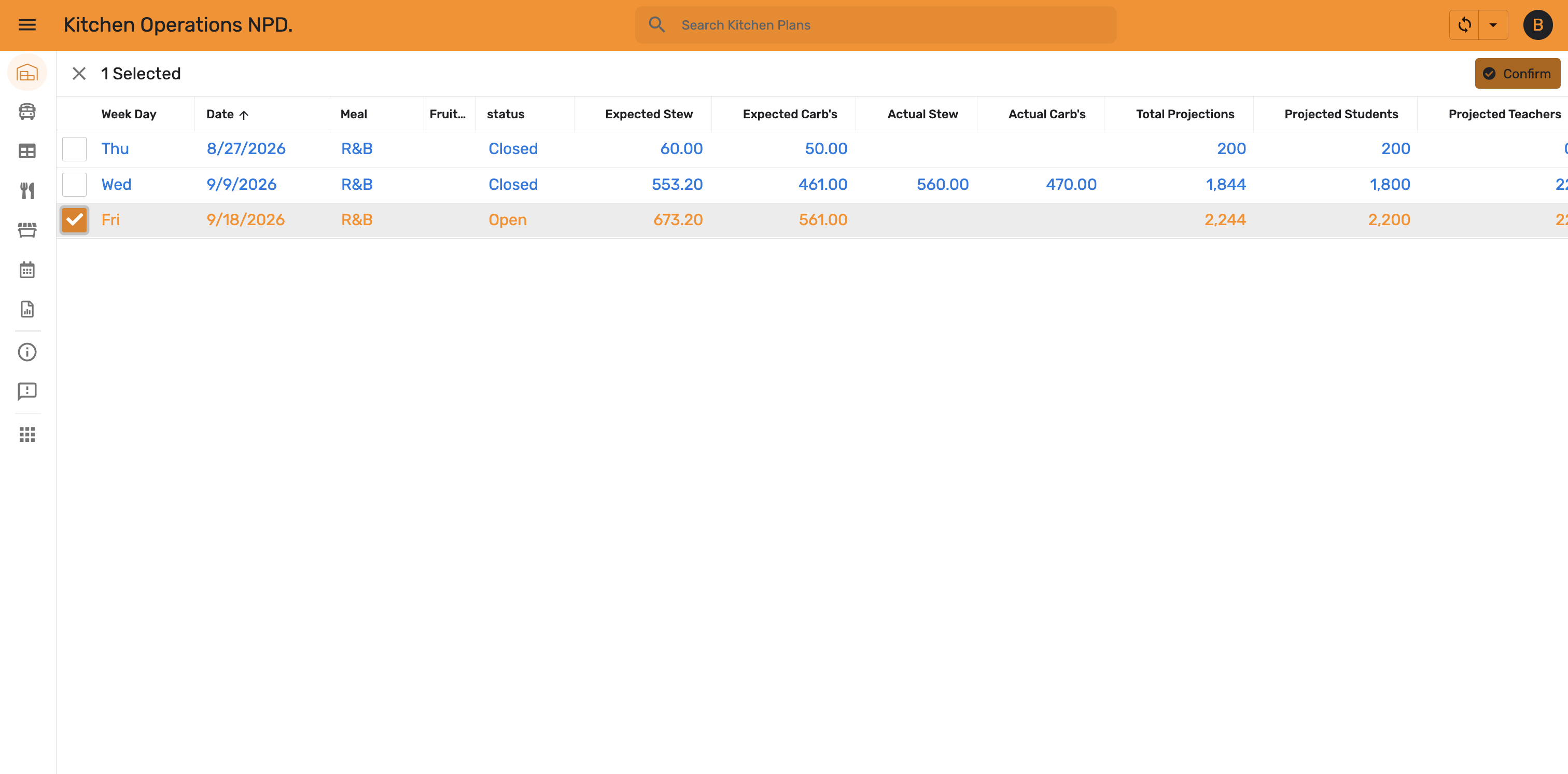
With the row selected, tap Confirm.
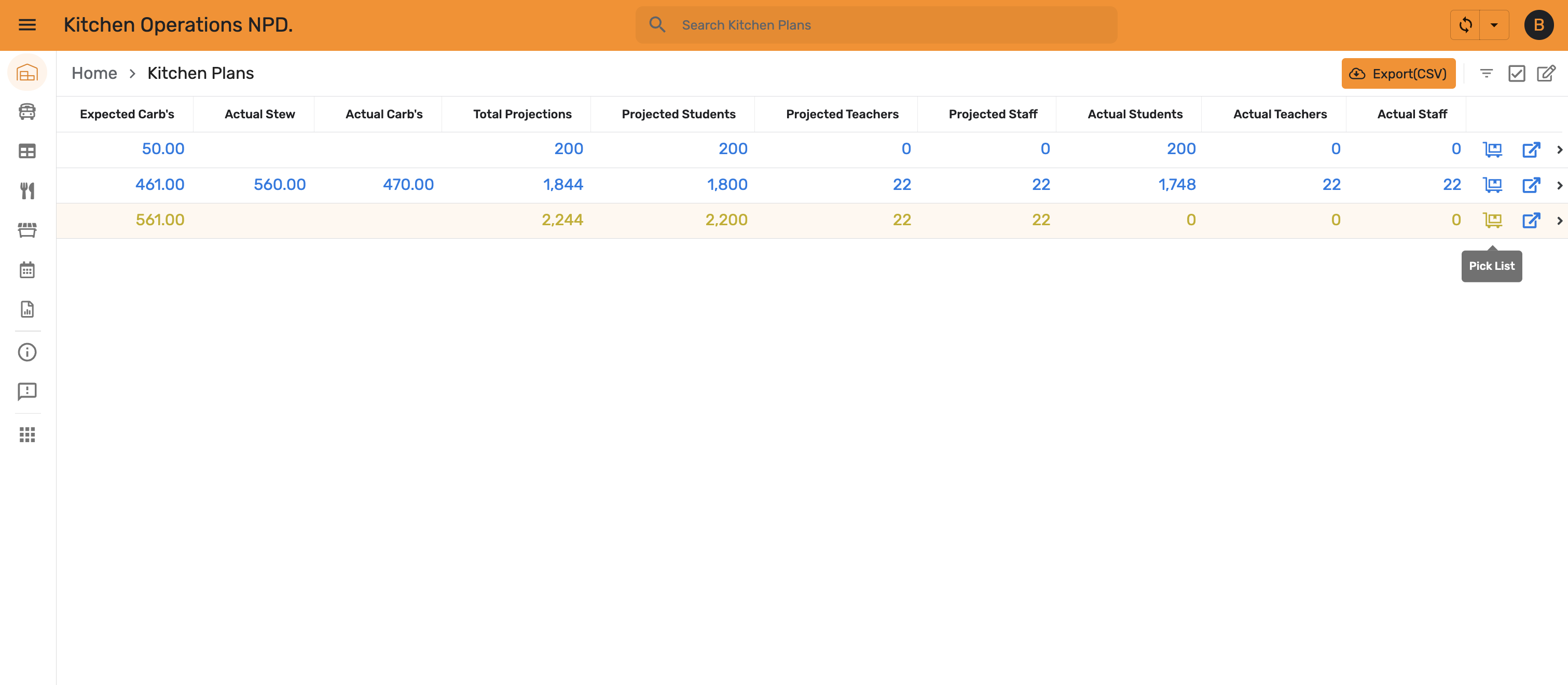
The plan moves to status Active, and Projected Staff and Projected Teachers are now populated. A Pick List icon appears on the row — tap it.
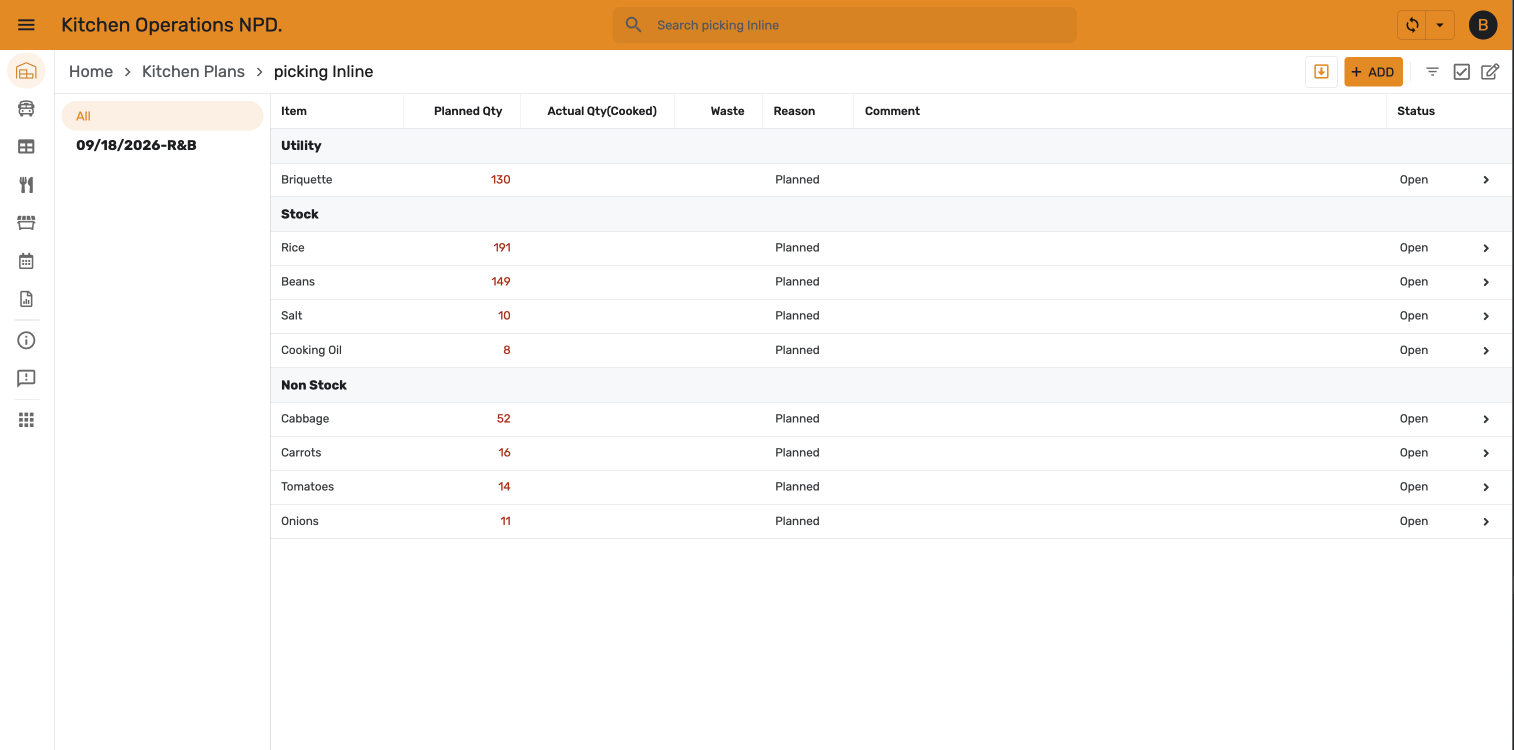
Picking Inline groups the plan's items under Utility, Stock, and Non Stock, each showing its planned quantity.
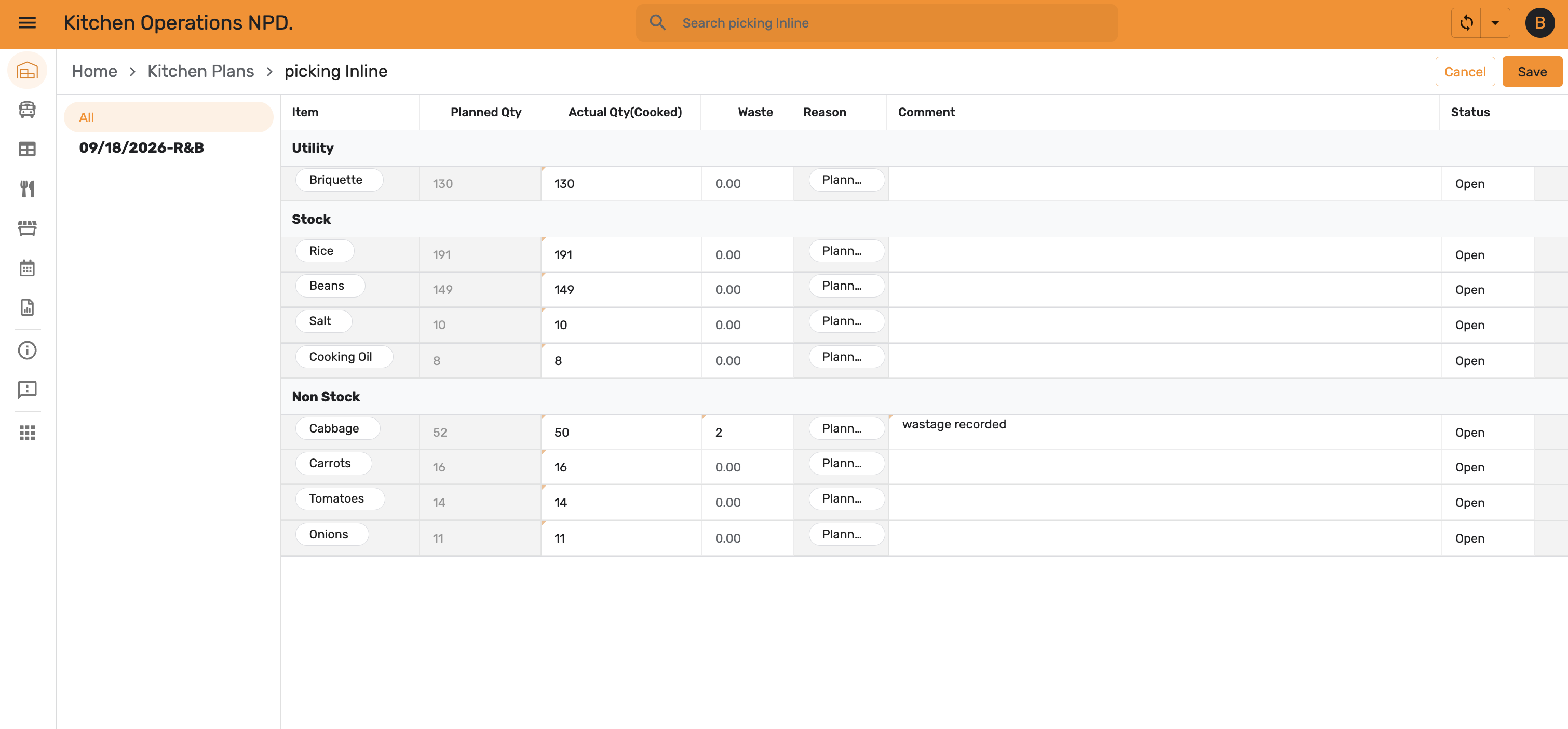
Enter the Actual Qty (Cooked) for each item. Where the actual differs from planned, record the Waste and a Comment explaining it.
The entries are saved against each item.
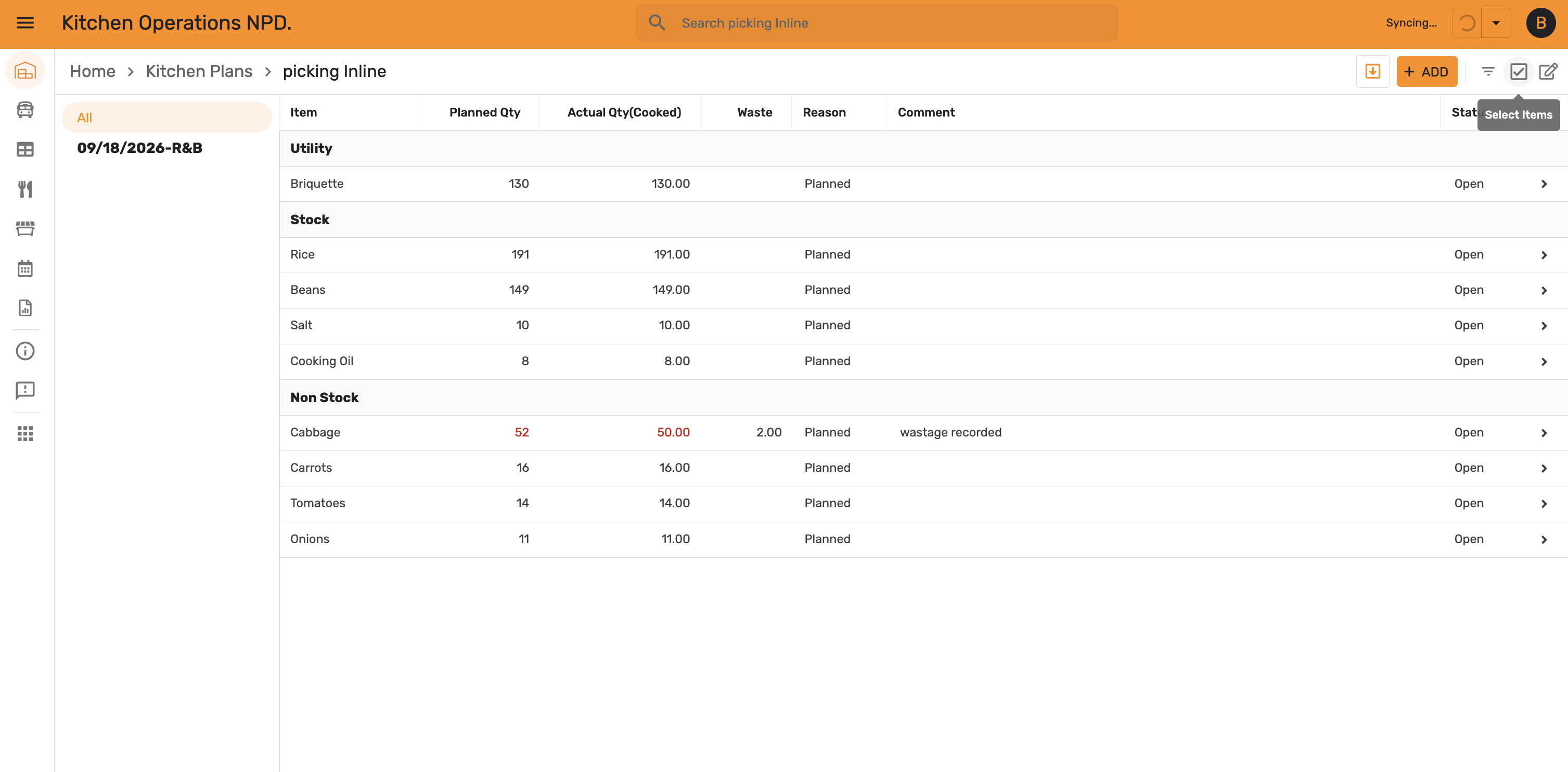
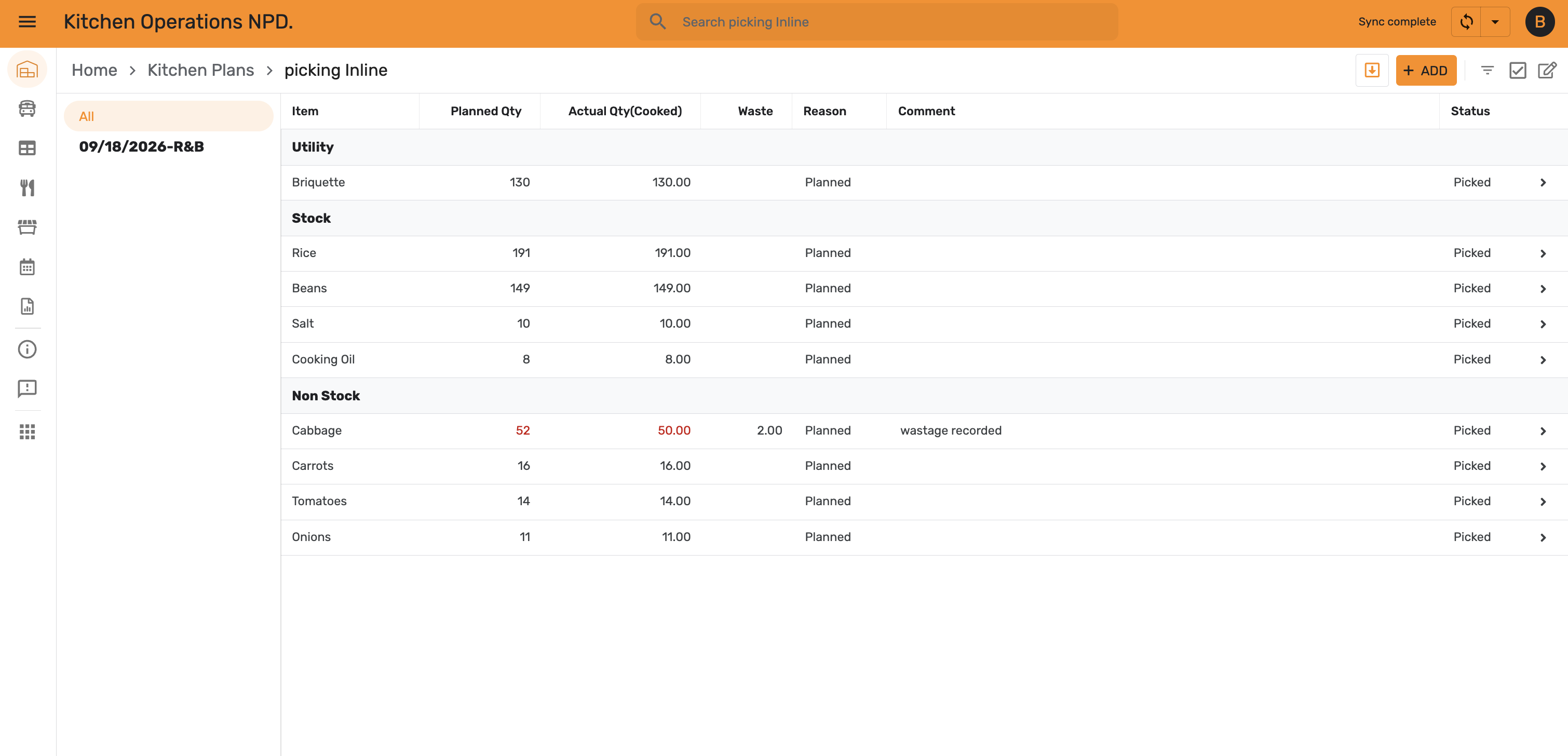
Select all items, then tap Pick.
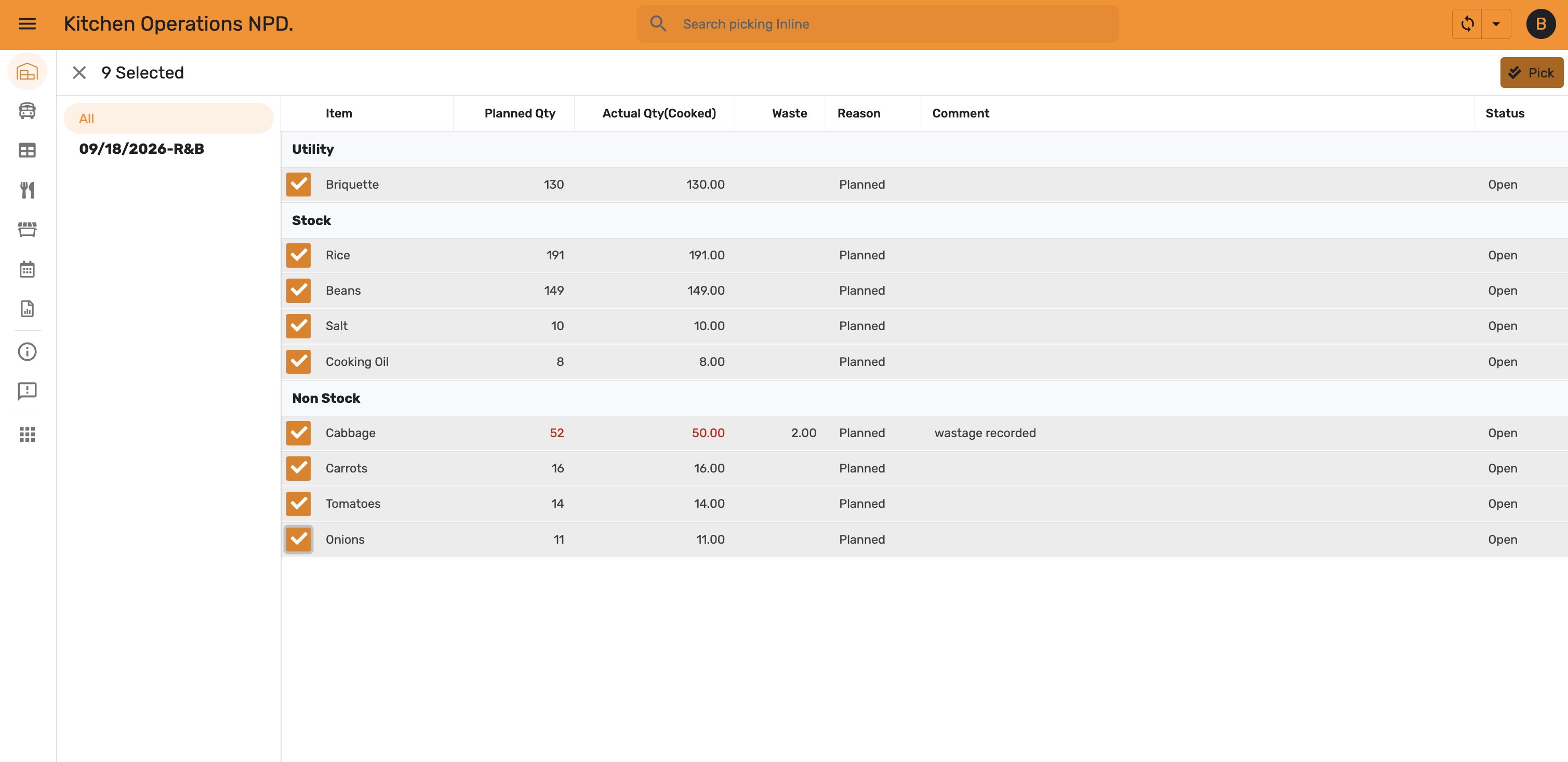
Every item's status changes to Picked.
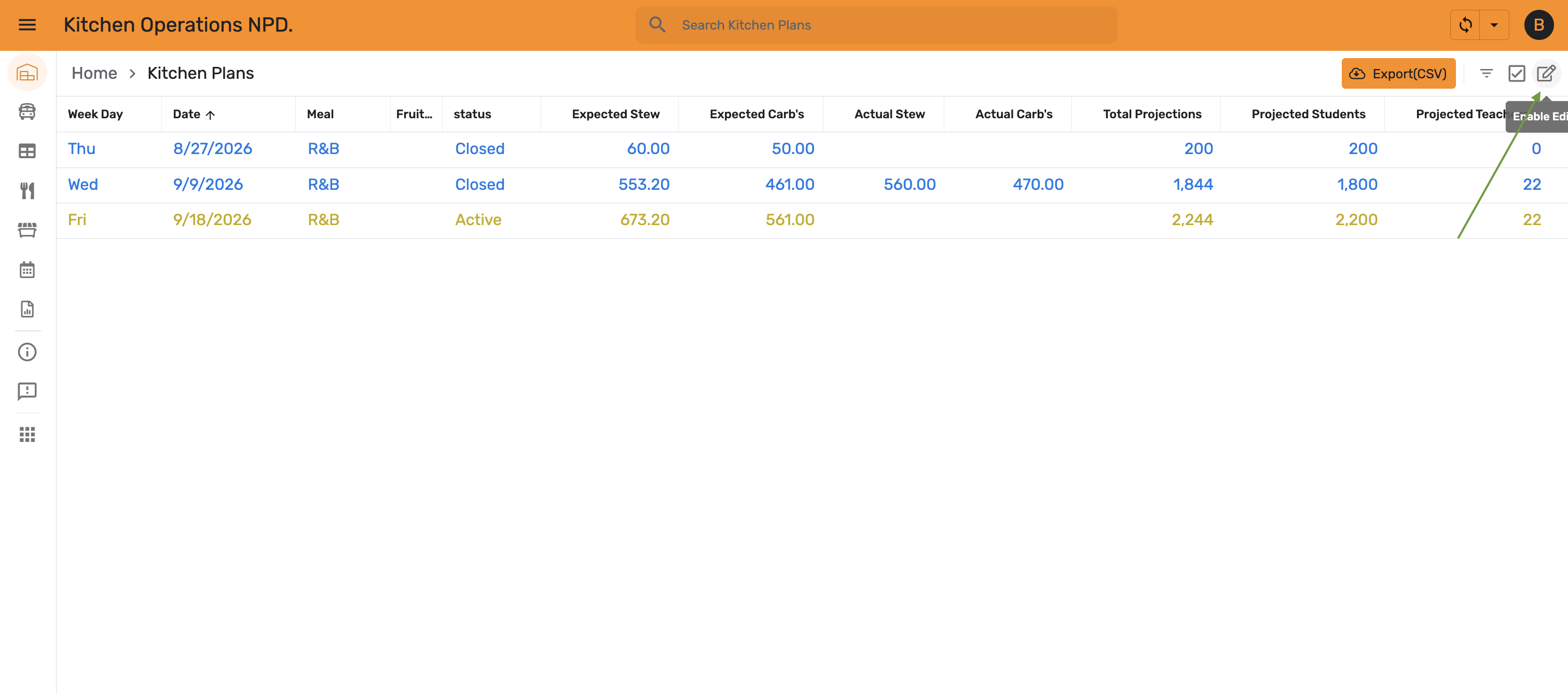
Back in Kitchen Plans, tap the edit icon to enter the kitchen-level actual carb's and stew.
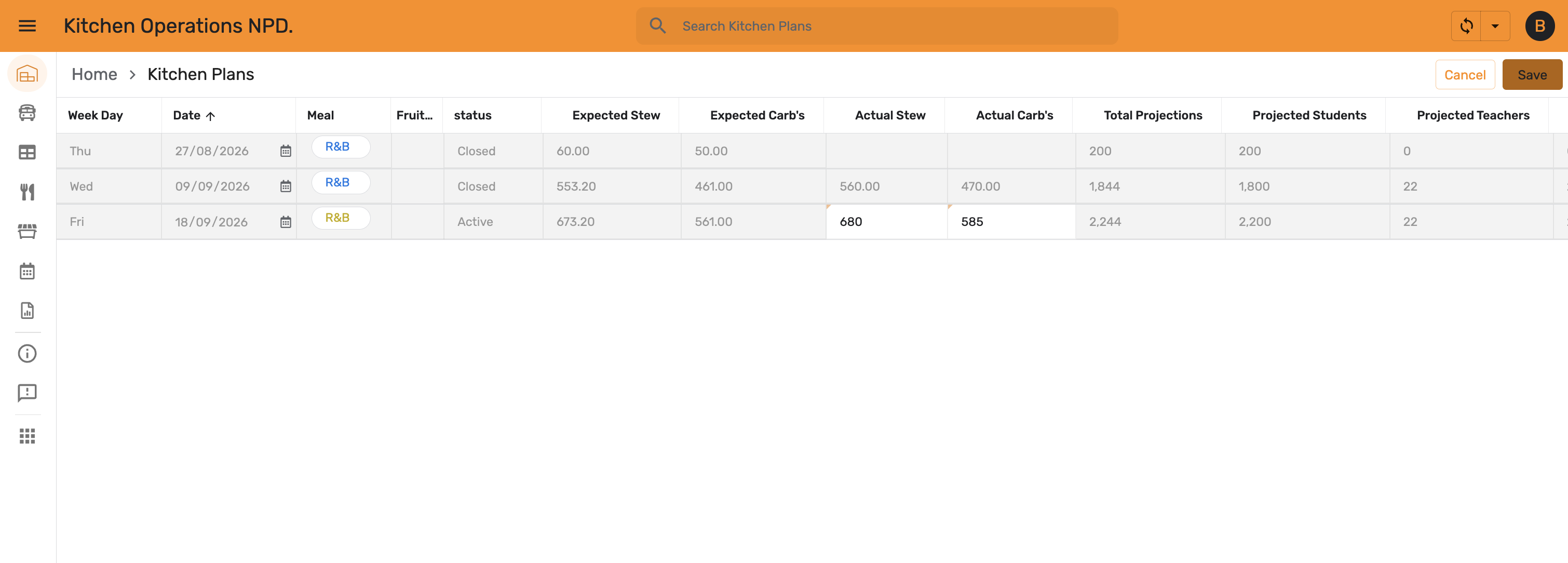
In Quick Edit, enter Actual Stew and Actual Carb's for the plan.
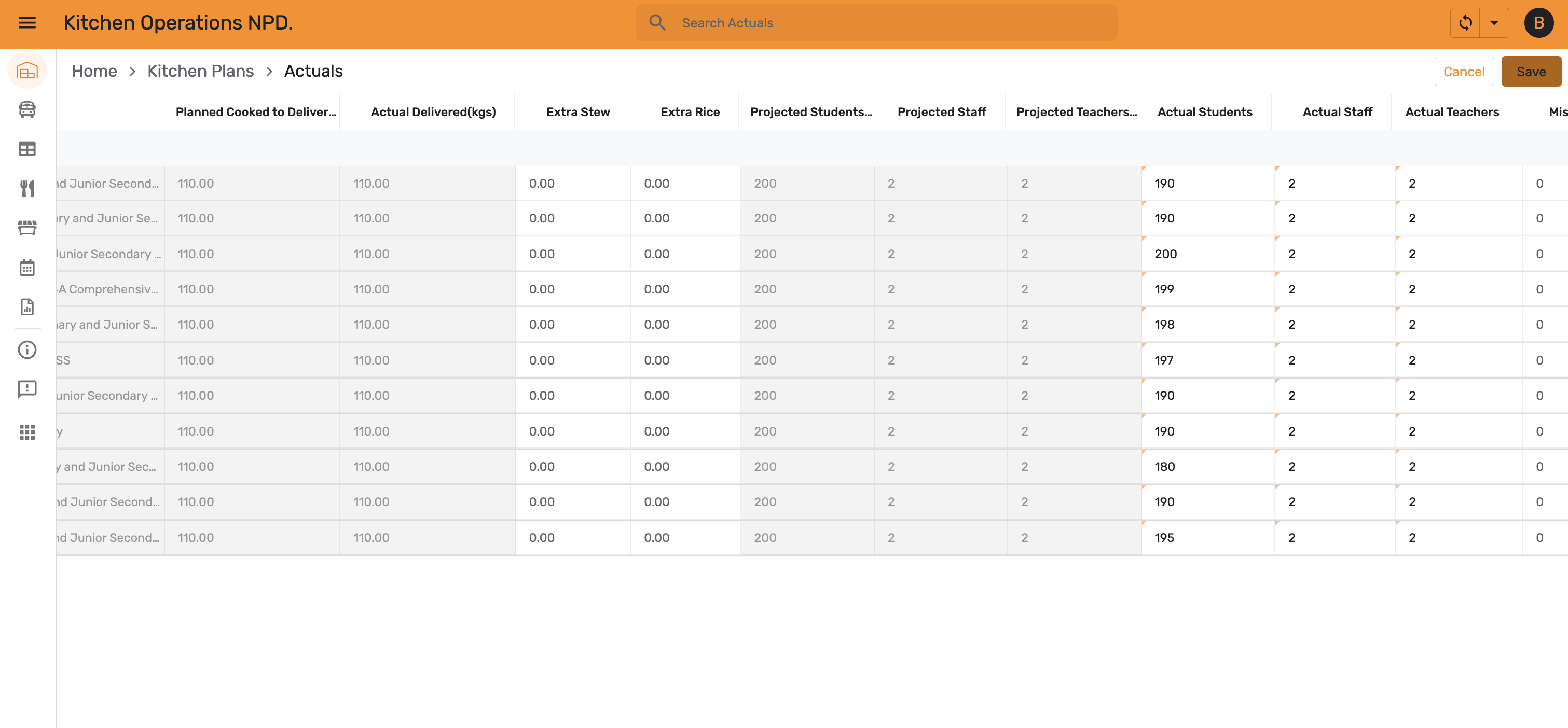
Open Actuals to record what was actually delivered and consumed per school — Actual Delivered (kgs), Extra Stew, Extra Rice, and Actual Students, Staff, and Teachers.
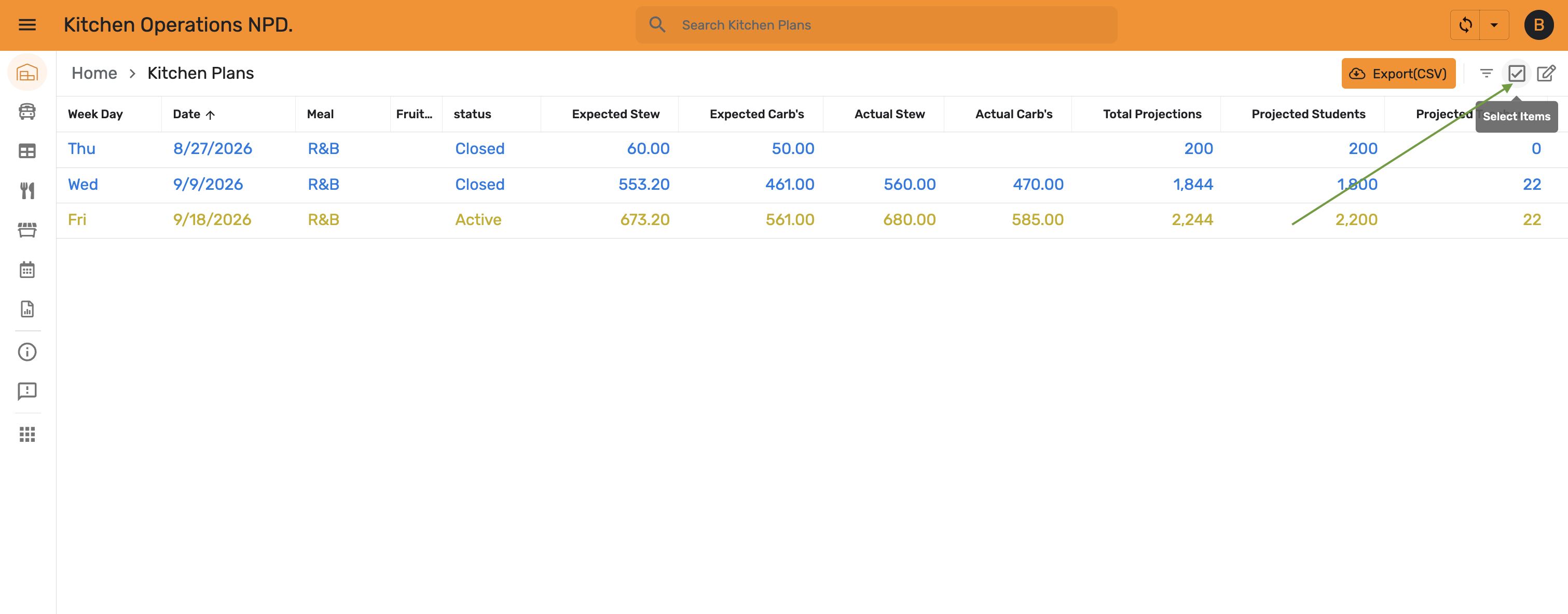
Back in Kitchen Plans, the row now shows the actual stew and carb's you entered. Select it.
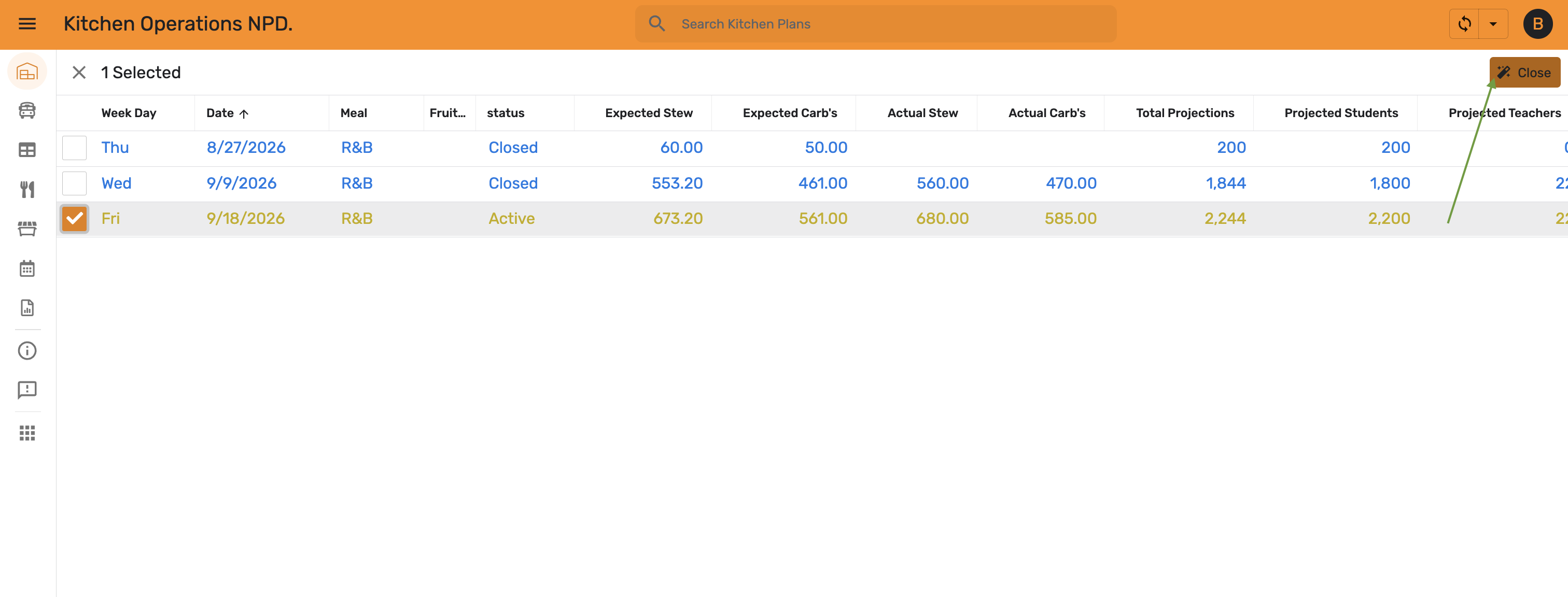
With the row selected, tap Close to finalize the plan.
The plan's status changes to Closed, completing the cycle.